> For the complete documentation index, see [llms.txt](https://en.idocs.wiki/llms.txt). Markdown versions of documentation pages are available by appending `.md` to page URLs; this page is available as [Markdown](https://en.idocs.wiki/smart-life/user-manual-for-smart-life.md).
# Use Smart Life App
This topic describes how to use the Smart Life app.
## Download app
Search for **Smart Life** in Apple’s App Store and other major app stores, or scan the following QR code to download the Smart Life app.
## User accounts
### Register account
1. Tap **Log in with Password** > **Register** in the top right corner of the page to go to the **Register** page.
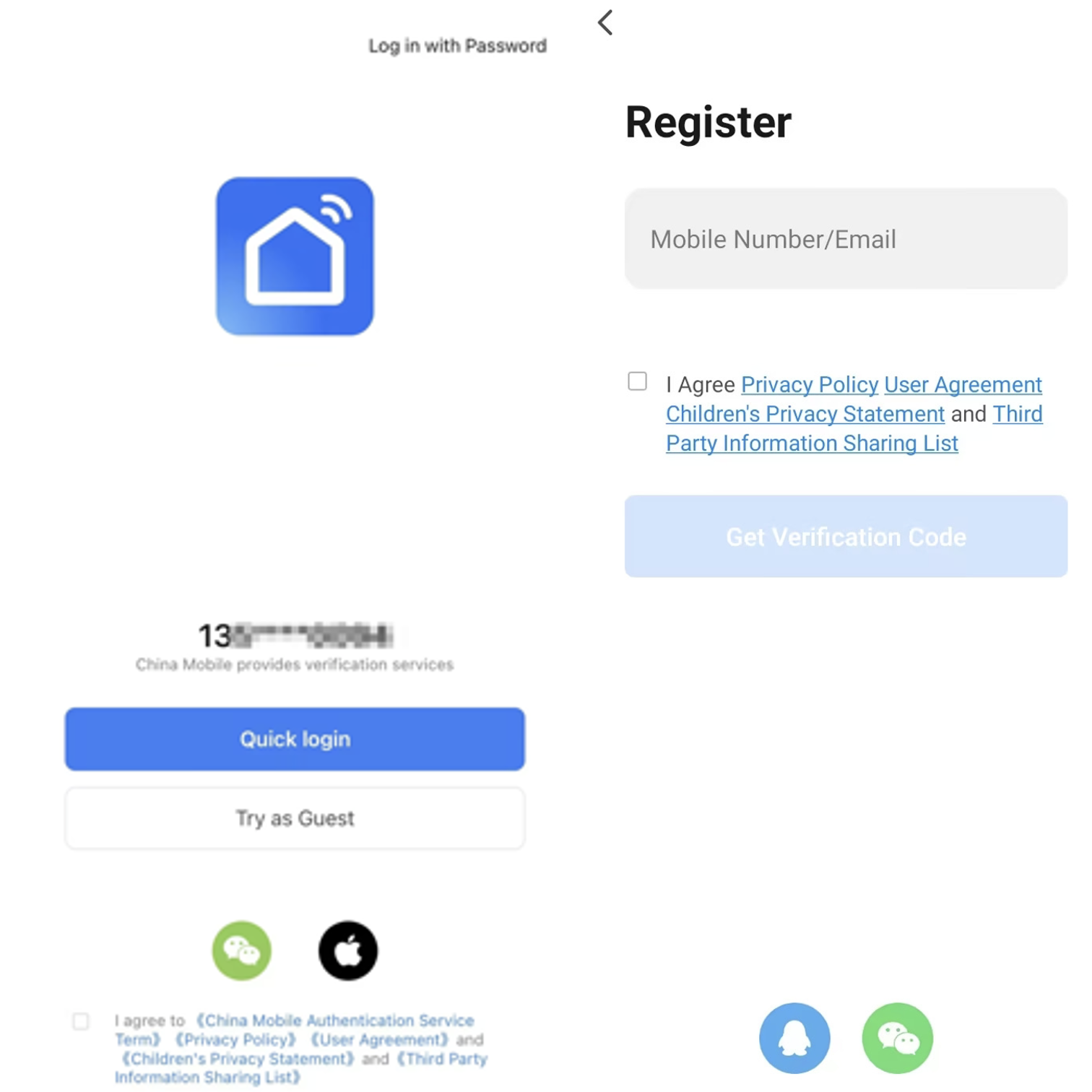
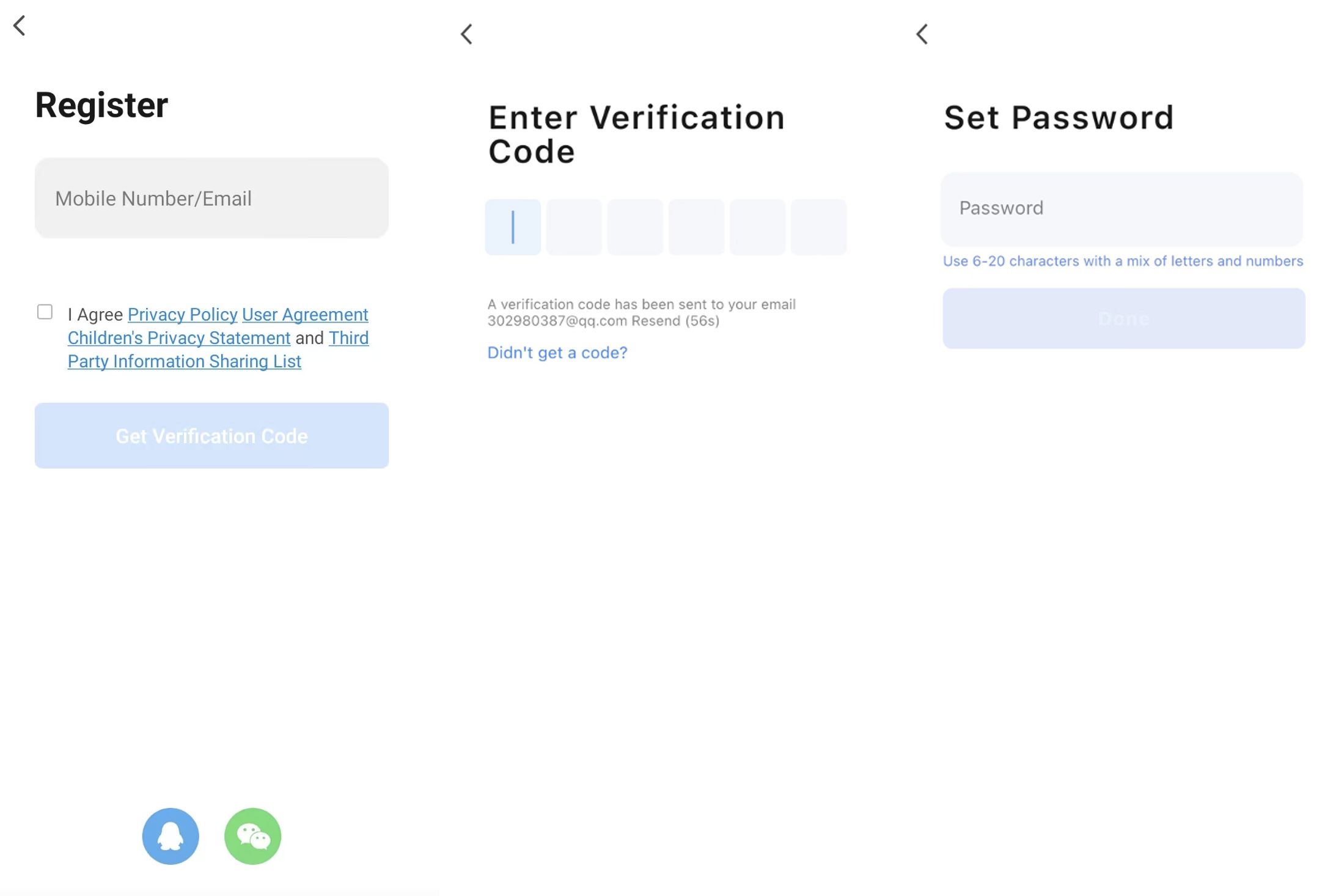
2. Enter a mobile phone number or email address, agree on the **User Agreement**, **Privacy Policy**, and **Third-Party Information Sharing List**, and then tap **Get Verification Code**.
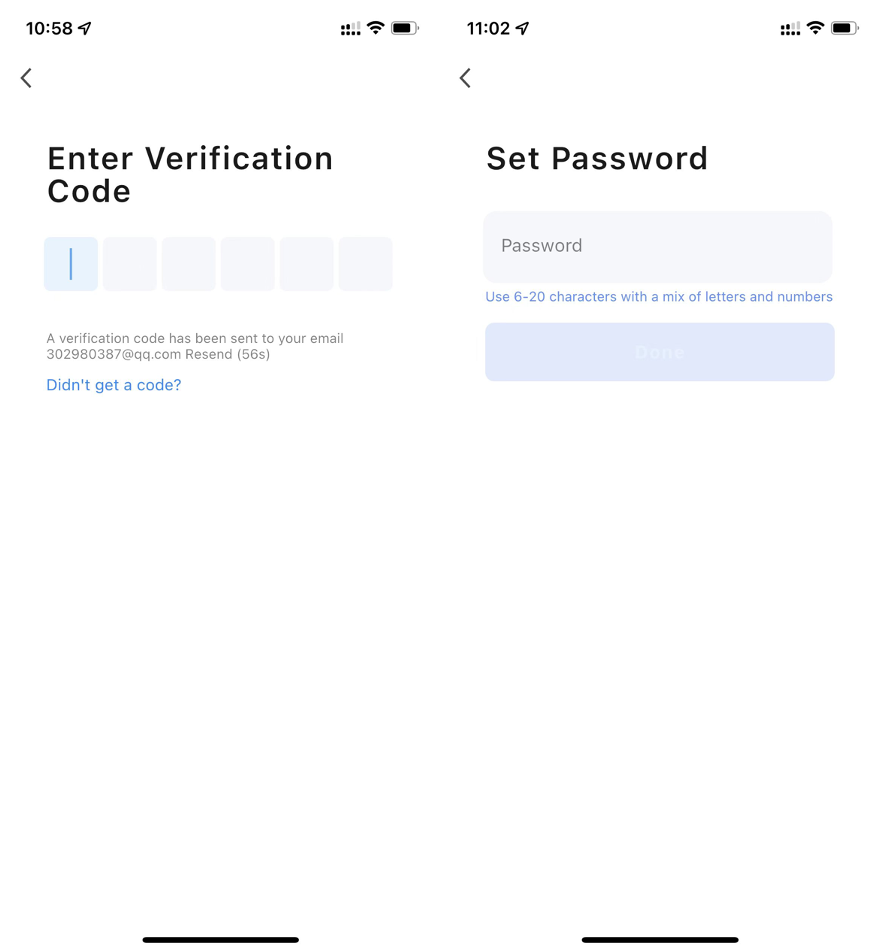
3. Enter the returned verification code to navigate to the password setting page. Set a password as required and tap **Done**.
### Log in with app account or third-party account
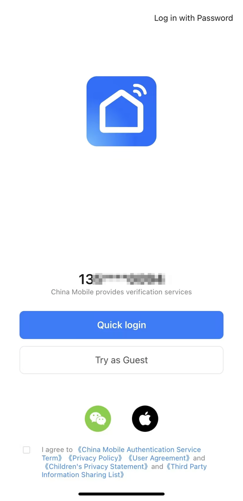
1. The Smart Life app automatically reads the mobile phone number from the SIM card on the current mobile phone. Users can tap **Quick Login** to log in to the app.
2. Open the app. If you have registered an account of the app, tap **Log In** to go to the login page.
3. Enter the registered mobile phone number or email address and the password and tap **Log In**.
4. Log in with a third-party account.
If WeChat or Tencent QQ is installed on the mobile phone and a WeChat or Tencent QQ account is created, tap the WeChat or Tencent QQ icon on the login page. On the authorization page that appears, enable authorized login with the WeChat or Tencent QQ account. For an iPhone, an Apple ID can also be used for login.
### Configure biometric login
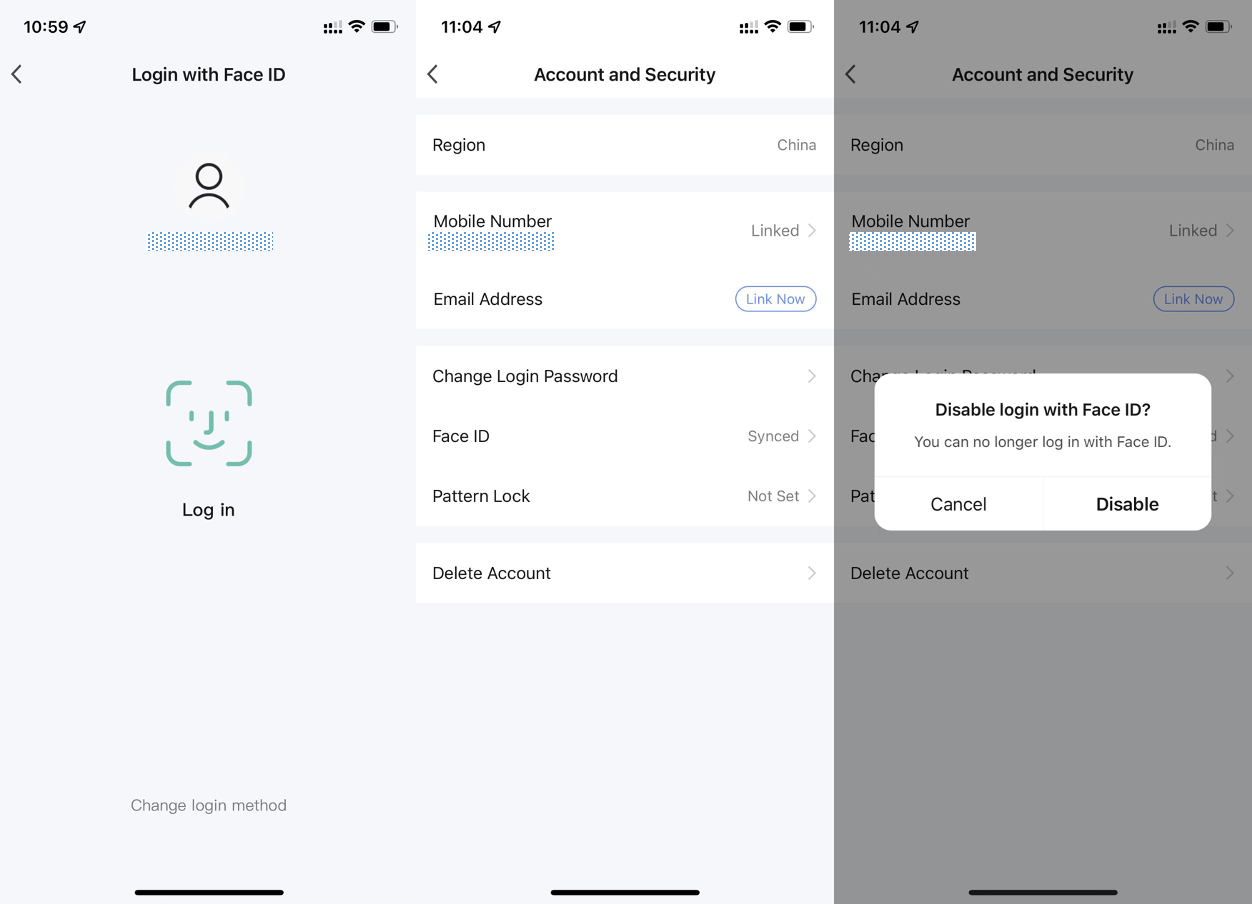
The biometric login feature makes login more convenient and secure. The app for iOS supports **Face ID**, and the app for Android supports **Touch ID**. During biometric login, the user does not need to enter the account and password, or perform other login operations. Login can be enabled even if the password is forgotten. On the **Account and Security** page, the user can enable or disable login with the face ID.
### Change an account
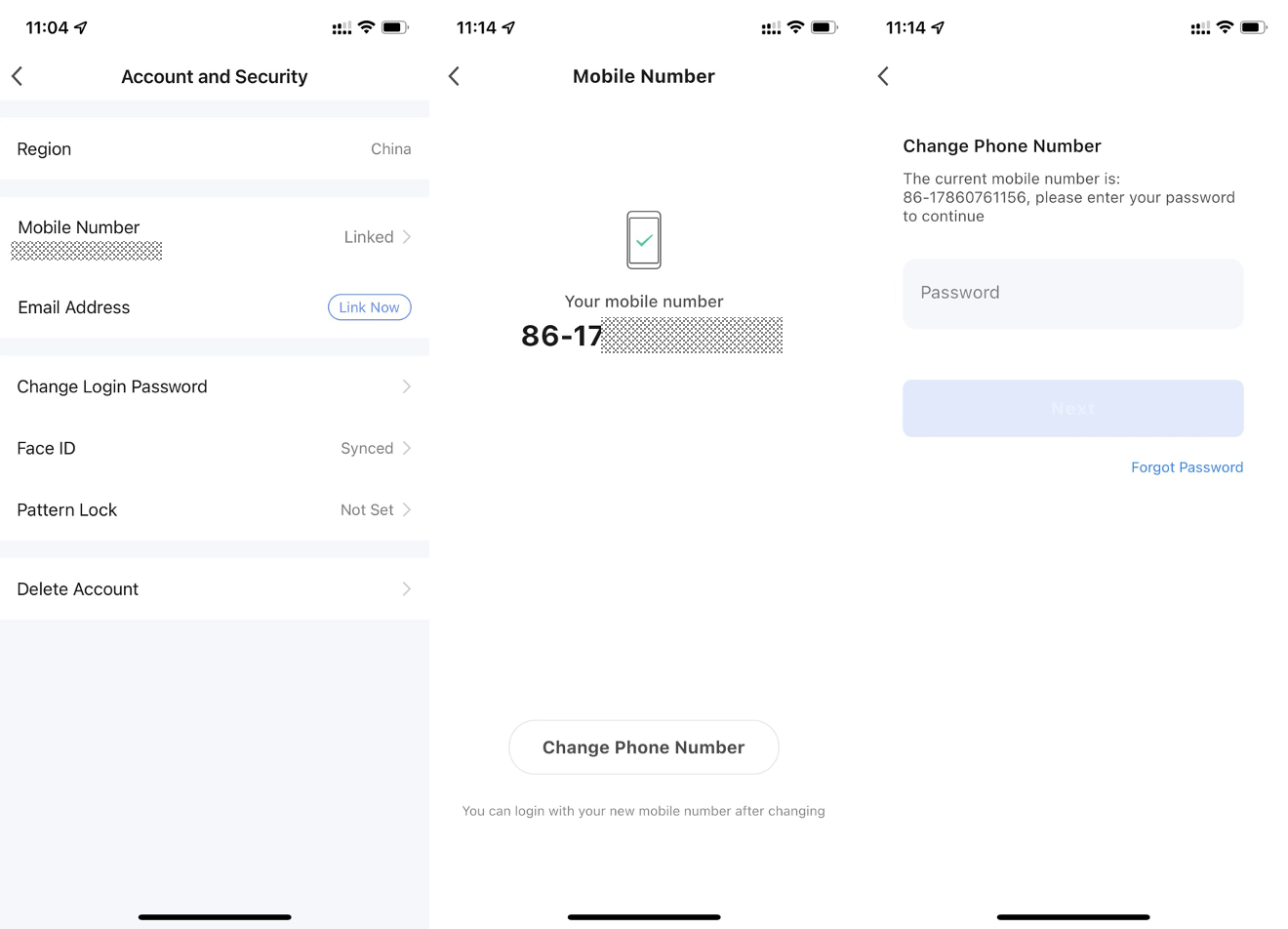
1. After login to the app, tap **Me** and then the **settings** icon.
2. On the **Settings** page, tap **Account and Security**.

3. Tap **Mobile Number** to change the mobile phone number, or **Email Address** to change the email address. To change the mobile phone number,
1. choose **Mobile Number** > **Change Phone Number**.
2. On the page that appears, enter your password and tap **Next**. On the **Bind Mobile Number** page, enter a new mobile phone number and tap **Get Verification Code**. On the **Enter Verification Code** page, enter the returned verification code.
### Reset a password
If the login password is forgotten, the user can reset the password based on the following steps:
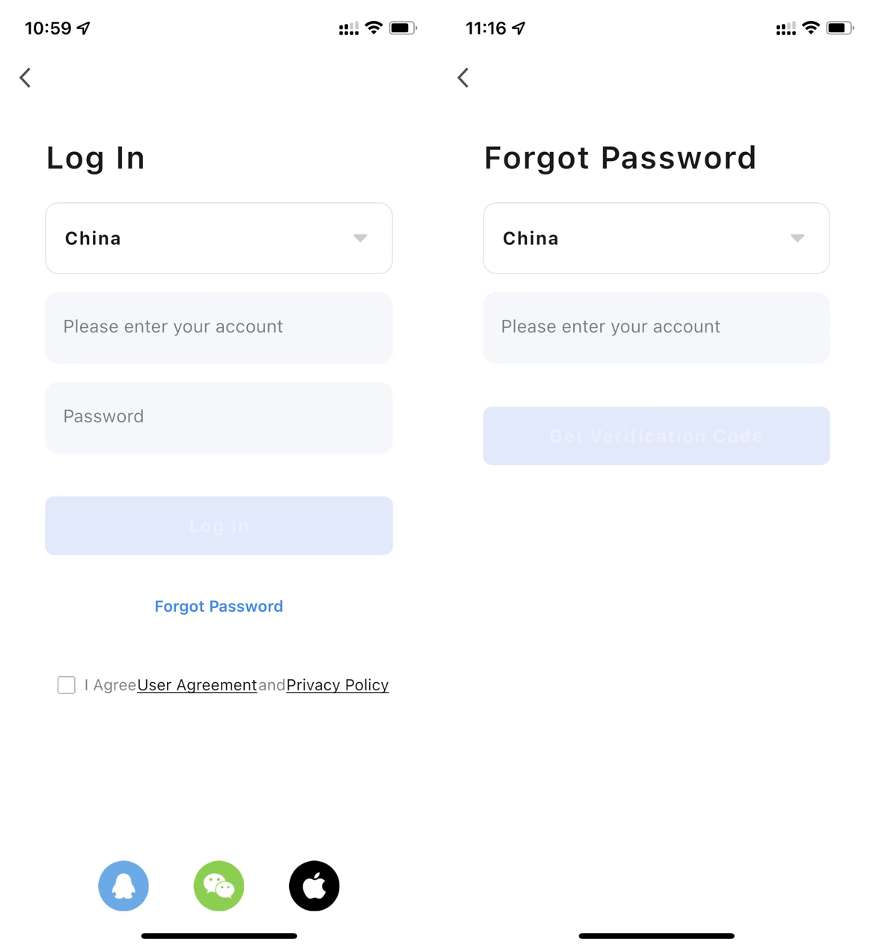
1. On the **Log In** page, tap **Forgot Password**.
2. Enter the registered mobile phone number or email address and tap **Get Verification Code**.
3. Enter the code that was sent to the mobile phone number or email address.
4. On the page that appears, enter a new password and tap **Done**. Then, the password is reset, and the app is automatically logged in.
5. For security concerns, the app detects risks in the user’s phone system during login. If the app detects a root or jailbreaking risk, a **security reminder** is displayed. The user can determine whether to exit the app or not. It is disabled by default.
### Try out the app
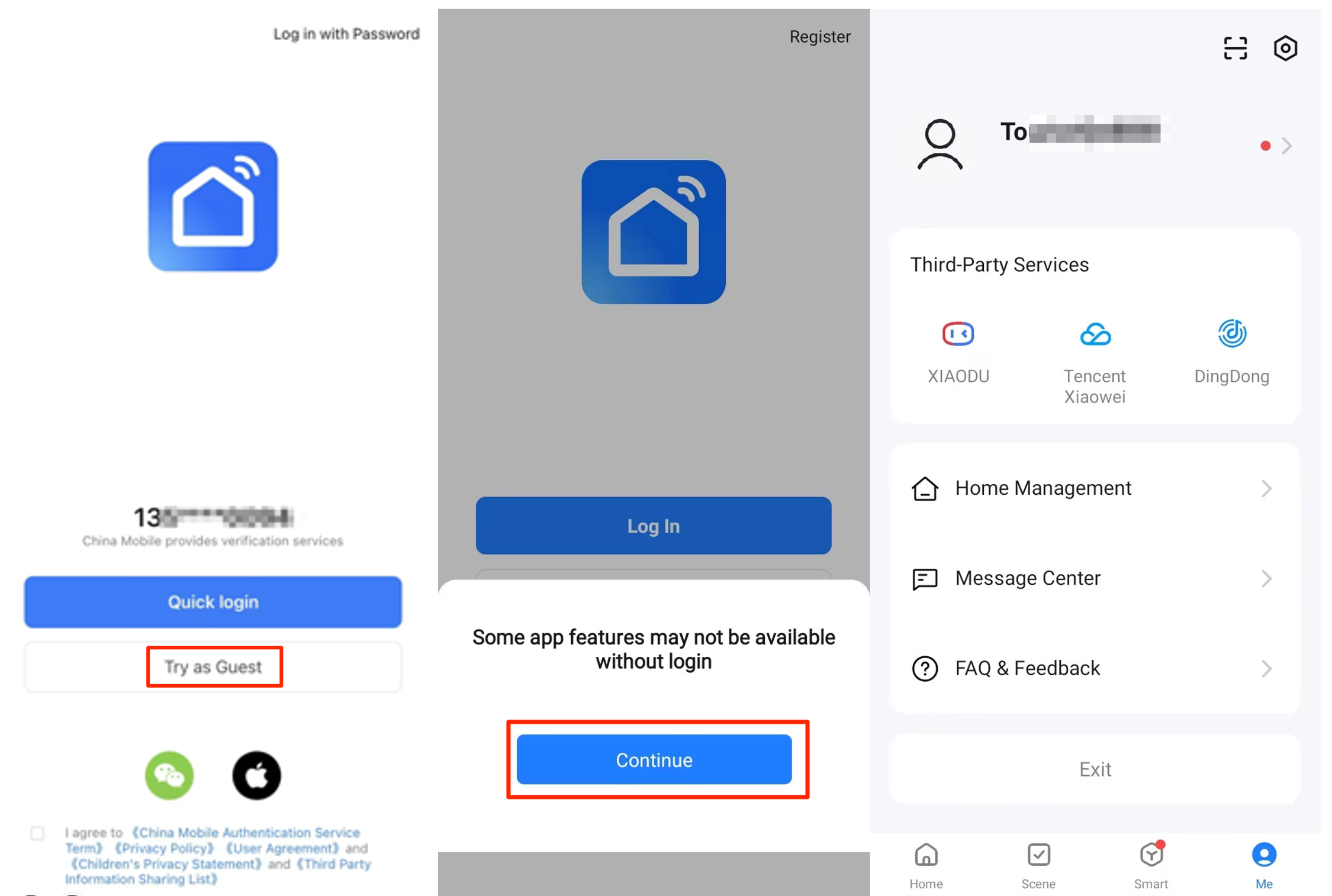
1. Open the app and tap **Try as Guest**.
A dialog box appears, indicating that cloud storage, third-party voice control, and device sharing are not supported in trial mode.
2. Tap **Continue**. The **Home** page appears.
3. Complete account information to try out all available features of the app.
## Use the app
### Manage homes and home members
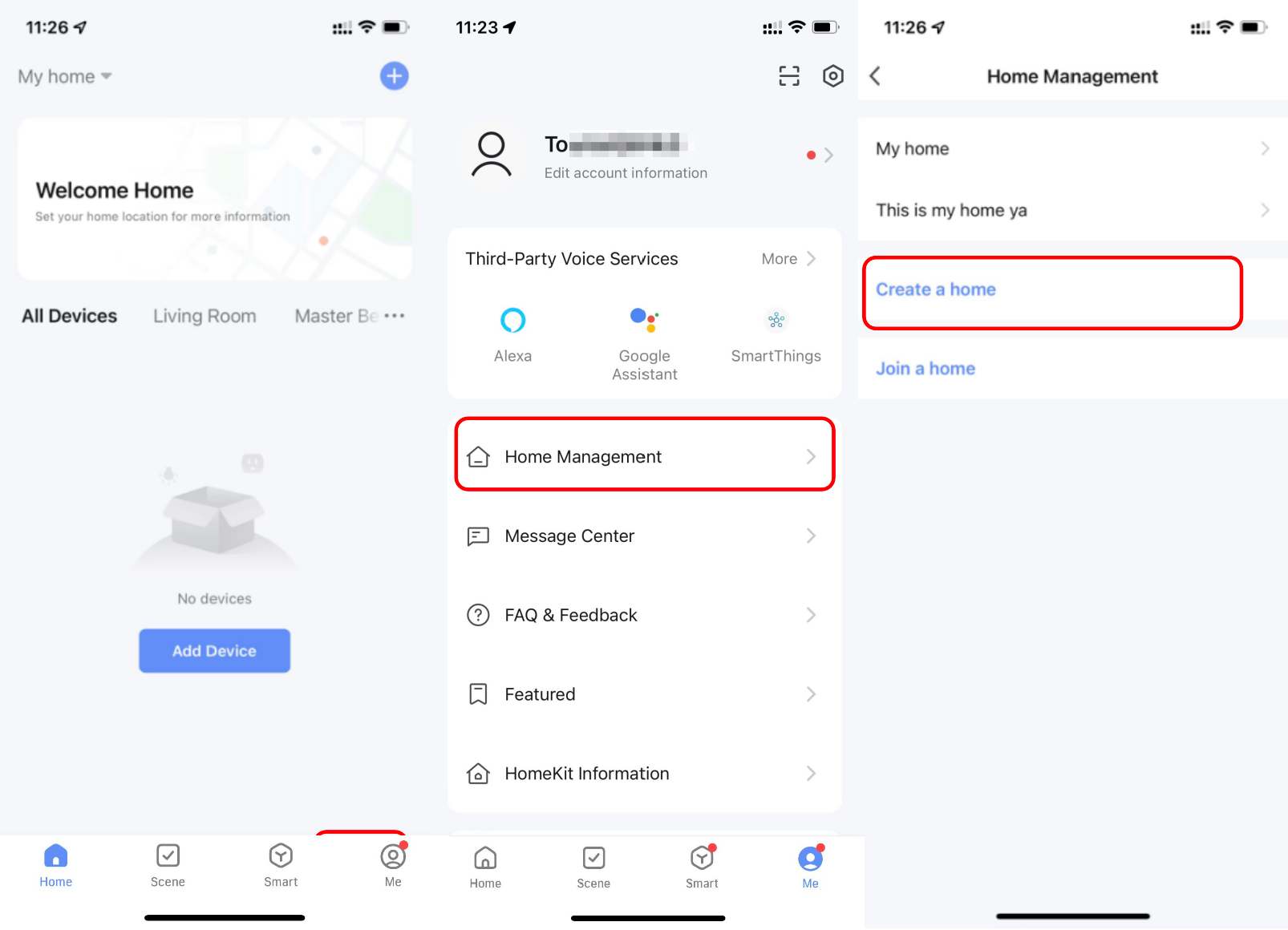
1. After login to the app as a new user, the **Home** page where devices are listed appears. The user’s avatar is displayed in the top-left corner of the page. Before home information is completed, the **Home** page does not display environment or room information.
2. In the bottom navigation bar, tap **Me** > **Home Management** to go to the **Home Management** page.
3. After the new user taps **Home Management**, the user can edit the information about **adding a home** on the page that appears.
4. If a home has already been added, tap **Create a home** on the **Home Management** page to go to the **Create a home** page.
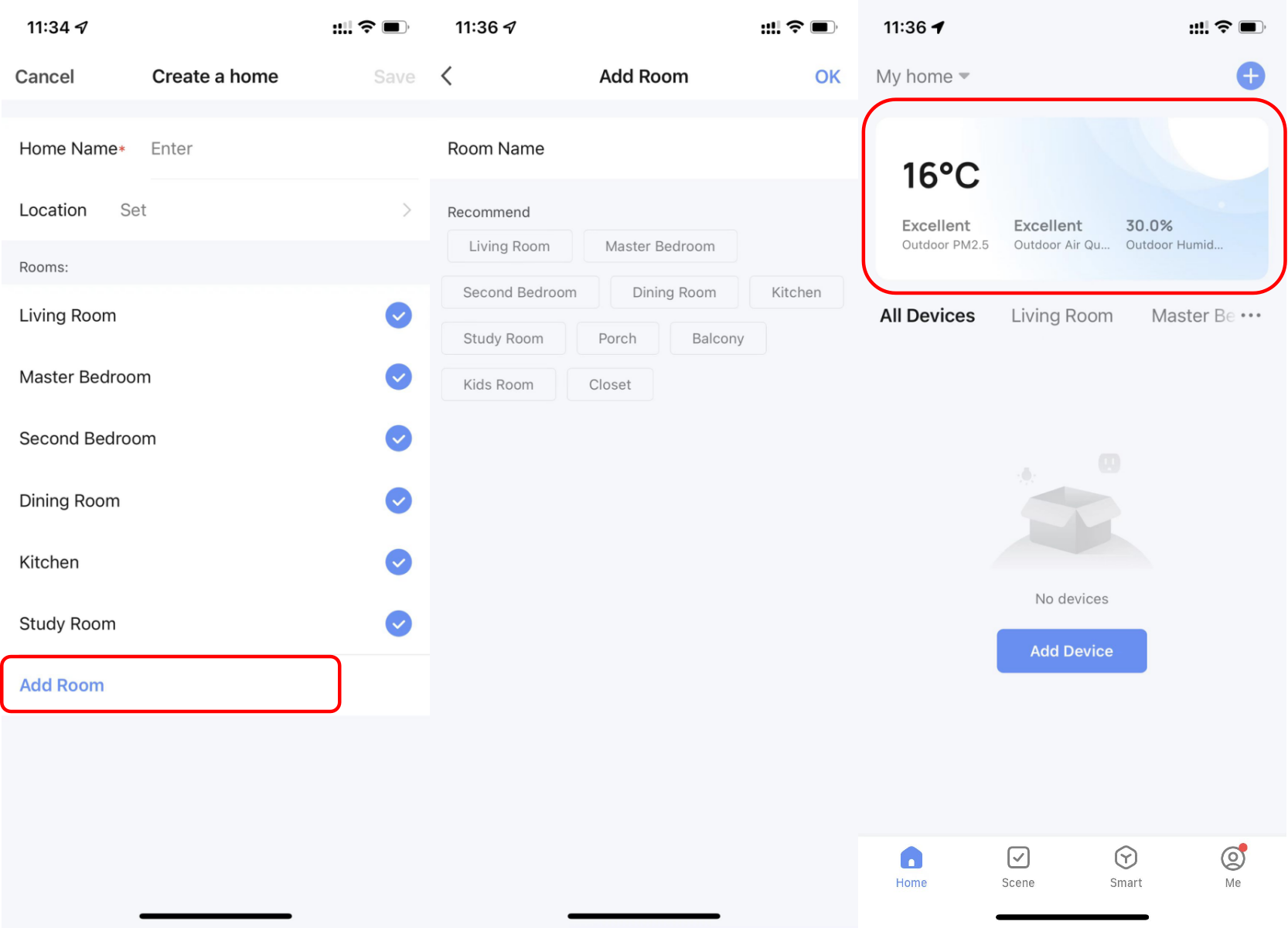
5. Enter a name for the home in the **Home Name** field. A maximum of 25 characters is allowed.
6. **Home location** is set based on your phone’s location. Tap **Location**. On the **Location** page, verify that the location is correct and tap **OK** in the top right corner of the page. The location is set based on the phone location. The user can also change the location by setting the coordinate.
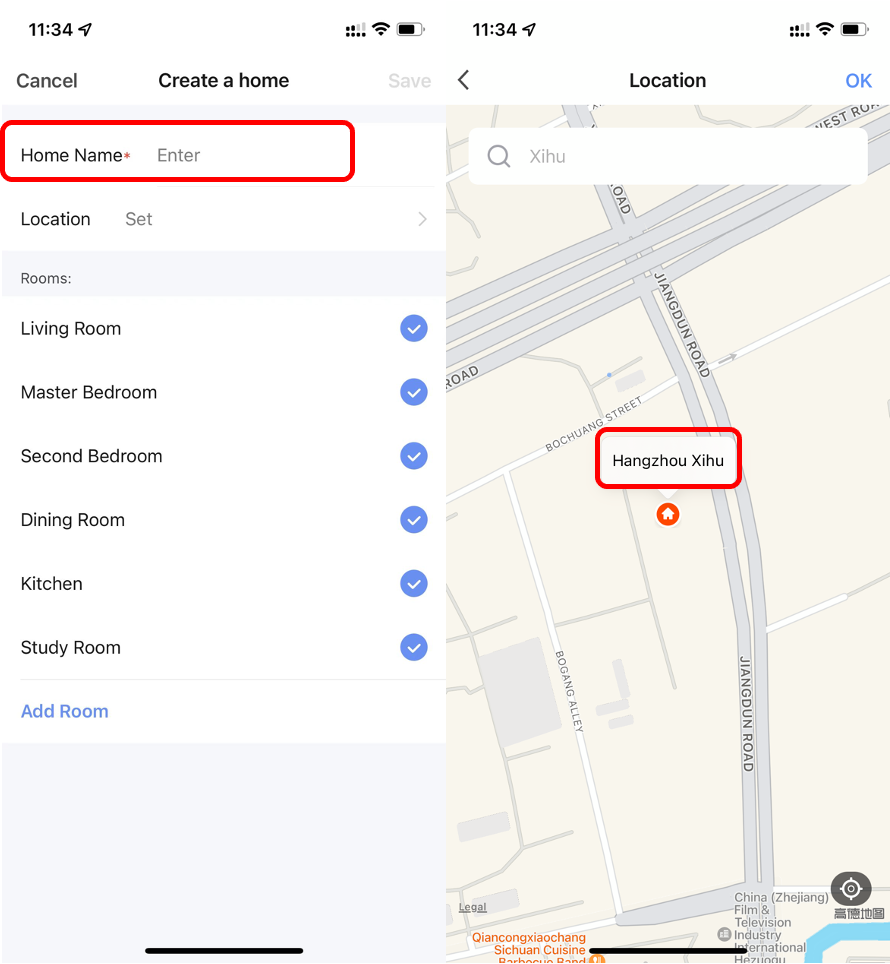
7. Select rooms in the **Rooms** section. The user can use the default room names on the app or tap **Add Room** to customize a room name. A maximum of 25 characters is allowed for a room name.
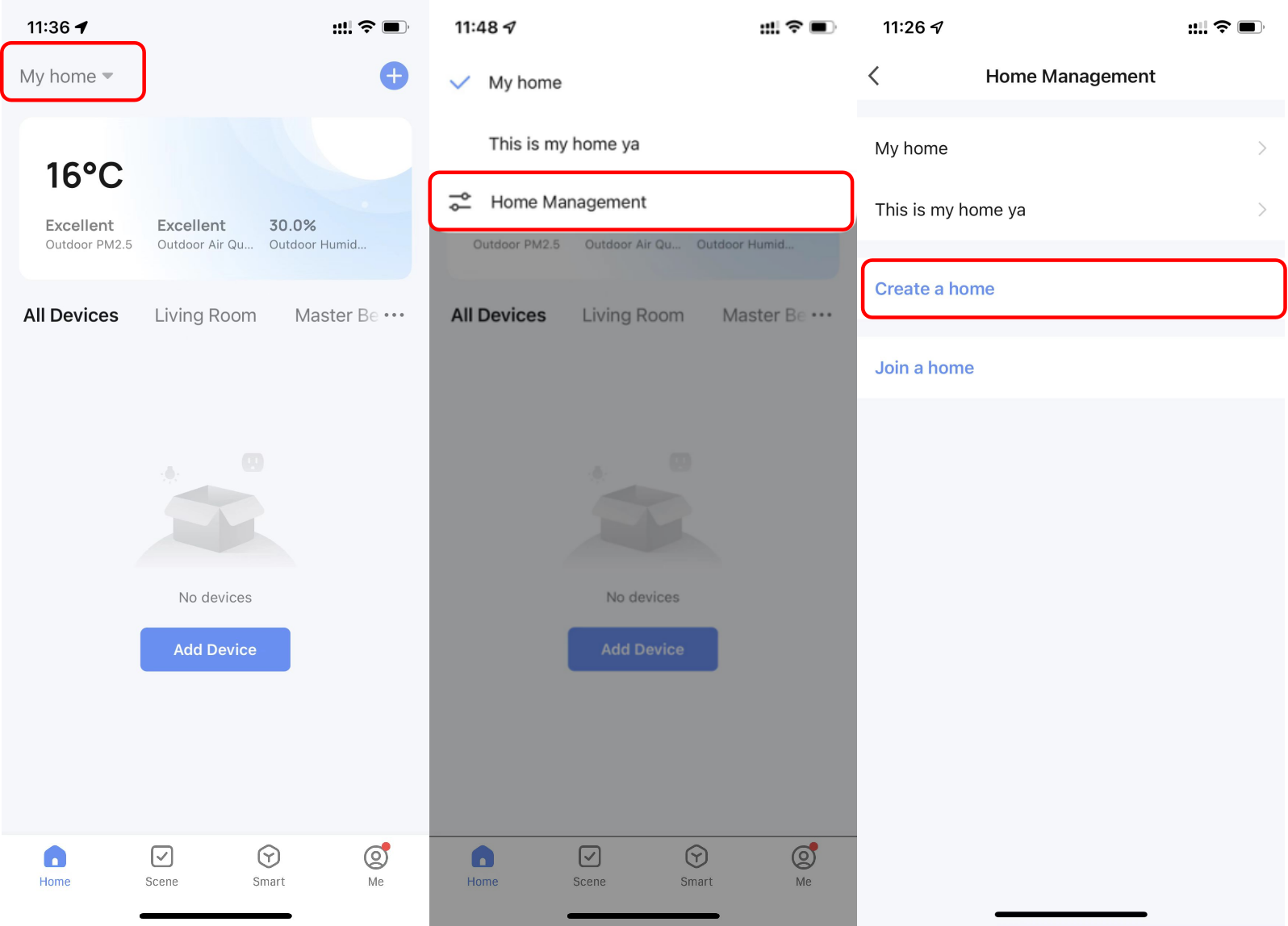
8. After the home information is completed, go back to the **Home** page. The information, such as the weather, temperature, and room names, is displayed. If more than one home is added, tap the home name in the top left corner of the page to switch between and manage **homes**.
9. In the drop-down list, tap **Home Management** to manage homes, **create a home**, or **join a home**. An account can be used to control multiple homes. The smart devices in different homes are independent of each other.
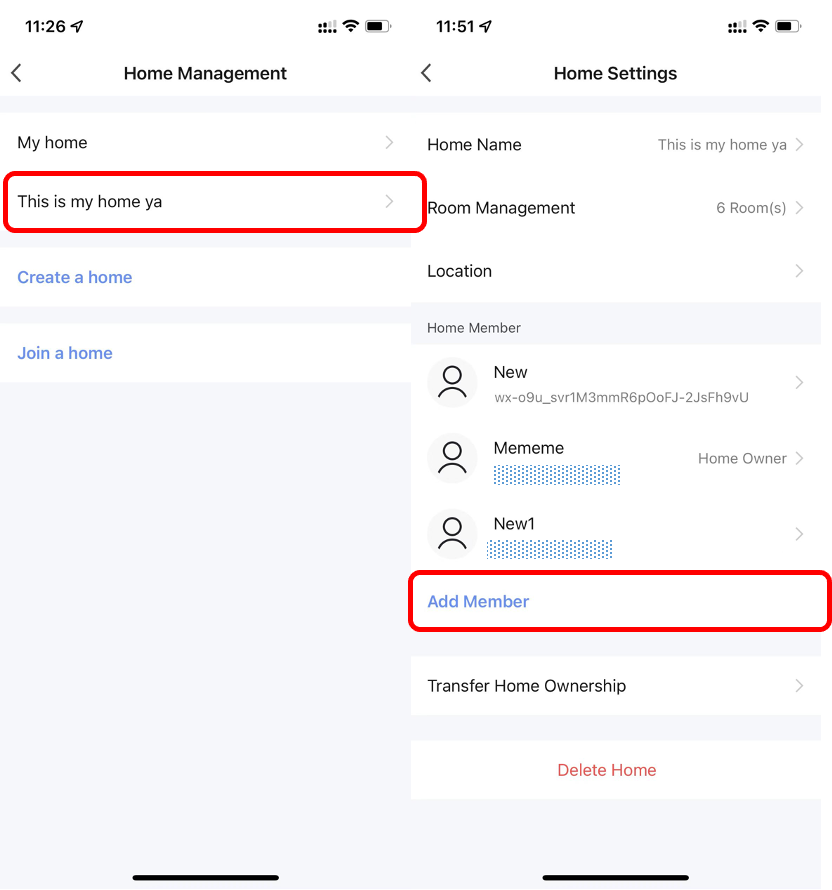
10. Tap a home name, such as **This is my home ya**, and select **Home Management** from the drop-down list. On the **Home Management** page, tap the home name to go to the **Home Settings** page.
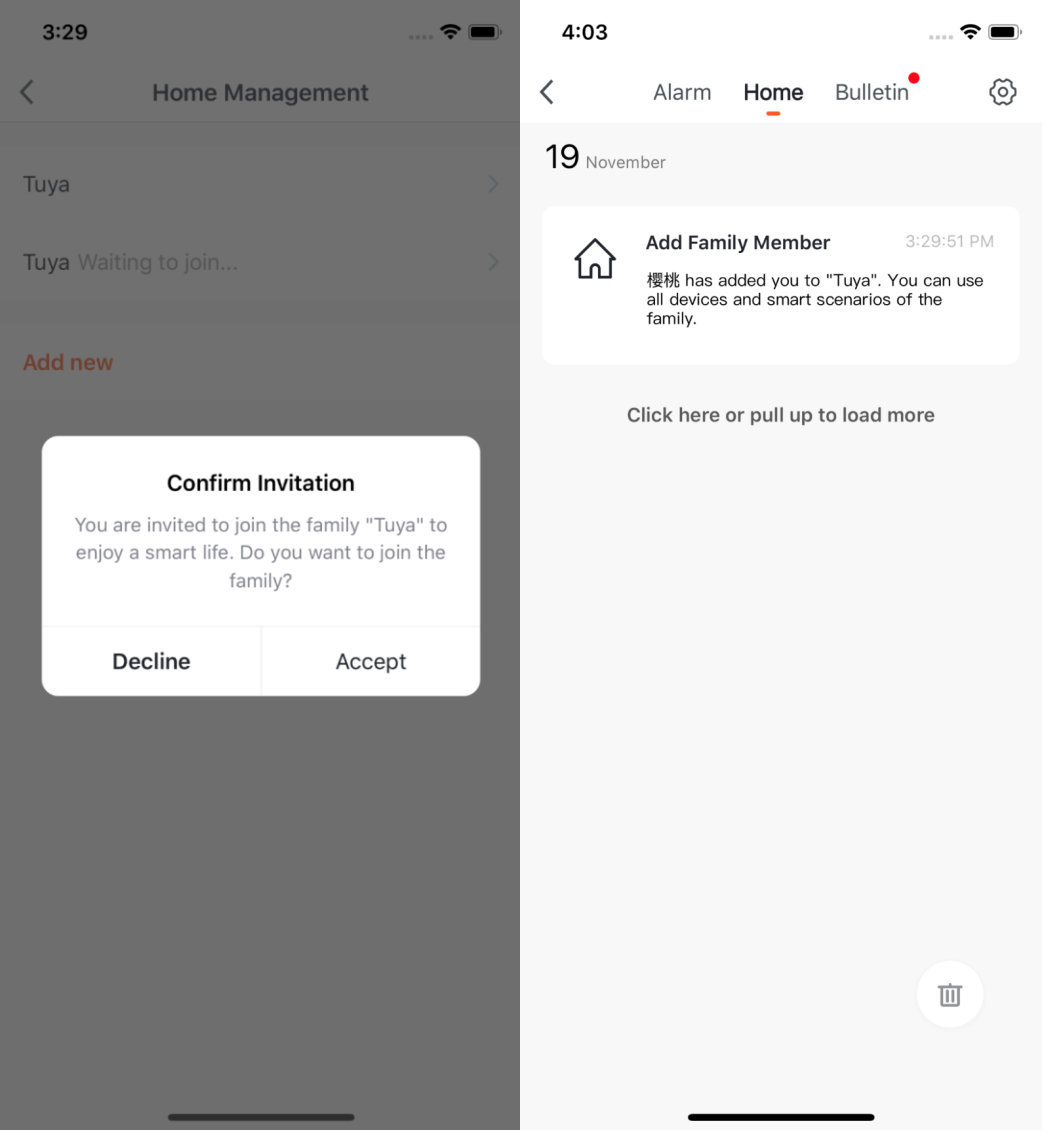
11. If a user is invited to join a home, the user will receive a notification on the app. The user will also receive a notification in the message center.
## Add a device
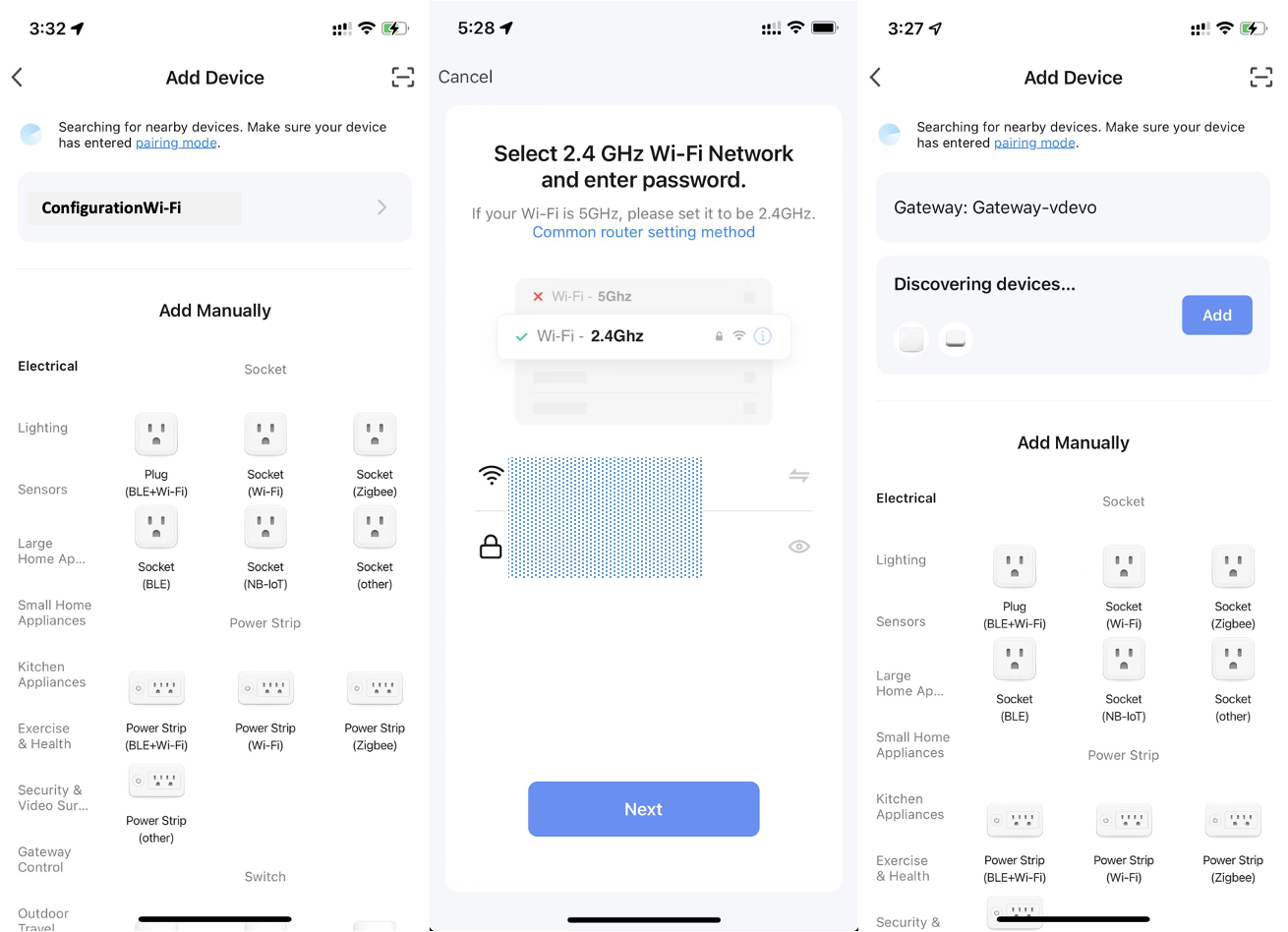
Tap **Add Device** or the plus icon (**+**) in the top right corner on the **Home** page to go to the device adding page. On the **Add Device** tab that appears, devices can be **automatically found** or **manually added**. To **automatically add devices**, the app must be granted Wi-Fi and Bluetooth permissions.
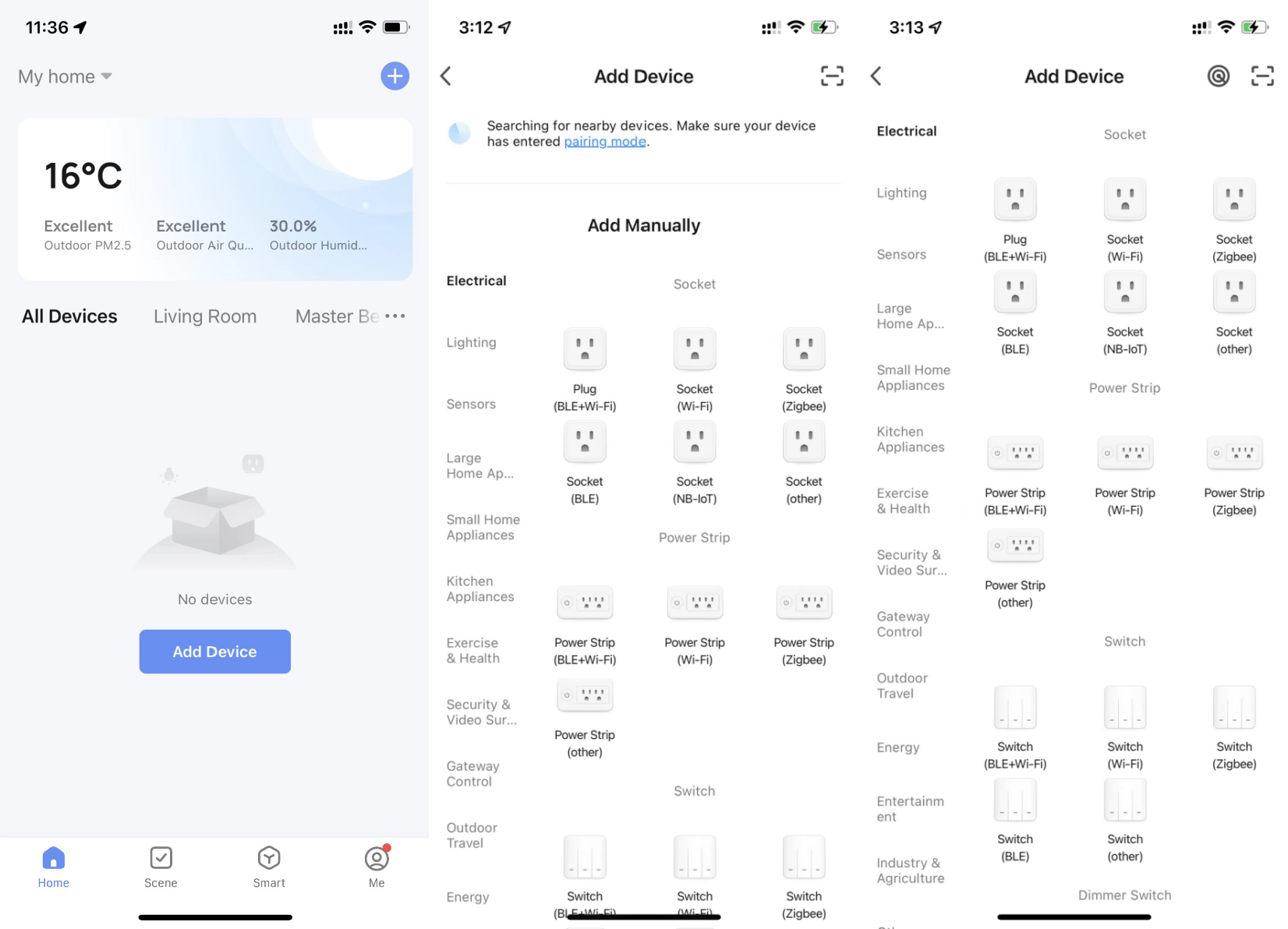
### Automatically add devices
1. \*\*This method enables simultaneously searching for multiple devices, including Wi-Fi devices, Bluetooth gateways, Bluetooth mesh devices, Zigbee gateways, and Zigbee devices connected to the gateway. \*\*All devices found can be added with one tap.
2. If the search times out and no devices are found, follow the instructions to troubleshoot the issue and try again, or try to **manually add devices**.

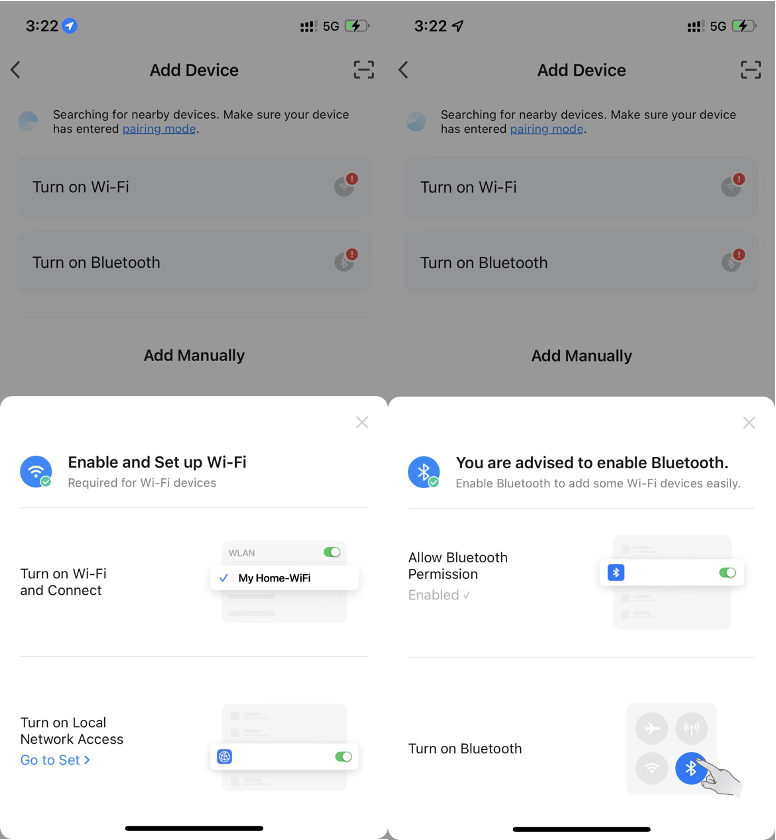
3. In this mode, allow the app to access Wi-Fi and Bluetooth for searching for devices. \*\*Wi-Fi devices can be found only when Wi-Fi is enabled. \*\*Nearby Bluetooth devices can be found only when Bluetooth access is allowed.
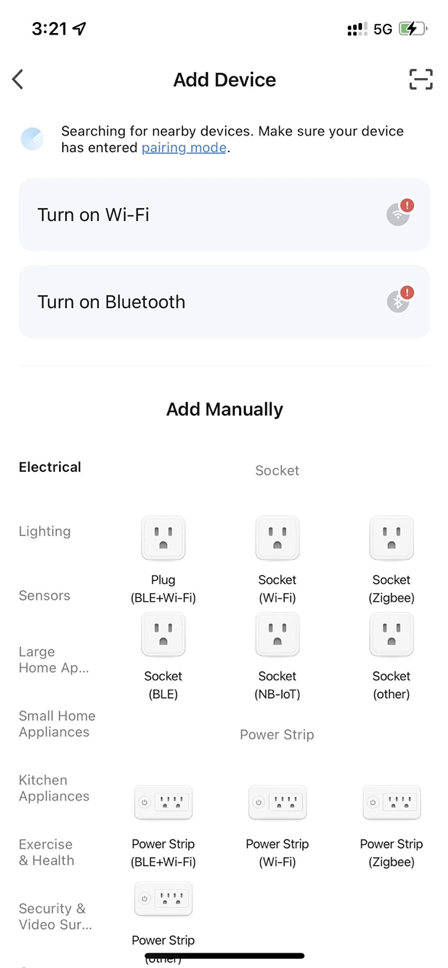
4. Tap **Turn on Wi-Fi** or **Turn on Bluetooth** to enable Wi-Fi or Bluetooth as instructed.
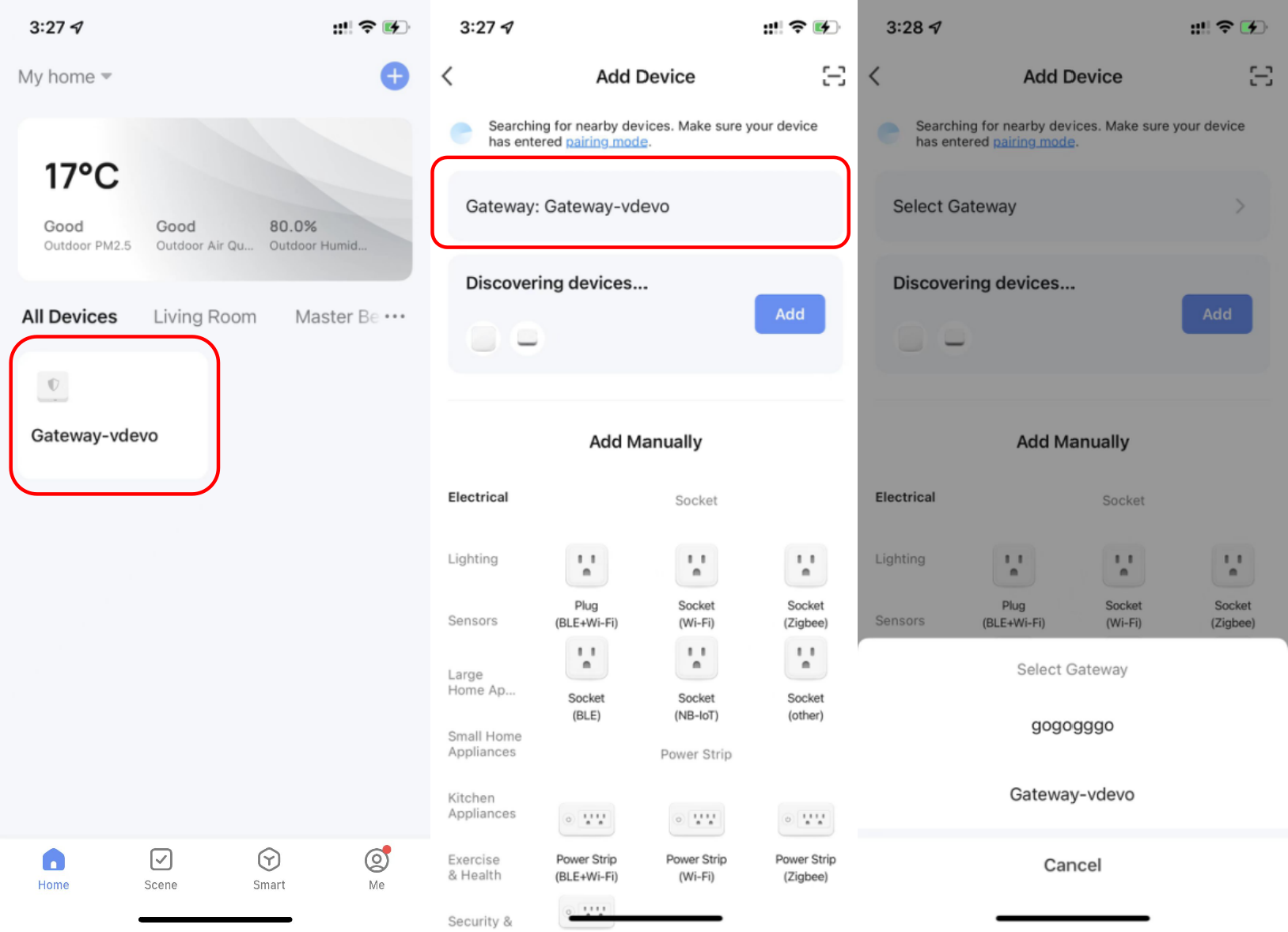
5. If a gateway has been added to the app, it can be **automatically recognized** to pair associated sub-devices. If multiple gateways exist, a dialog box appears for the user to choose among these gateways.
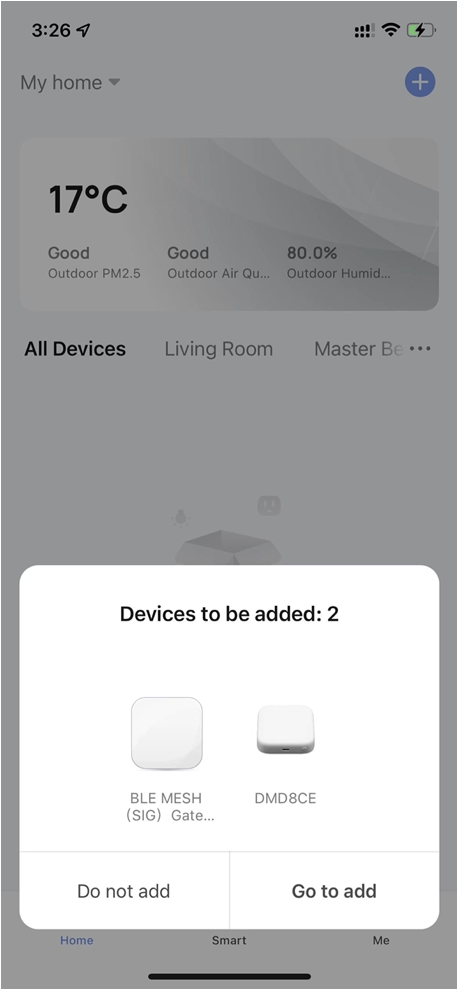
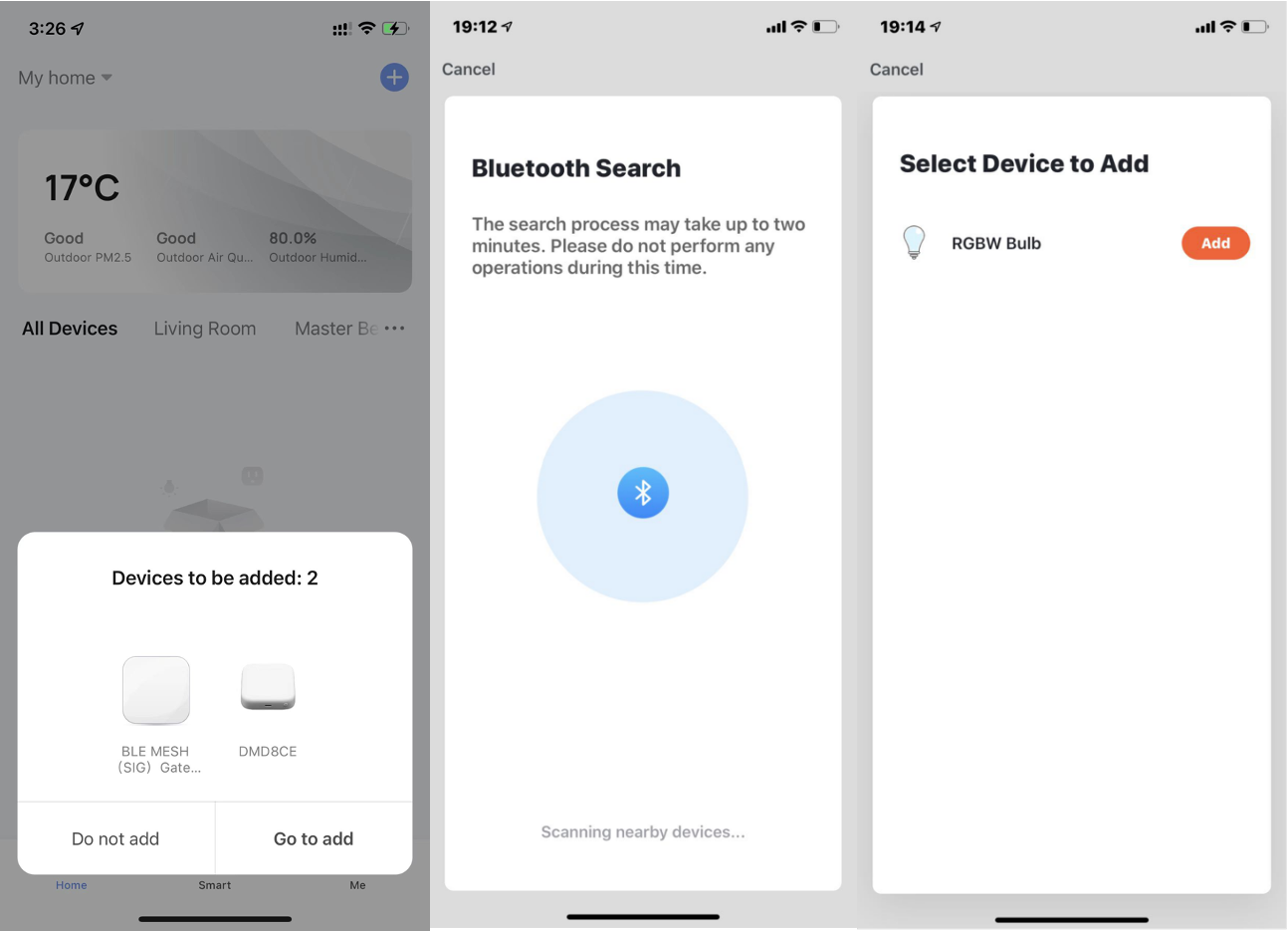
6. To accelerate pairing with Bluetooth devices, the app supports the automatic discovery of nearby Bluetooth devices. Once the **Home** page is opened, the app automatically searches for Bluetooth devices pending pairing and shows discovered Bluetooth devices in a dialog box.
7. The user can choose **Do not add** or **Go to add** to determine whether to add these Bluetooth devices. Make sure that Bluetooth access is allowed and the Bluetooth devices are pending pairing during scanning.
8. When the indicators on Narrowband Internet of Things (NB-IoT), Wi-Fi, and Bluetooth devices are blinking quickly, these devices can be added in the **Auto Scan** method. To use this method, prepare a Wi-Fi network. Only 2.4 GHz Wi-Fi networks are supported.
### Manually add Wi-Fi devices
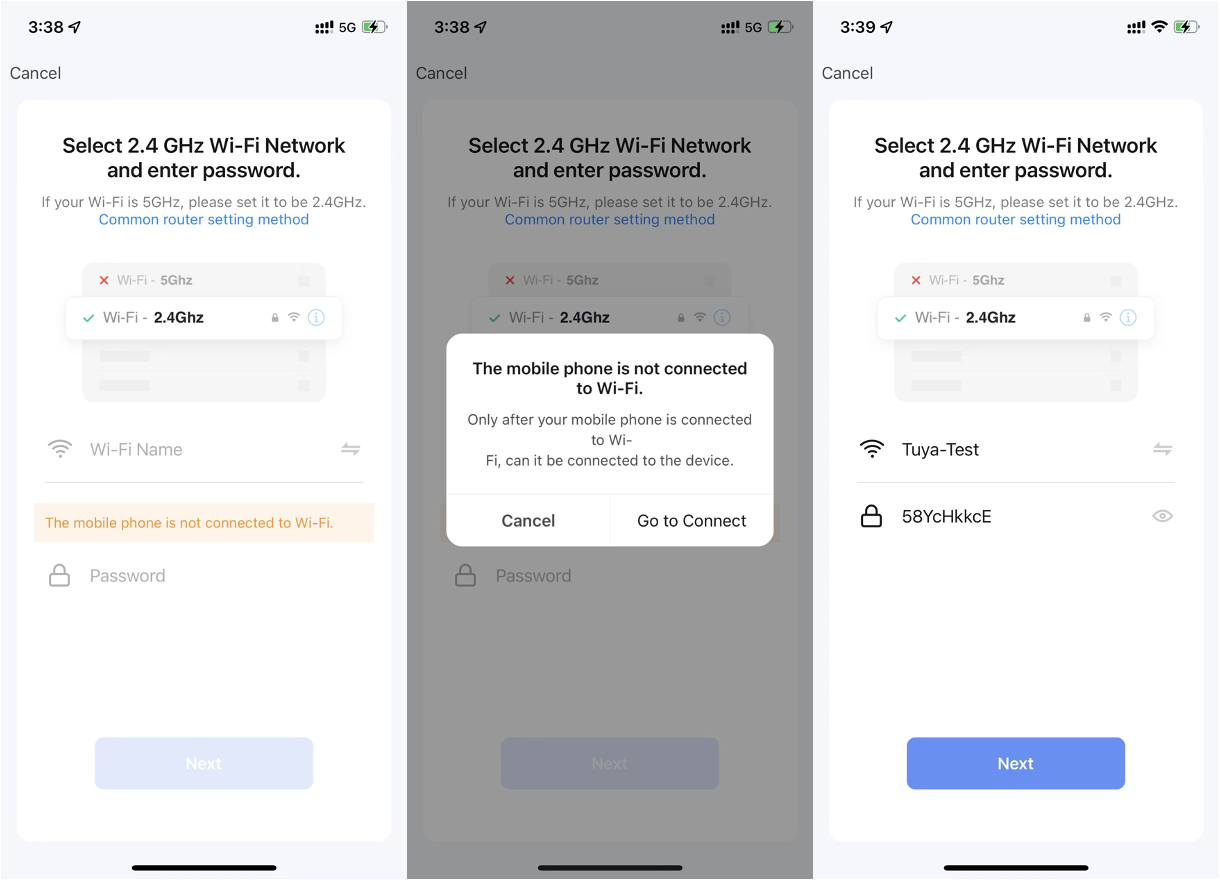
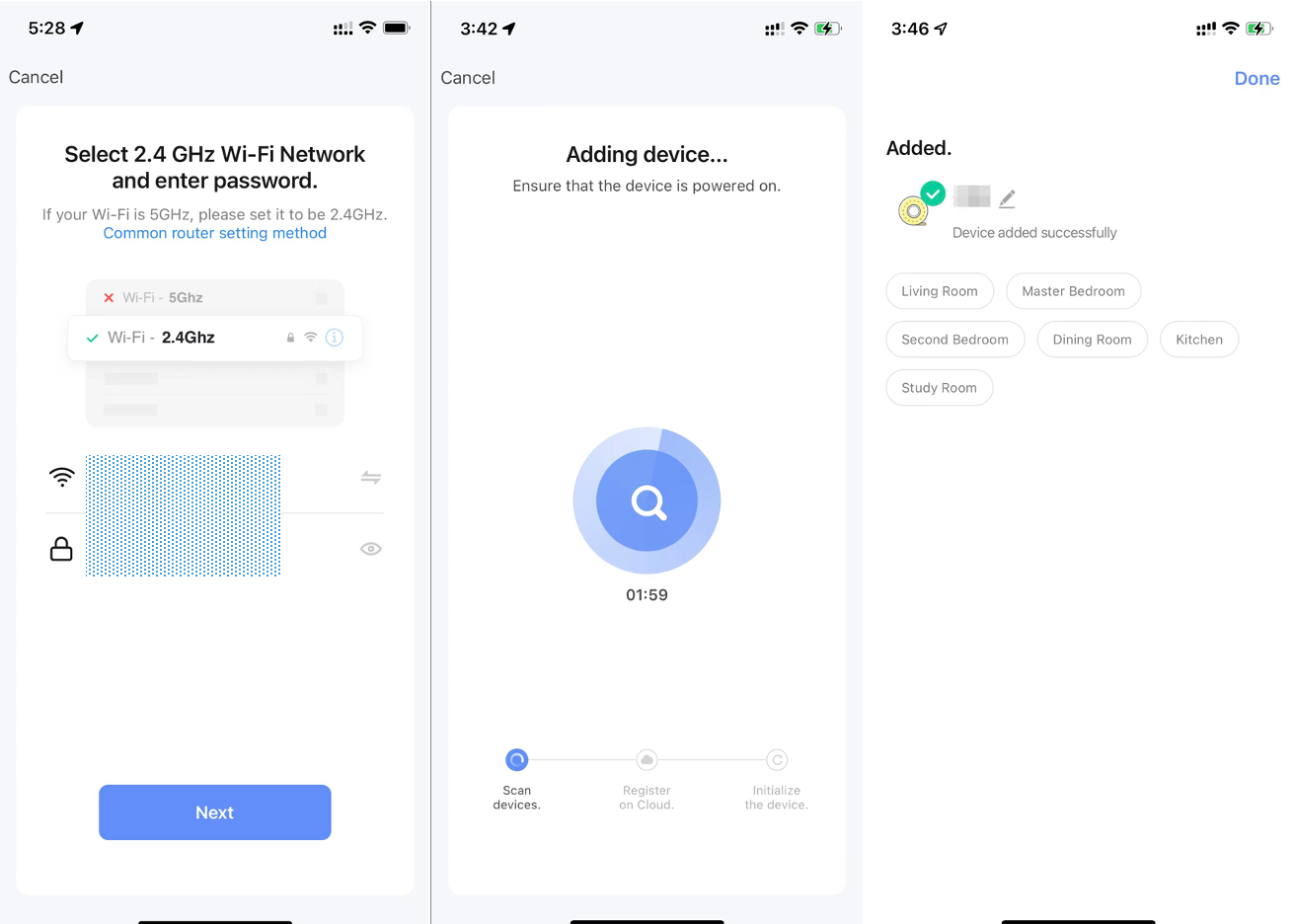
1. Select a device type. On the page that appears, enter the password for connecting to the 2.4 GHz Wi-Fi network. The **location** permission must be granted to automatically find Wi-Fi networks.
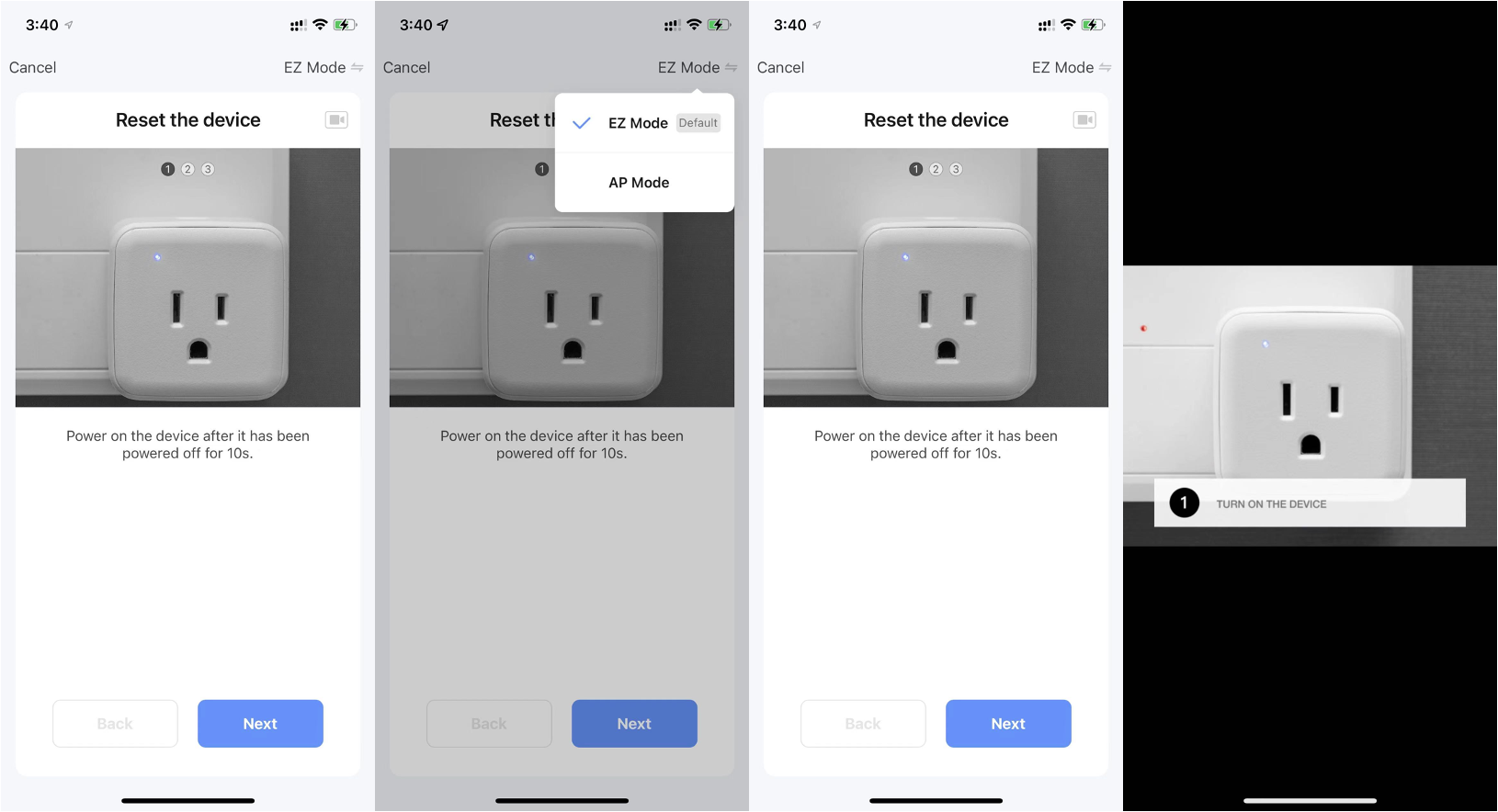
2. Two pairing modes are provided in the app. The Wi-Fi Easy Connect (EZ) mode is the default mode, and the access point (AP) mode is the compatible mode. The user can tap the pairing mode drop-down list in the top-right corner of the page to switch between the pairing modes. The user can also tap the camera icon in the top right corner of the **Reset the device** dialog box to view the video tutorial.
### Manually add Wi-Fi devices in EZ mode
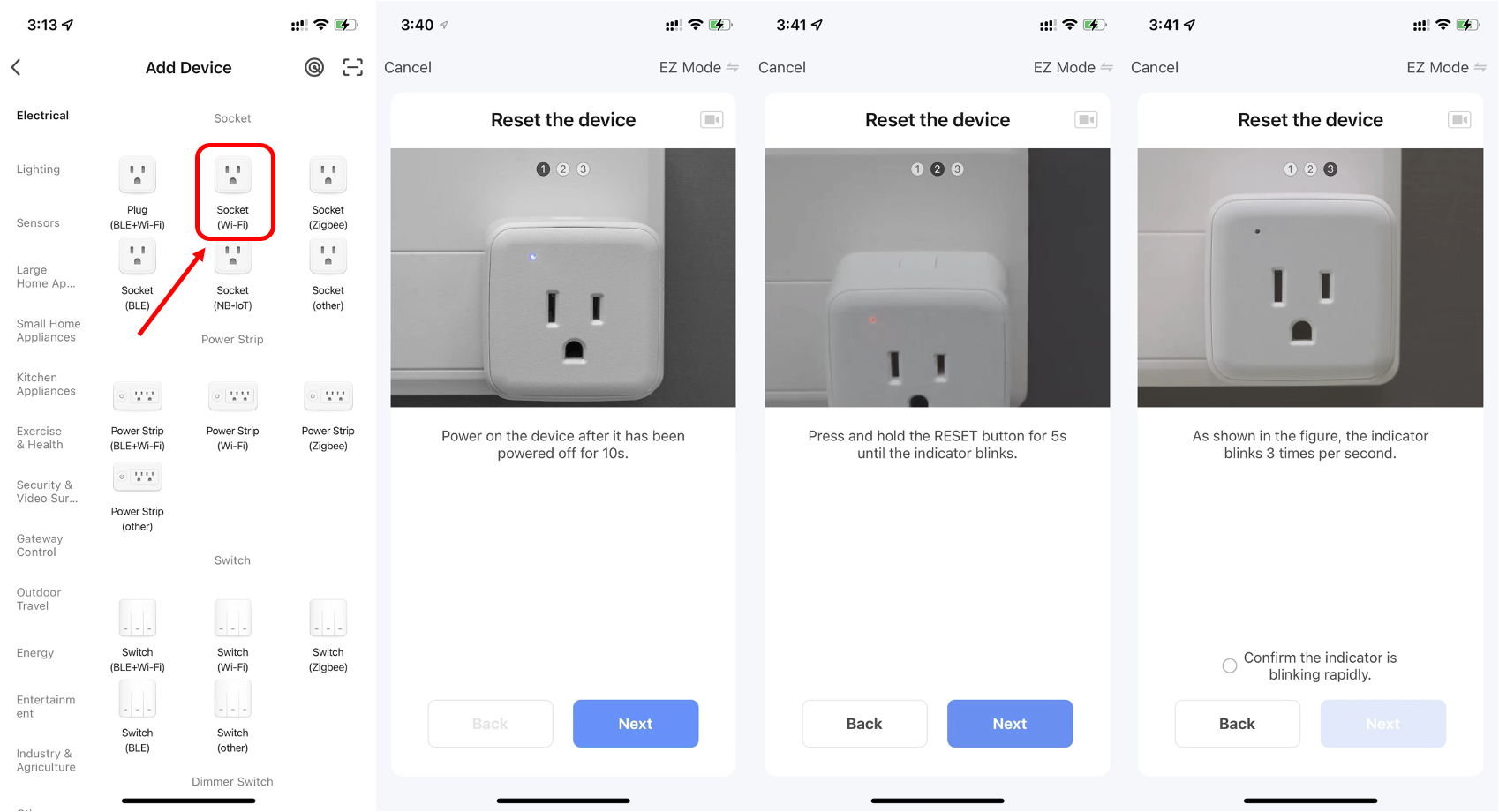
1. In EZ mode, follow the instructions to enable the indicator to blink quickly.
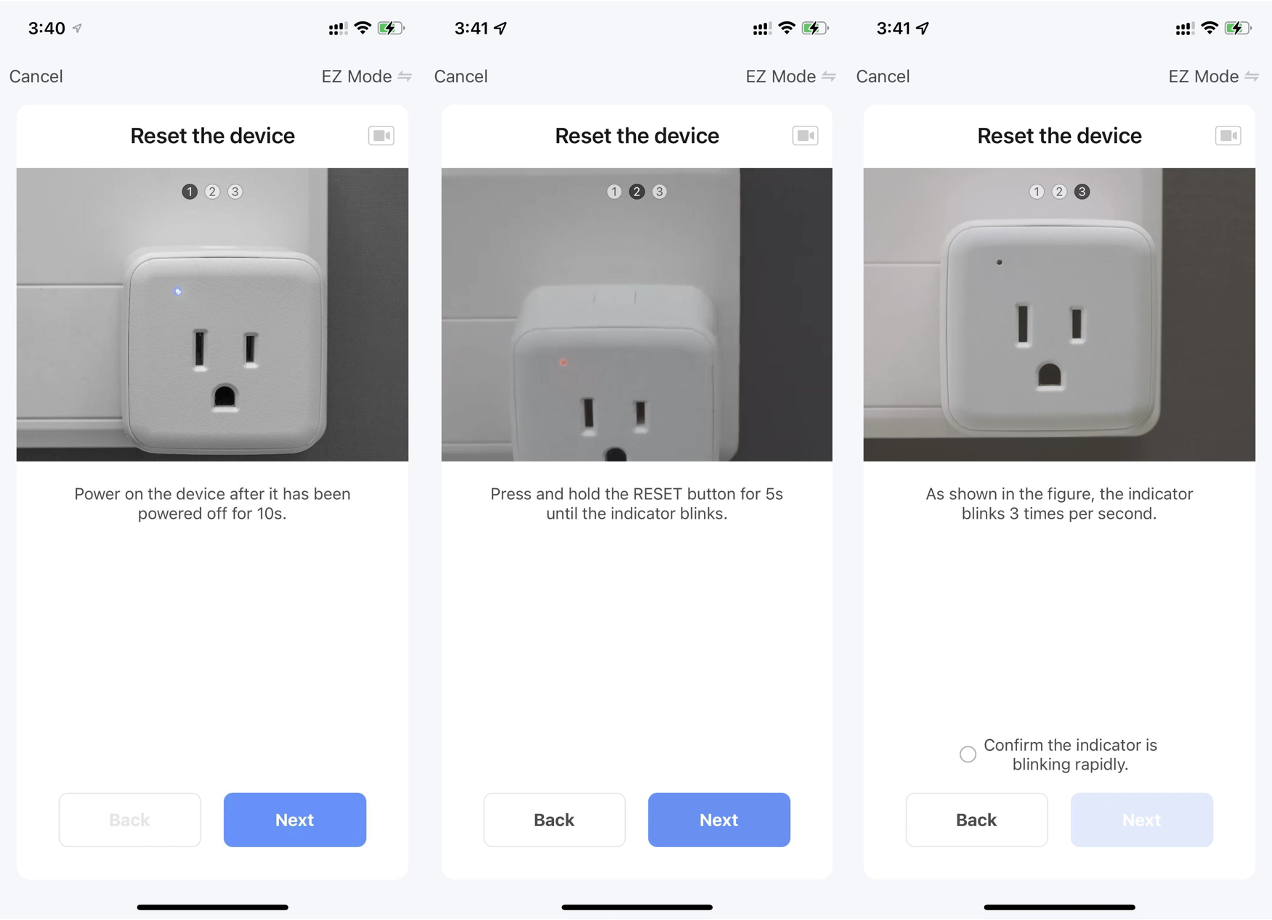
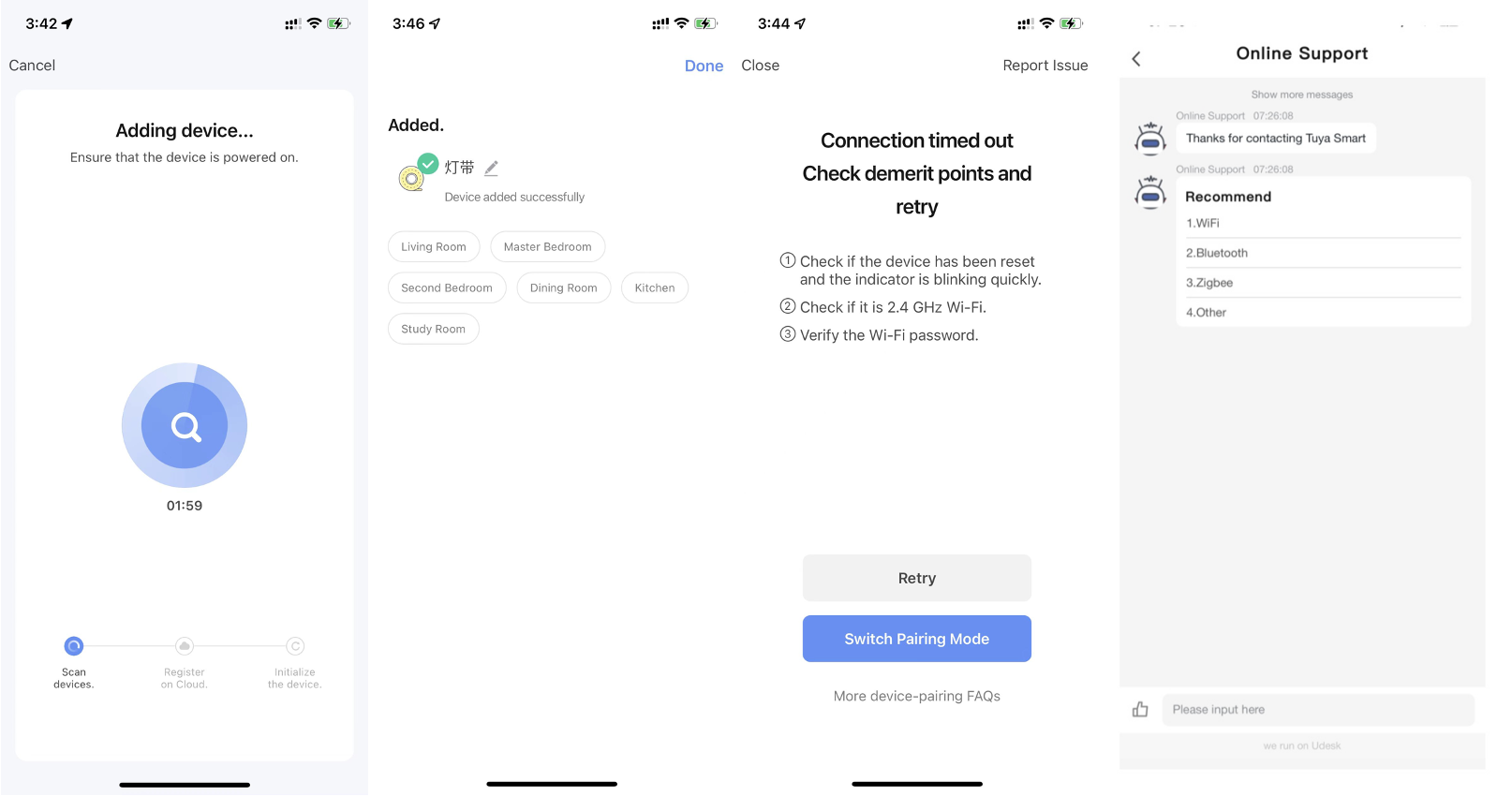
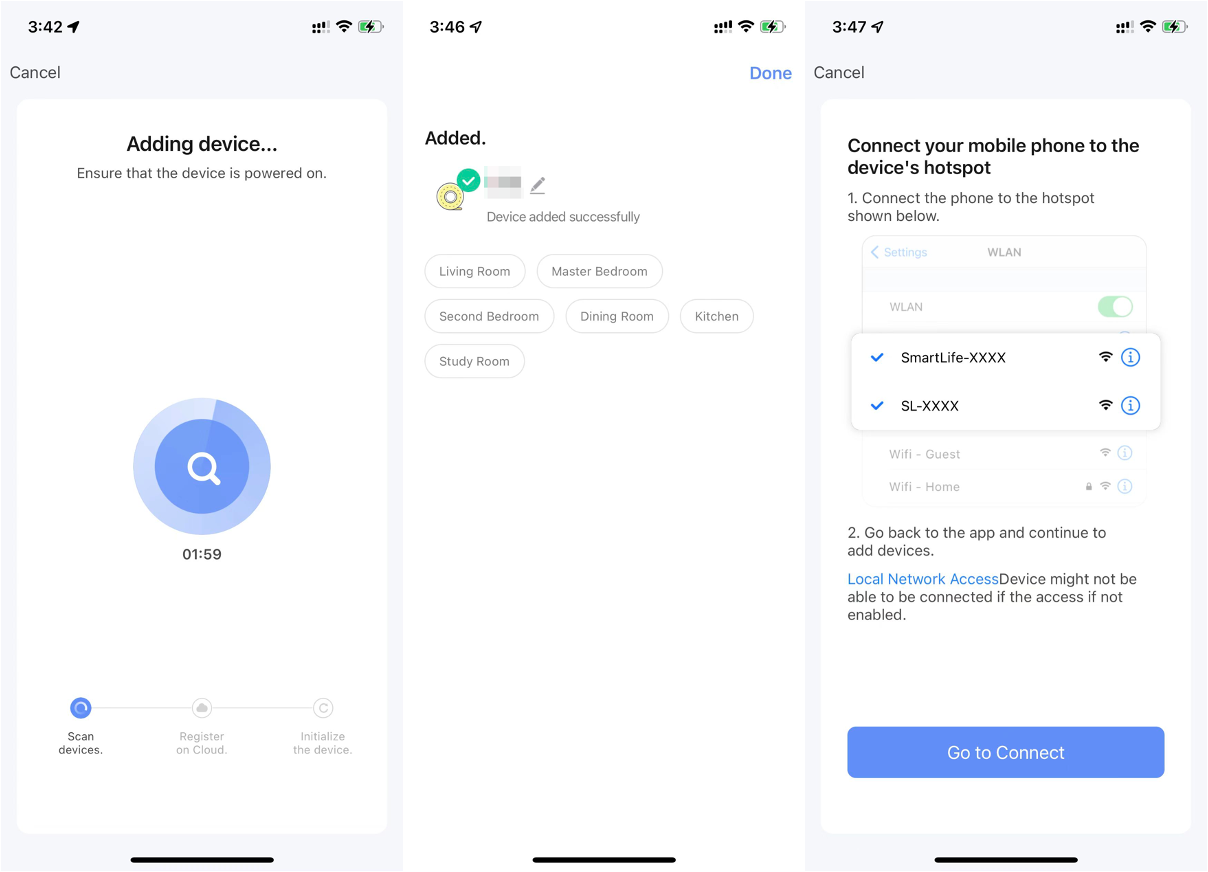
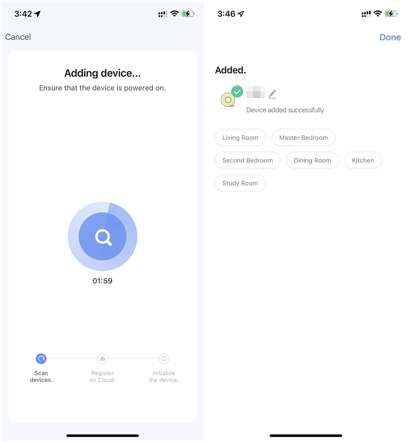
2. Select **Confirm the indicator is blinking rapidly** and tap **Next**. The following first two figures from the left show the pairing process. The user can **customize the names** of added devices and specify the room where the devices are located. A device name can contain a maximum of 64 characters.
3. If pairing fails, apply the tips in the following third figure from the left to troubleshoot the issues. Online customer services are available to support troubleshooting.
### Manually add Wi-Fi devices in AP mode
1. If a dual-band network that supports both 2.4 GHz and 5 GHz bands is used, the AP mode can be used to add devices.
2. In AP mode, follow the instructions to enable the indicator to blink slowly, select **Confirm the indicator is blinking slowly**, and then tap **Next**.
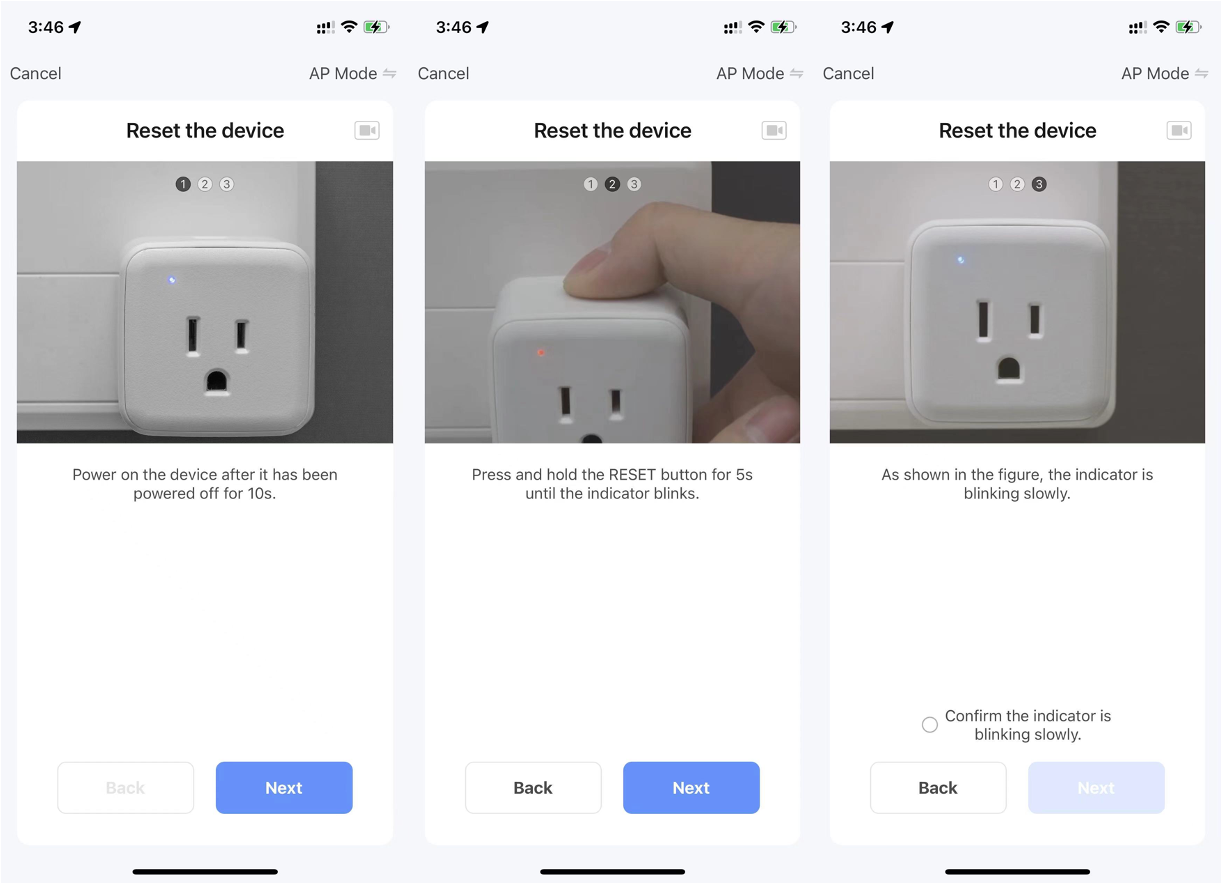
3. In AP mode, on the Wi-Fi setting page of the mobile phone, find the Wi-Fi hotspot starting with `SmartLife`.
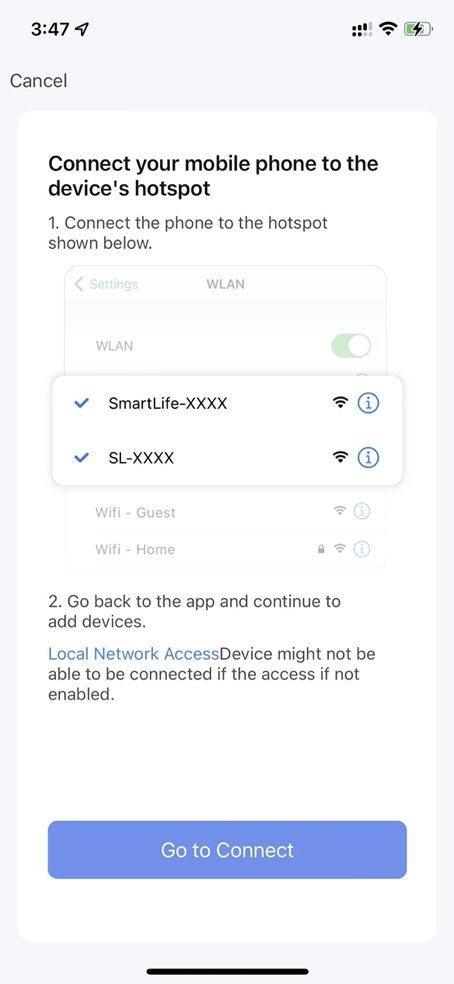
4. Tap the **Wi-Fi** hotspot to connect the mobile phone to it.
5. After a successful connection, go back to the app to start pairing. The Wi-Fi hotspots of certain devices might use a custom name. The mobile phone must be connected to a 2.4 GHz Wi-Fi network.
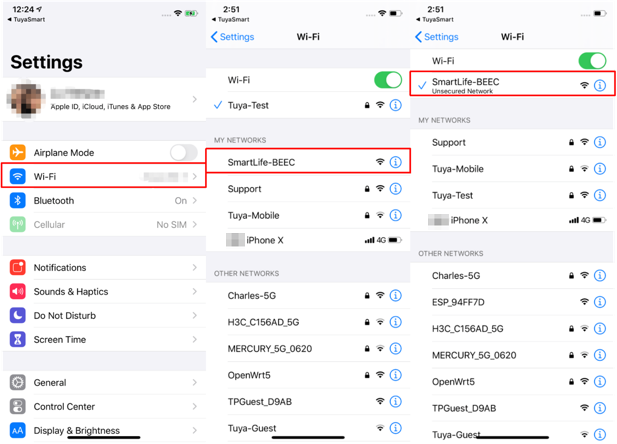
6. The device pairing page on the app appears again and the pairing process continues. After the device is added, the user can **customize the device name** and specify the room where the device is located. A device name can contain a maximum of 64 characters.
7. If pairing fails, apply the tips in the following third figure from the left to troubleshoot the issues.
### Manually add Bluetooth devices or devices over Wi-Fi and Bluetooth LE combo
1. For Bluetooth devices or devices over Wi-Fi and Bluetooth Low Energy (Bluetooth LE) combo, power on the device first. Then, enable Bluetooth on the mobile phone and open the app. The devices that are ready for pairing will be displayed on the app.
Support for beacon protocols is added to Bluetooth devices. The beacon broadcast solution applies to smart devices that require optimal price performance and moderate security.
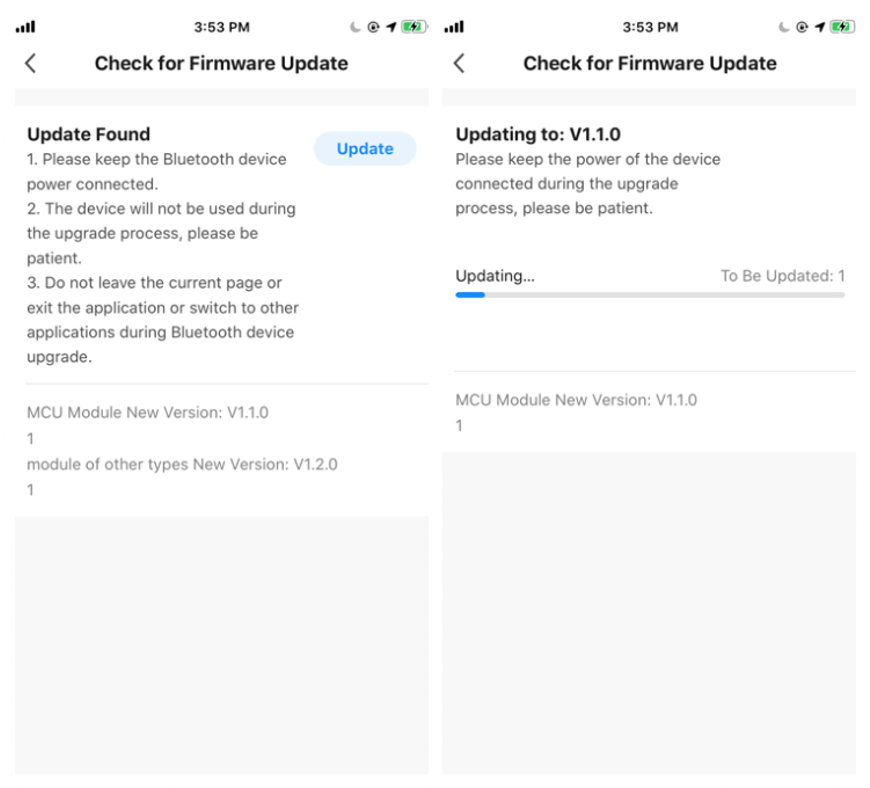
Bluetooth devices support the extended firmware OTA mode. Different firmware versions of the same product can be managed separately through different channel numbers. This improves the portability and flexibility of OTA updates for Bluetooth devices.
2. Select the device to be added. On the Wi-Fi setting page, enter the password for connecting to the 2.4 GHz Wi-Fi network. Wait for the device to automatically complete pairing. The mobile phone must be connected to a 2.4 GHz Wi-Fi network.
3. To skip the Bluetooth feature on the mobile phone, go to the **Add Manually** tab. Select a device type that supports Wi-Fi pairing. In EZ mode, follow the instructions in the figures to enable the indicator to blink quickly, select **Confirm the indicator is blinking quickly**, and then tap **Next**.
4. If the Wi-Fi network is unavailable or Wi-Fi pairing failed, the device that supports Wi-Fi and Bluetooth LE combo can be paired over Bluetooth.
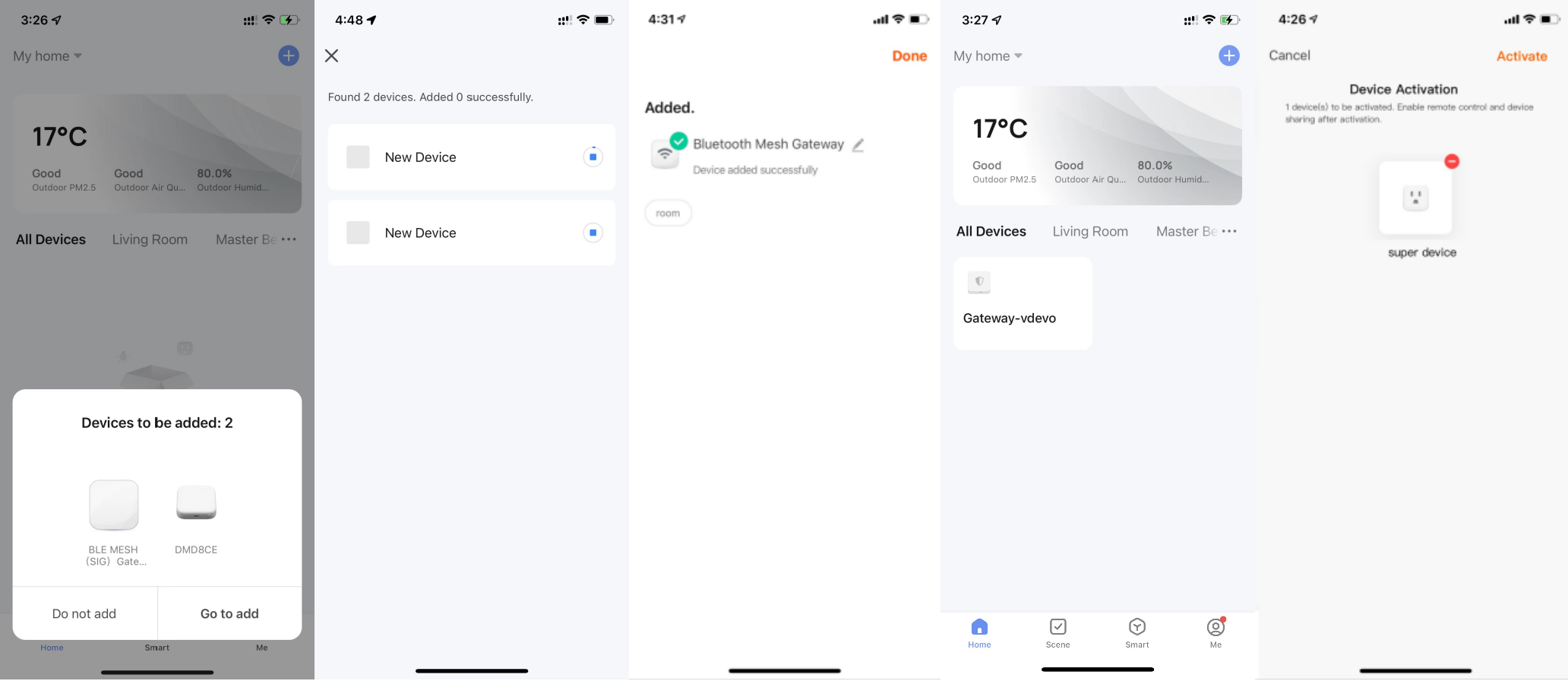
5. Wait for the device to complete pairing. After the device is added, the user can customize the device name and specify the room where the device is used.
6. Compared with ordinary single-mode devices, the devices that support Wi-Fi and Bluetooth LE can be connected to the mobile phone over Bluetooth.
1. On the **Add Device** tab, select a device type that supports Bluetooth pairing. On the page that appears, follow the guide to enable the indicator to blink quickly, select **Confirm the indicator is blinking quickly**, and then tap **Next**.
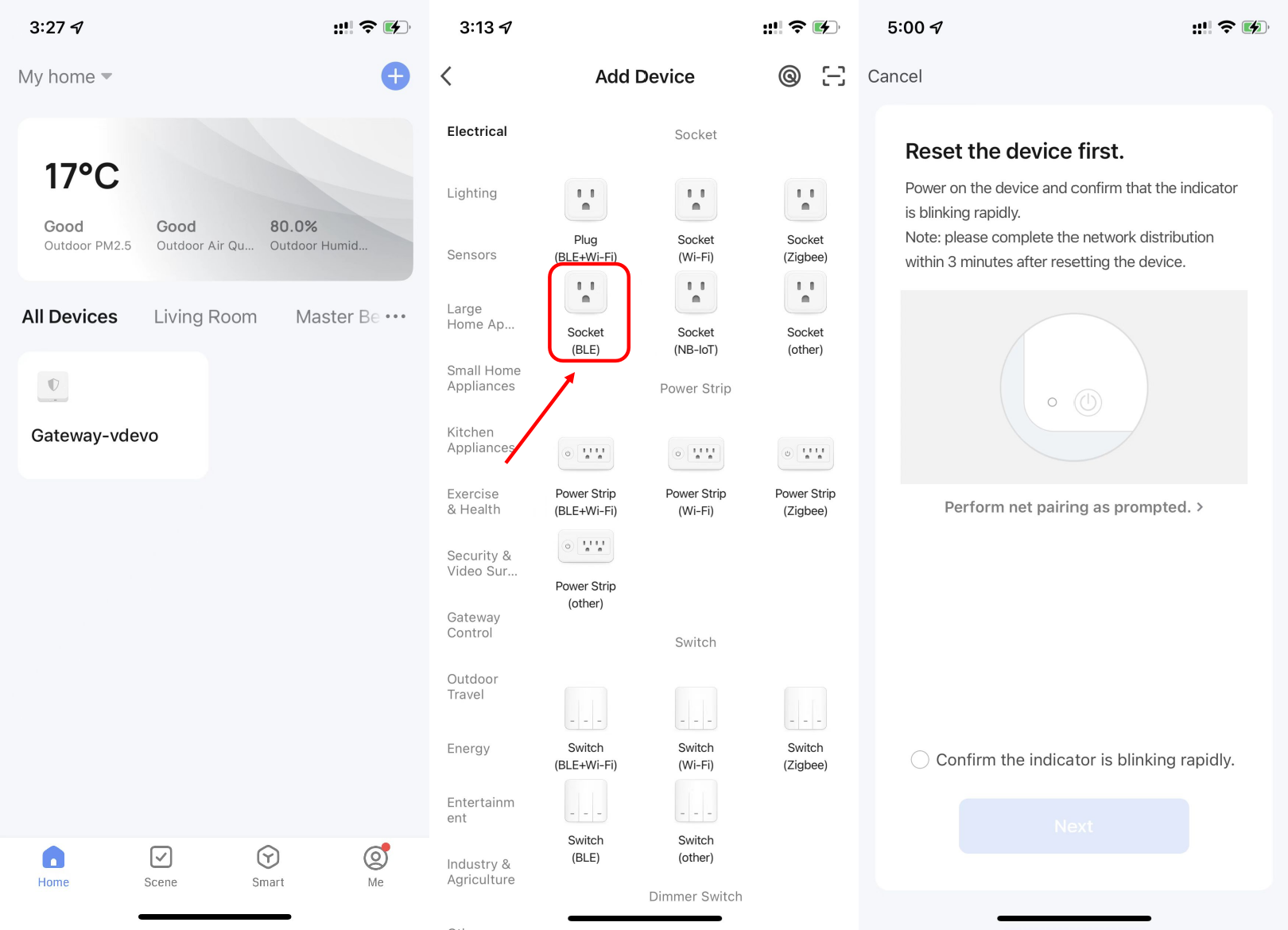
2. After the app detects the device, tap **Add**. After the device is added, tap **Done**.

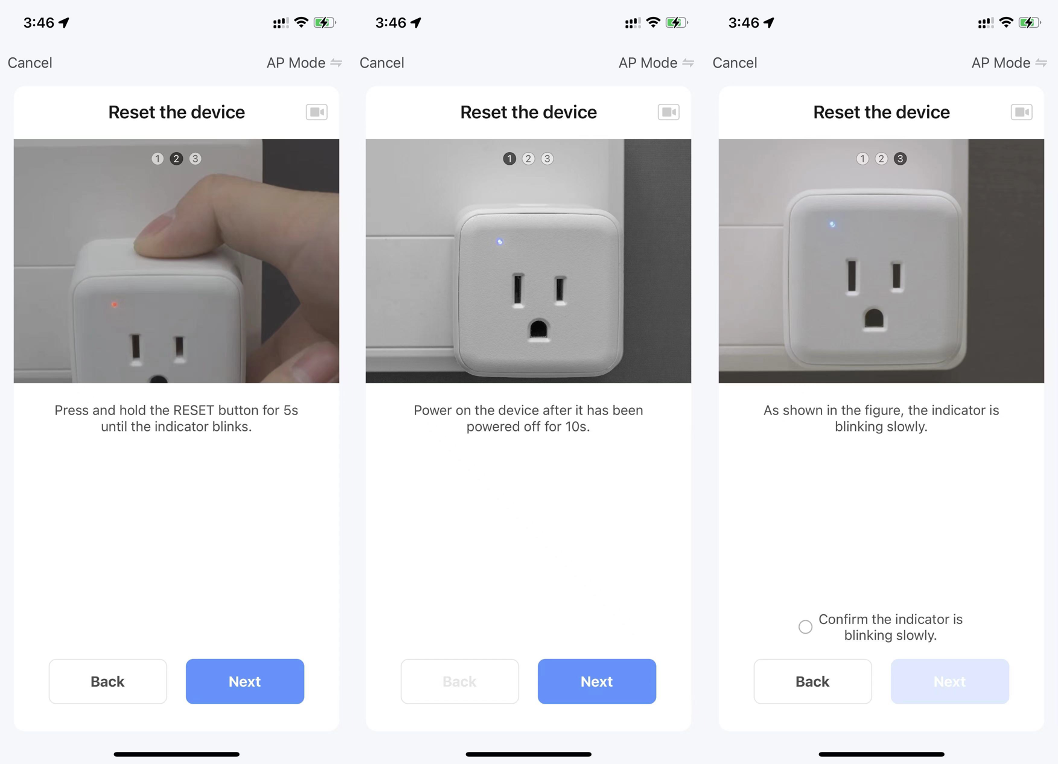
7. If a dual-band network that supports both 2.4 GHz and 5 GHz bands is used, the AP mode can be used to add devices.
To add a device in AP mode, follow the instructions to enable the indicator to blink slowly, select **Confirm the indicator is blinking slowly**, and then tap **Next**. Then, follow the instructions on subsequent pages to add the device.
### Manually add Zigbee devices
1. A gateway must be added before Zigbee devices are added. To add a gateway, tap **Add Device** on the **Home** page. On the page that appears, tap **Gateway Control** in the left-side navigation pane and select a gateway.
2. Power on the gateway and use an Ethernet cable to connect it to a router.
3. Make sure that the mobile phone and the gateway run over the same local area network (LAN). The mobile phone must be connected to a 2.4 GHz Wi-Fi network.
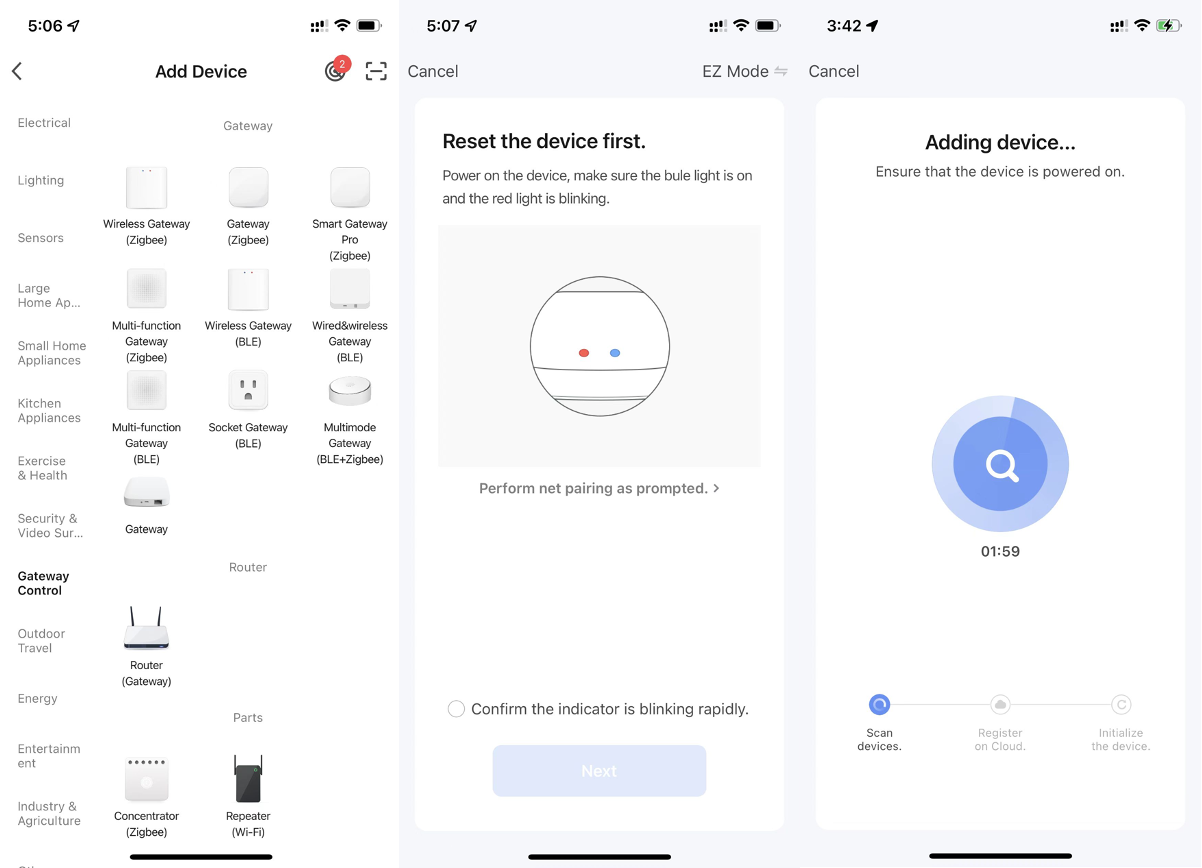
4. After the gateway is added, a Zigbee device that is connected to the gateway can be added.
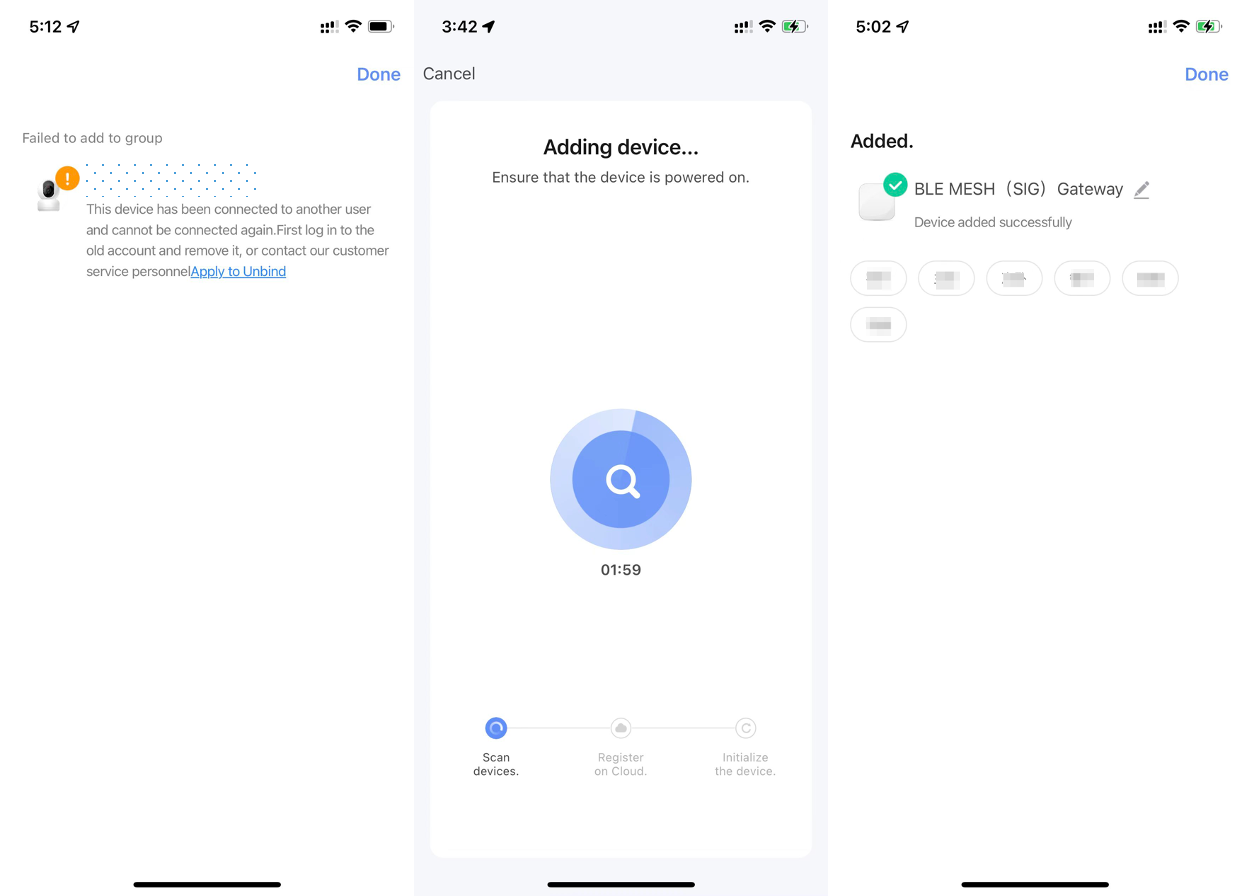
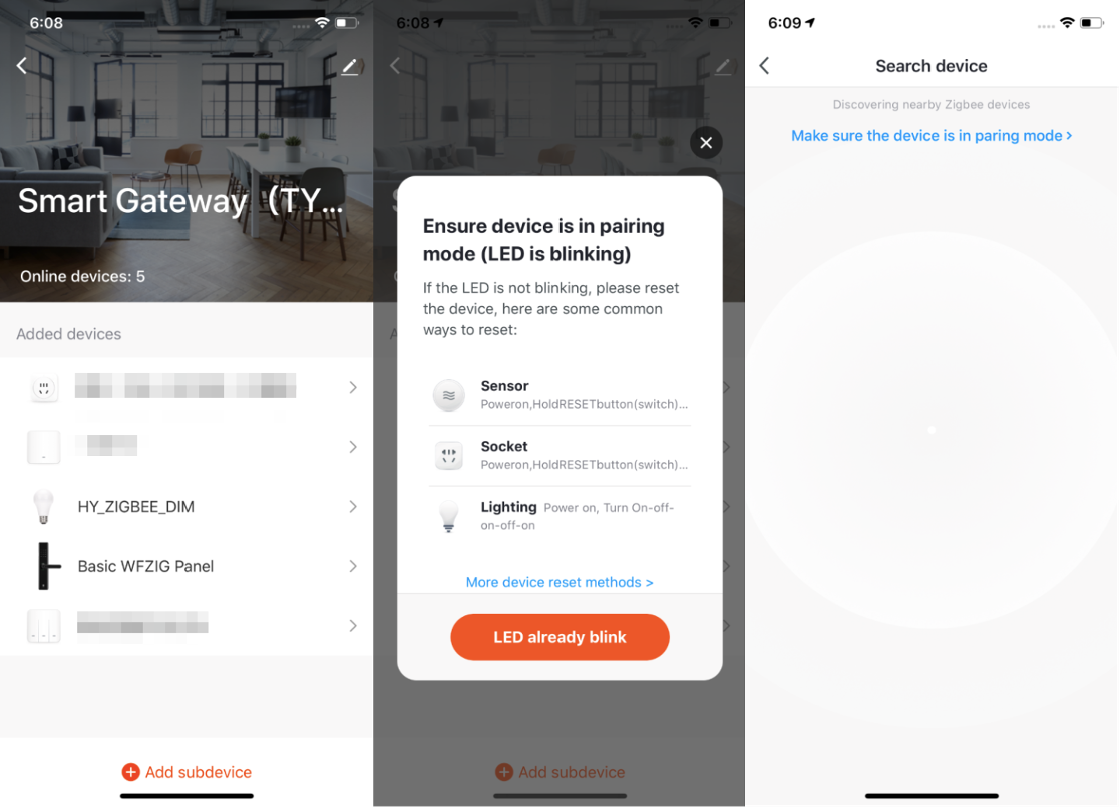
5. To add a Zigbee device that is connected to the gateway, go to the gateway page and tap **Add subdevice**. The remaining steps to add the Zigbee device are the same as adding Wi-Fi devices and Bluetooth devices.
6. The latest version of the app supports the **automatic discovery** of nearby Zigbee devices. This allows the user to add multiple devices to the gateway in bulk.
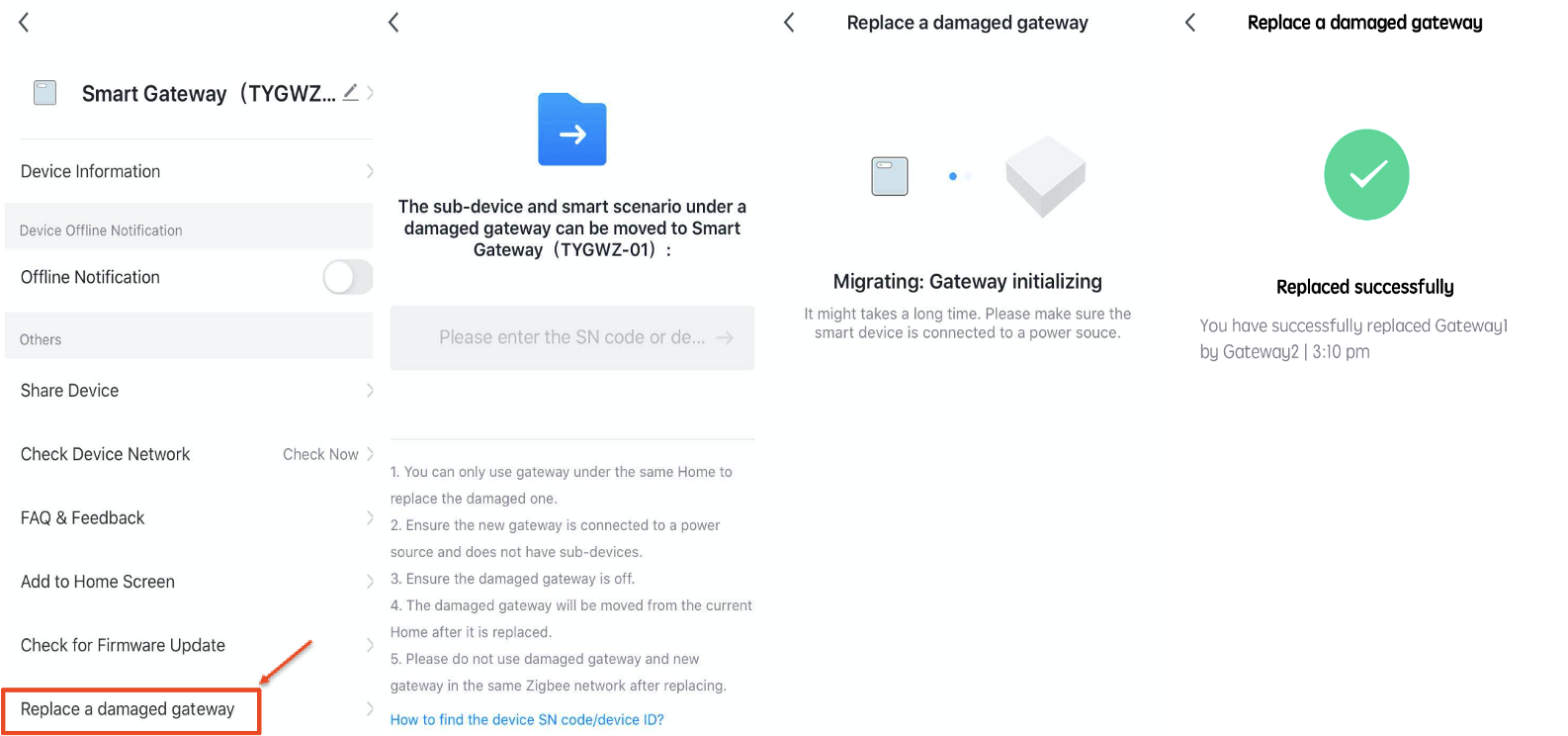
7. If the gateway has faults, **replace it with a new gateway**, with all devices and scenes configured for the damaged gateway synchronized to the new gateway. To replace a damaged gateway, tap **Replace a damaged gateway** on the management page for the faulty gateway. On the page that appears, enter the SN code or device ID of the new gateway.
### Manually add IPCs in QR code mode
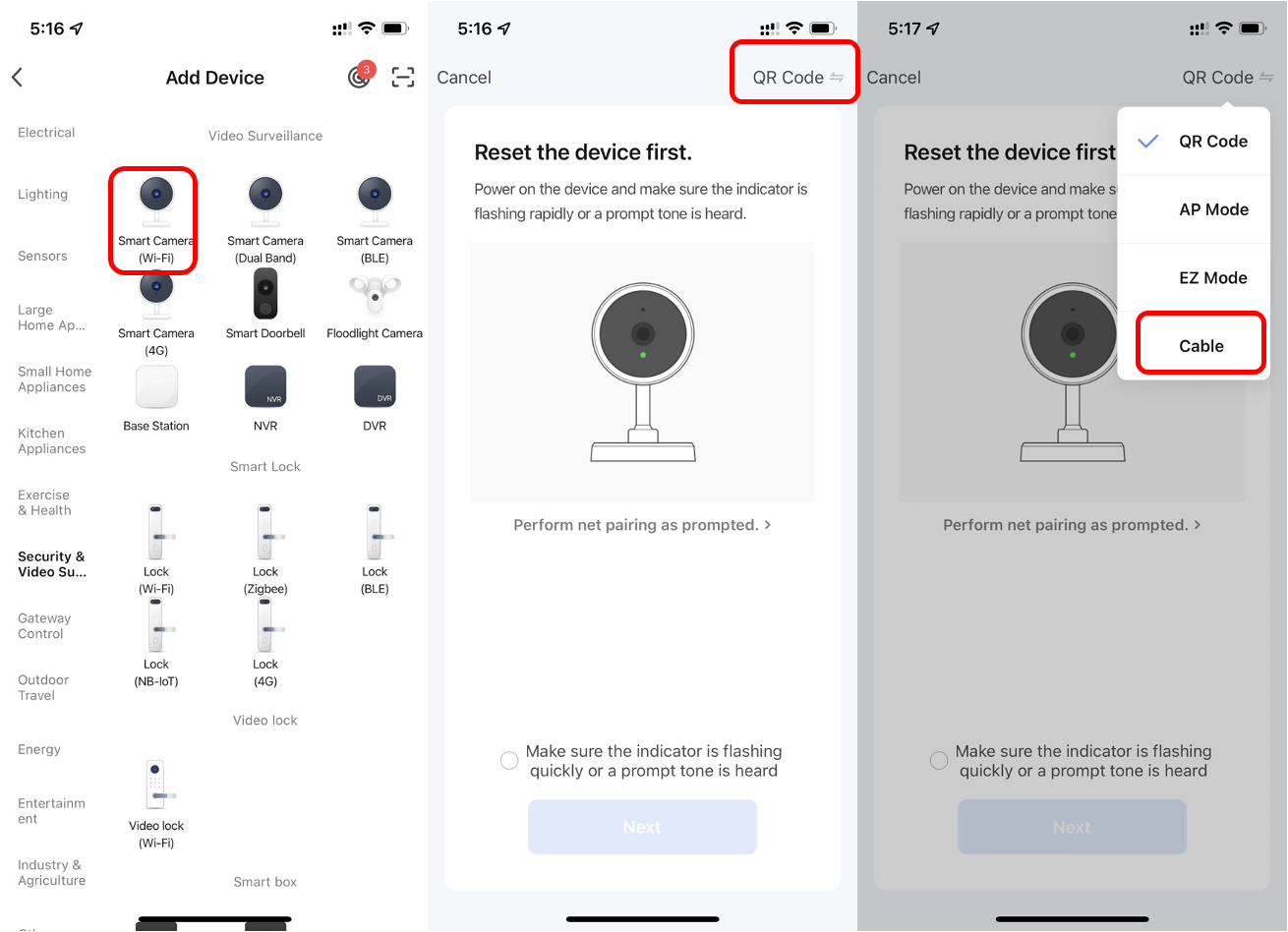
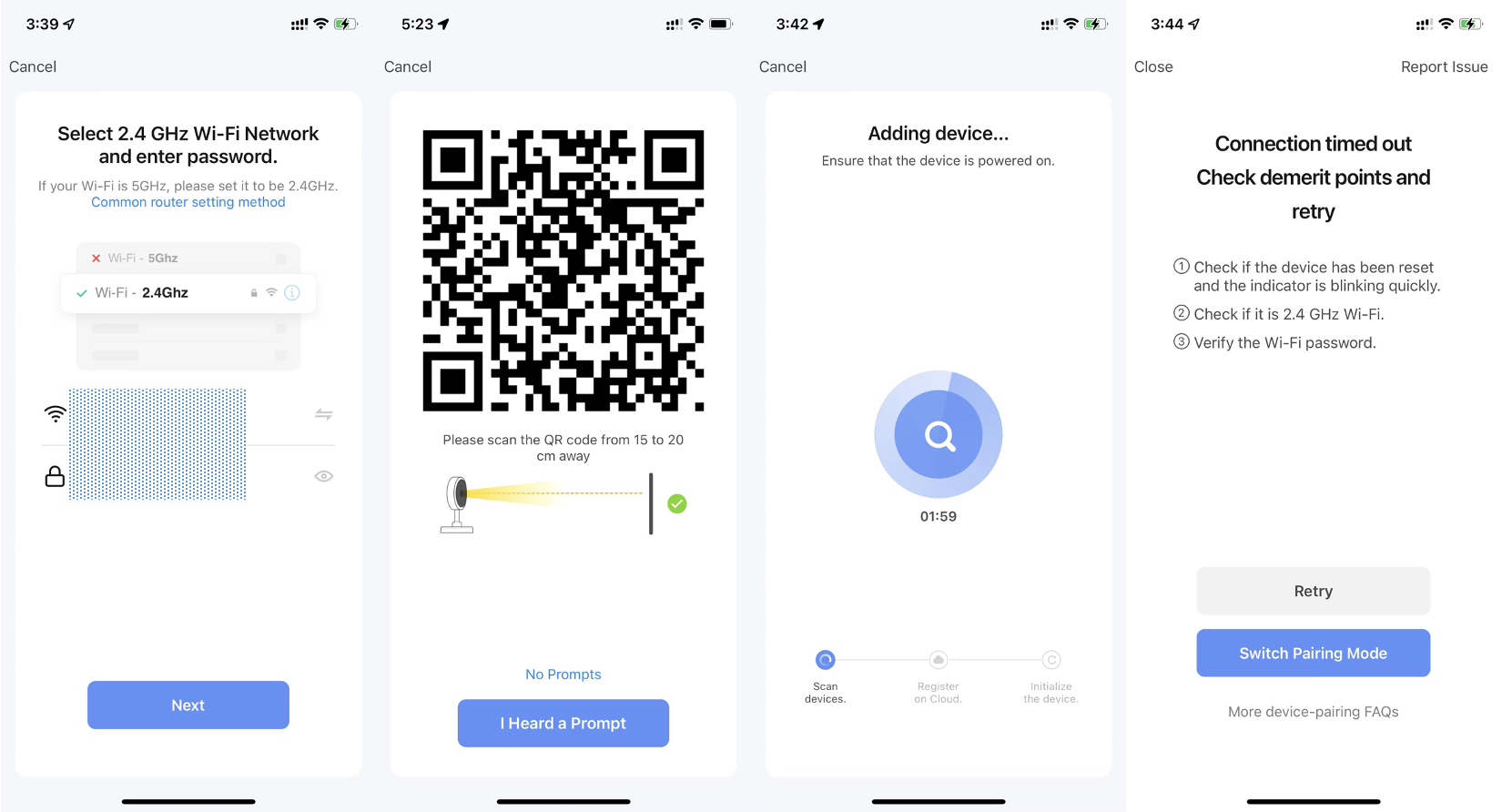
In addition to the EZ mode (default) and the AP mode, certain devices, such as IP cameras (IPCs) and gateways, can also be manually added in **QR code** mode. To add an IPC to the network by using a QR code, perform the following steps:
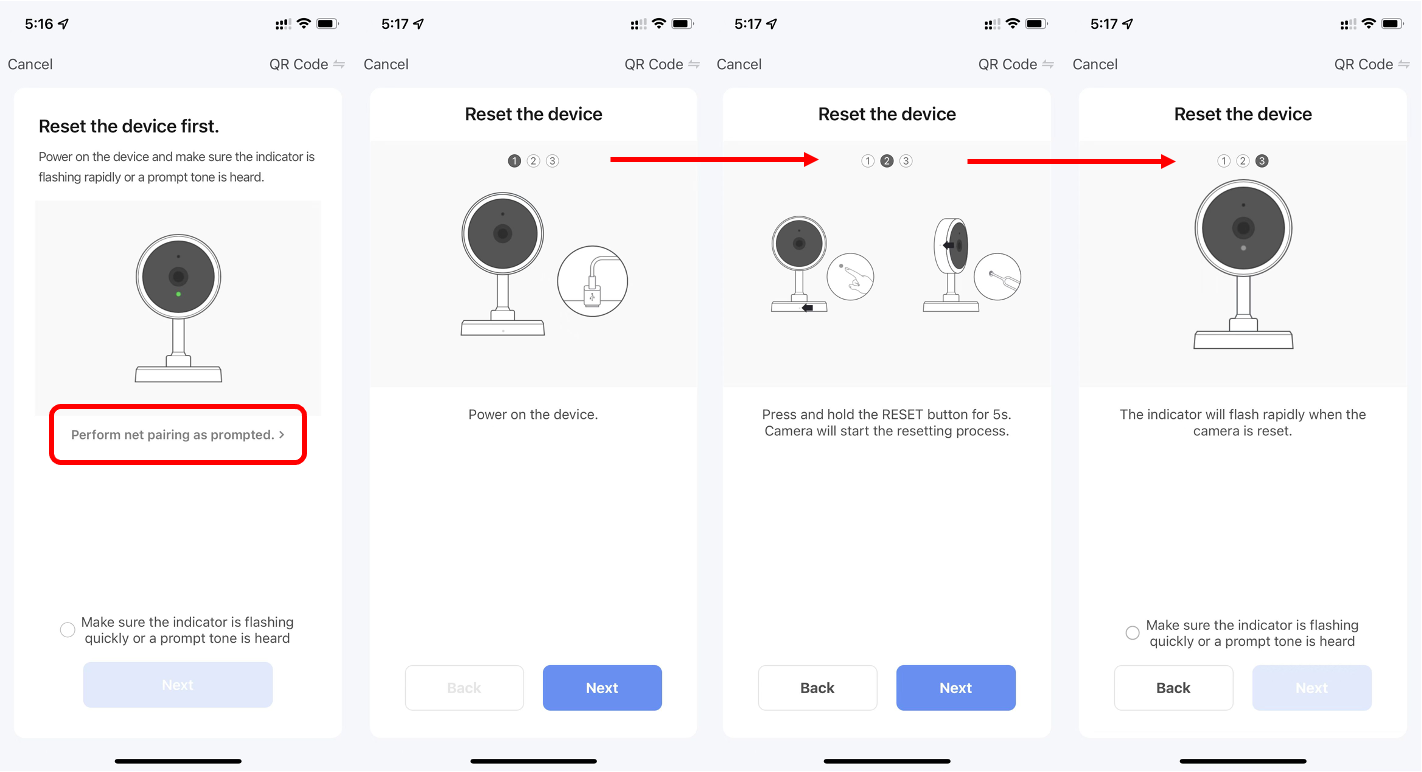
1. Reset the IPC. For more information about how to reset the IPC, tap the **Perform net pairing as prompted** button on the page. When the camera is reset, it flashes quickly or emits a prompt tone.
2. After the camera is reset, select **Make sure the indicator is flashing quickly or a prompt tone is heard** and tap **Next** on the page.
3. The user will be directed to the page to enter the Wi-Fi password.
4. After the Wi-Fi password is entered, tap **Next**. Point the QR code on the screen at the IPC within a distance of 15 cm to 20 cm, until the camera emits a prompt tone.
5. Tap **I Heard a Prompt**. Then, the app initiates the device pairing process.
6. If the device fails to be added, follow the tips to troubleshoot the problem.
### Scan QR codes or enter device IDs to add NB-IoT devices
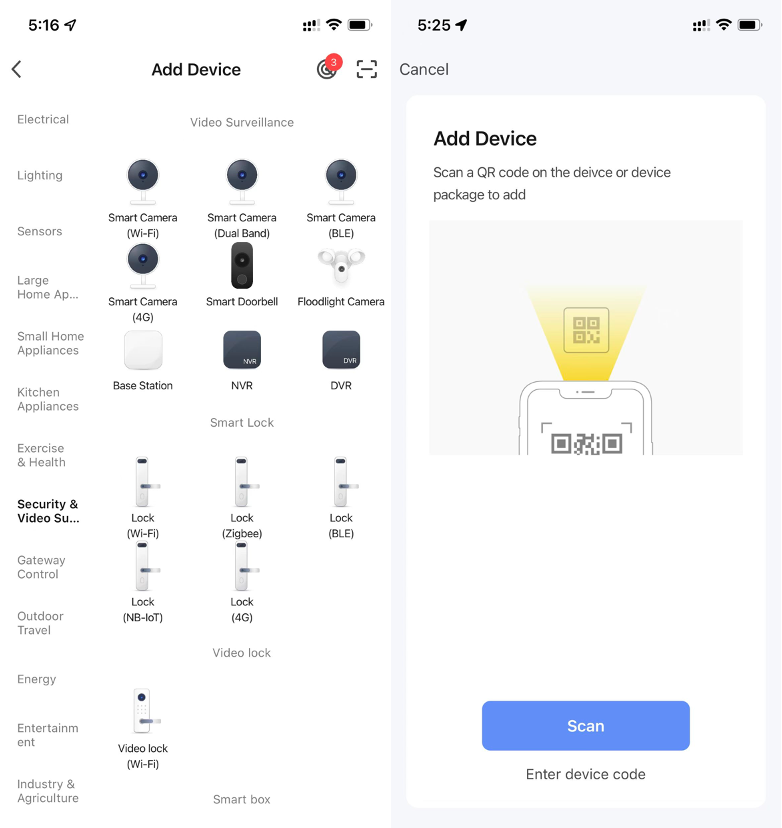
Add an NB-IoT device by scanning the device’s QR code or entering the International Mobile Equipment Identity (IMEI) number on the device label. Grant the app access to the camera on the phone to scan the QR code.
### Add devices by scanning QR codes
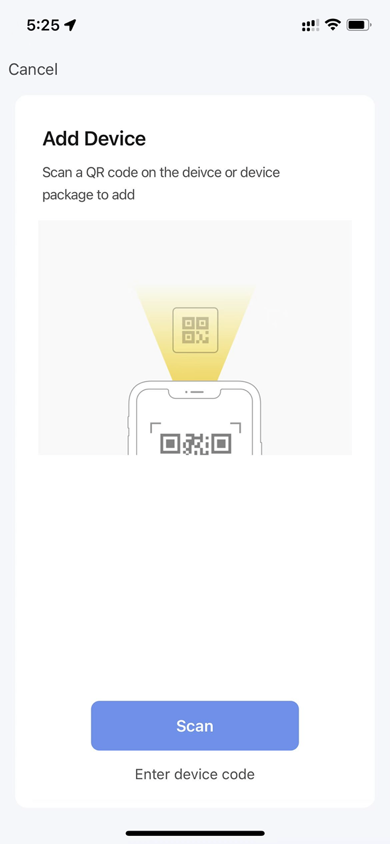
To add the QR code-based pairing mode, go to **Tuya IoT Development Platform > Product** > [**Development > Product Configuration > Network Connections Guides**](https://iot.tuya.com/pmg/list) > **Custom Mode**, select **Scan Code**, and then click **OK**. To pair the app with a device that supports QR code-based pairing, use the app to scan the QR code on the device or the outer packaging.
### Add devices in Pegasus pairing mode
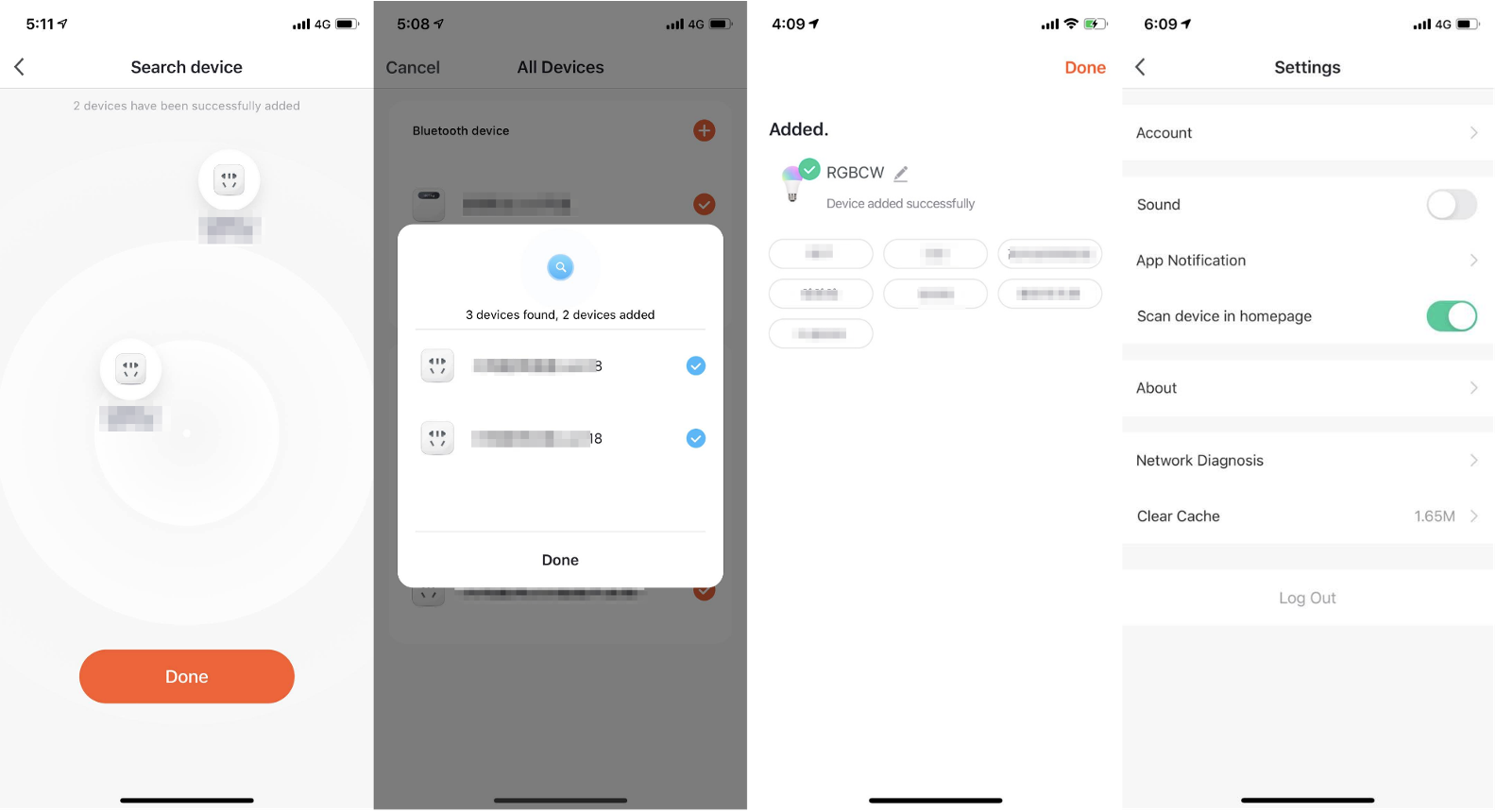
The Pegasus pairing mode is different from the EZ mode. When the Pegasus pairing mode is enabled, the app automatically scans for nearby devices that support Pegasus pairing and connect them to the network. Wi-Fi information is not required throughout the process, making pairing faster and more reliable.
### LTE Cat.1 communication
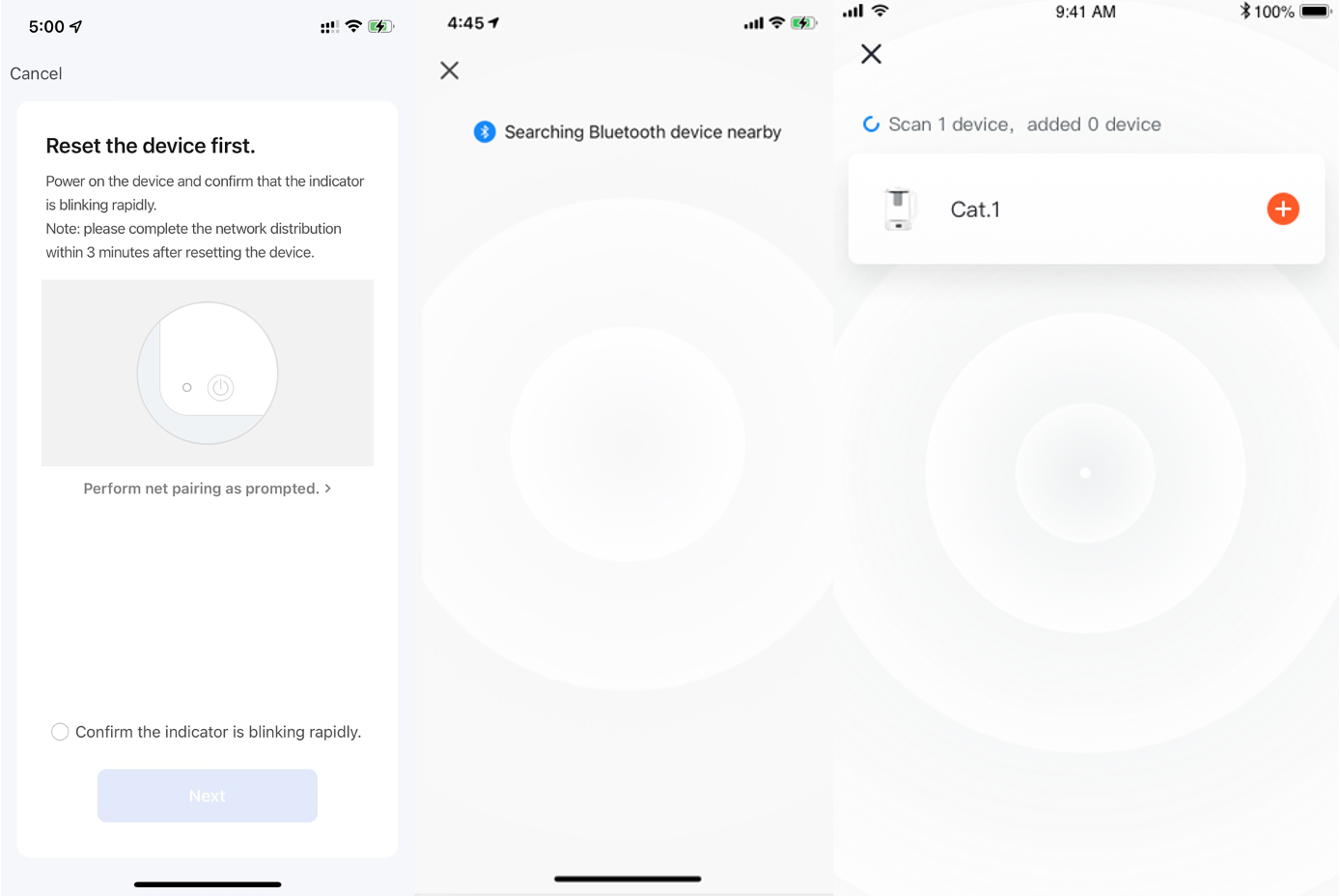
LTE Cat.1 communication applies to outdoor products and supports QR code and Bluetooth pairing modes. The devices powered by this communication technology support generic features, such as group management, device sharing, OTA updates, scheduled tasks, tap-to-run scenes, and automation scenes.
### Grant autostart and battery usage permissions to app
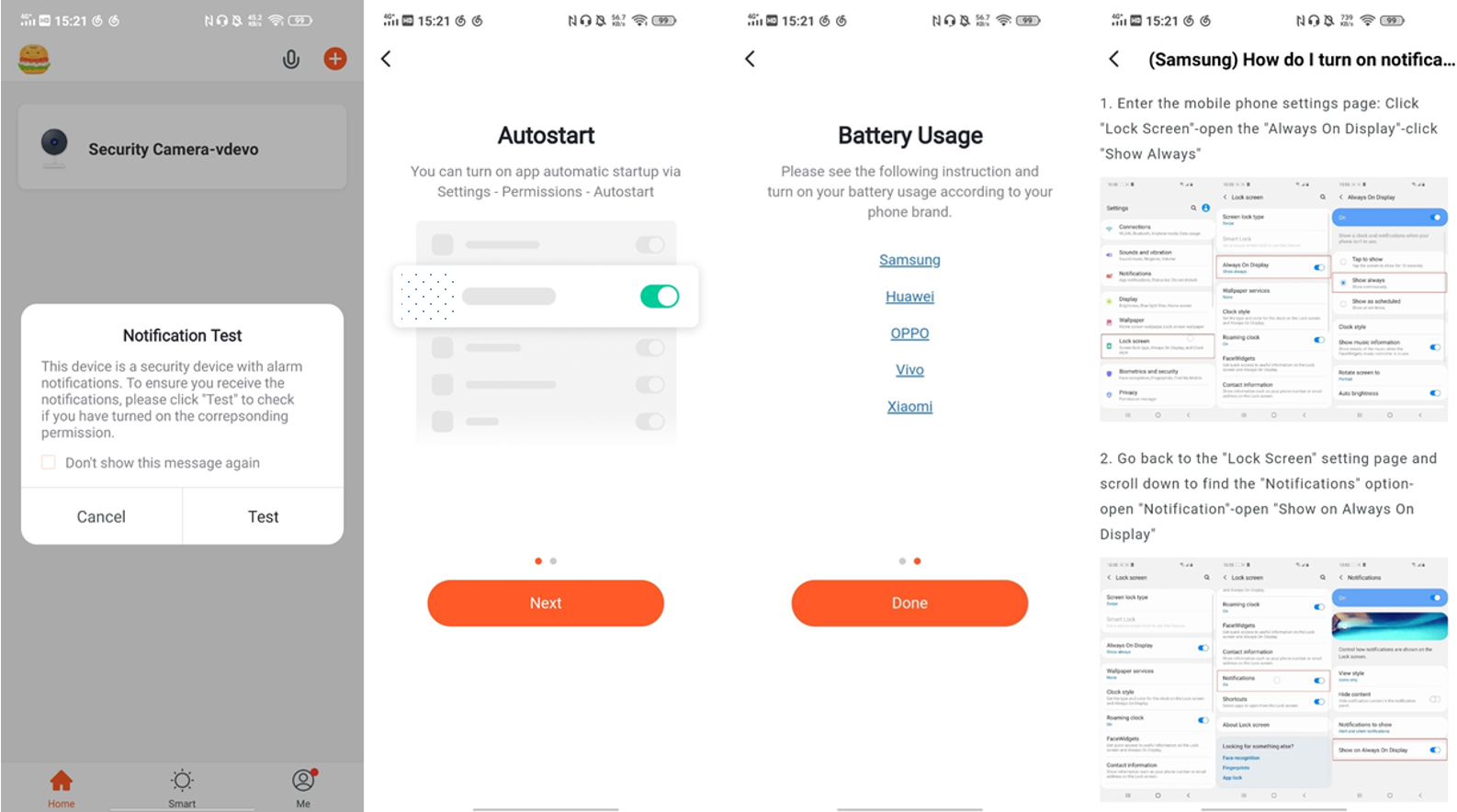
A Notification Test message appears when security devices are added to the app on Android mobile phones. To ensure that notifications can be received, tap **Test** and follow the tips to make sure the autostart and battery usage detection permissions are granted to the app.
## Manage lists of devices and rooms
### View devices
On the **Home** page, the user can view all devices or view devices by room.
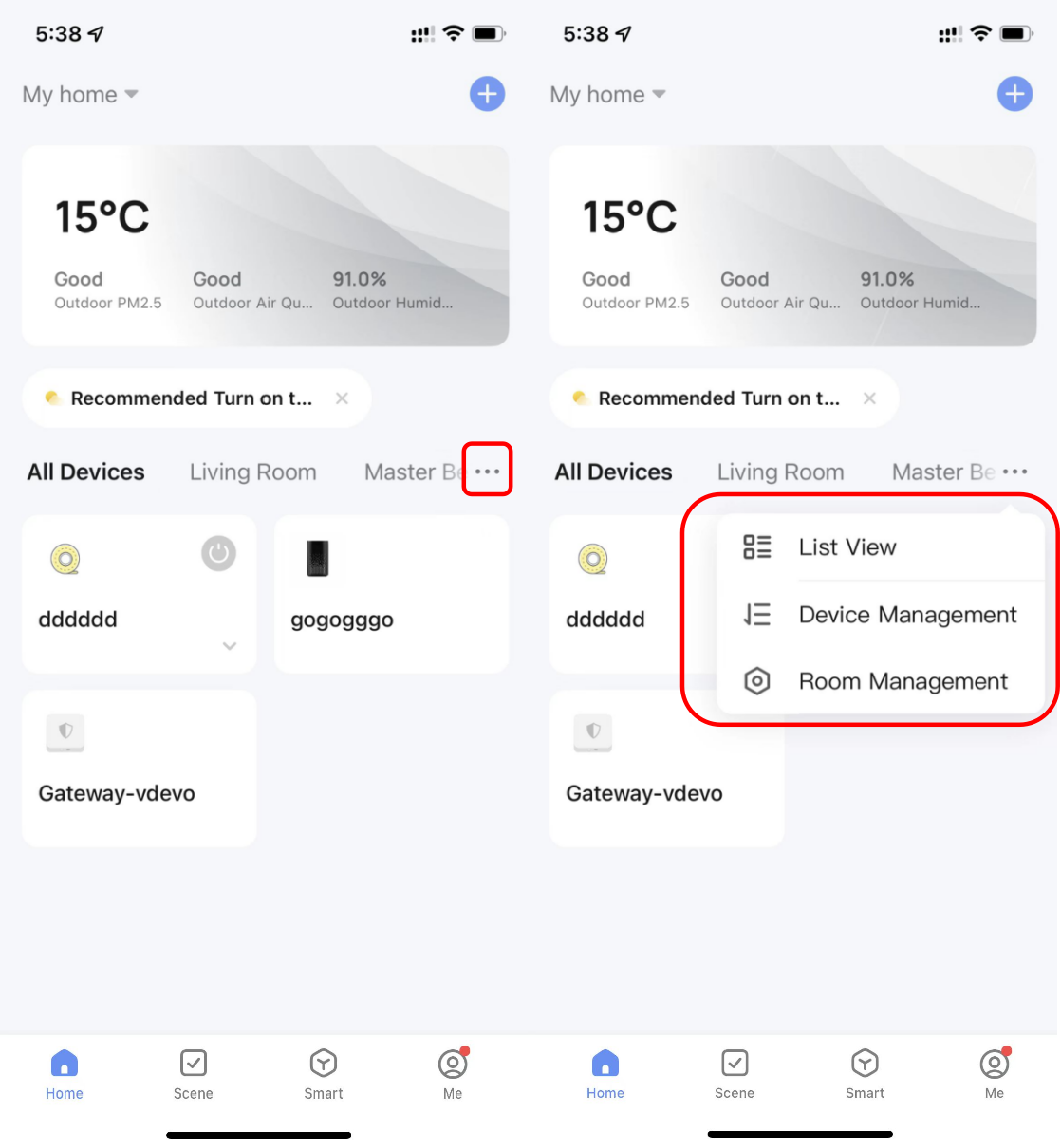
Tap the More icon (**…**) on the right side of the page. On the menu that appears, view devices in a **list view** or a **grid view**.
### Manage devices and rooms
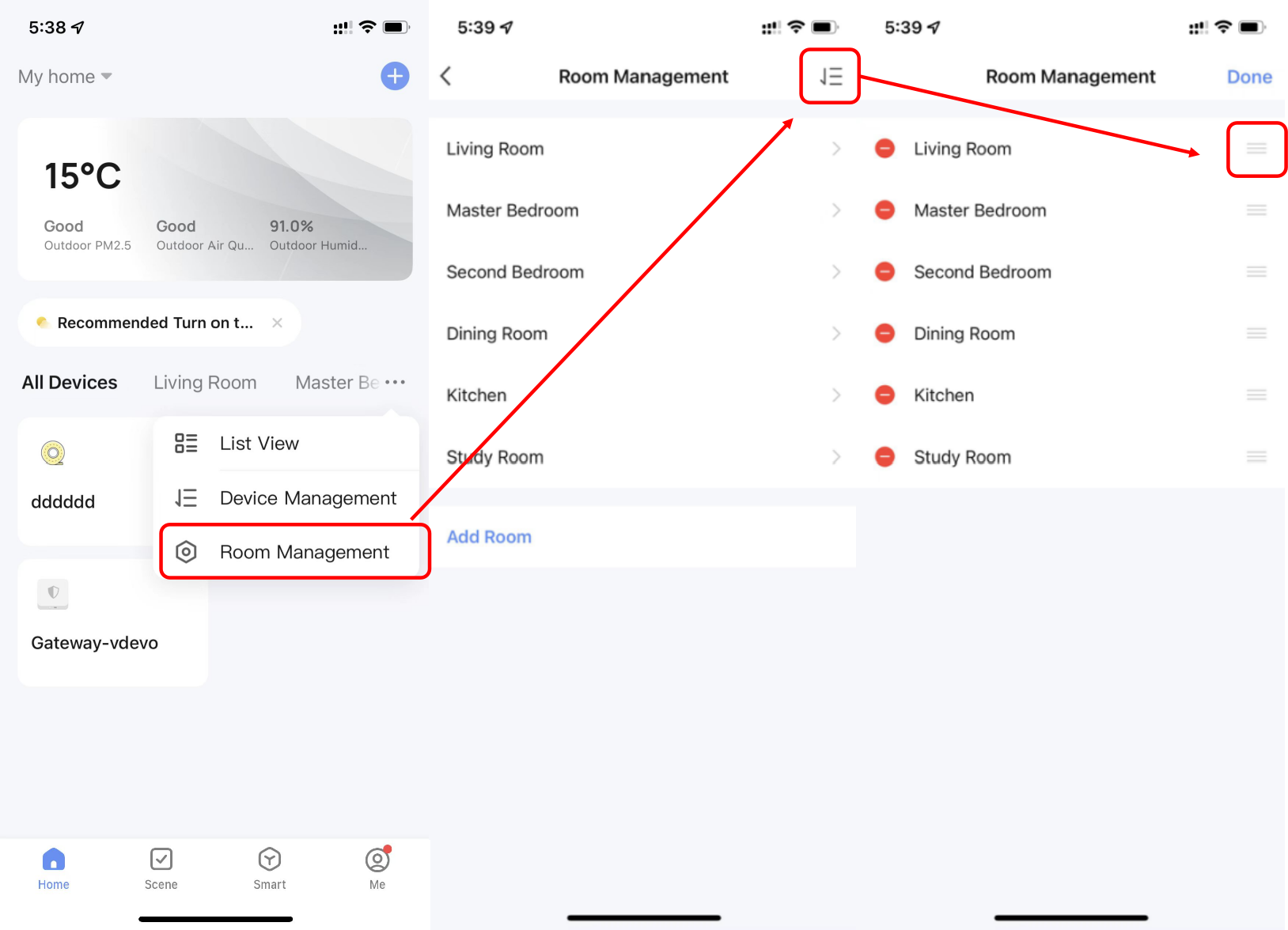
1. To manage devices, tap the More icon (**⋯**) next to the devices on the **Home** page. Tap **Device Management**. On the page that appears, a device icon can be dragged to sort the display order of the devices. The user can also press and hold press a device on the **Home** page to navigate to the page for device management. Multiple devices can be selected and deleted in the same operation.

2. To manage rooms, tap the More icon (**⋯**) next to the devices on the **Home** page. Tap **Room Management**. On the page that appears, tap the management icon in the top right corner of the page. To sort the display order of a room, drag the hamburger button (**≡**) on the right side of the room name. To remove a room, tap the minus icon (**-**) before the room.
3. In the device list, if a device is grayed out, the device is offline. Otherwise, the device is online.
### Quickly use common features
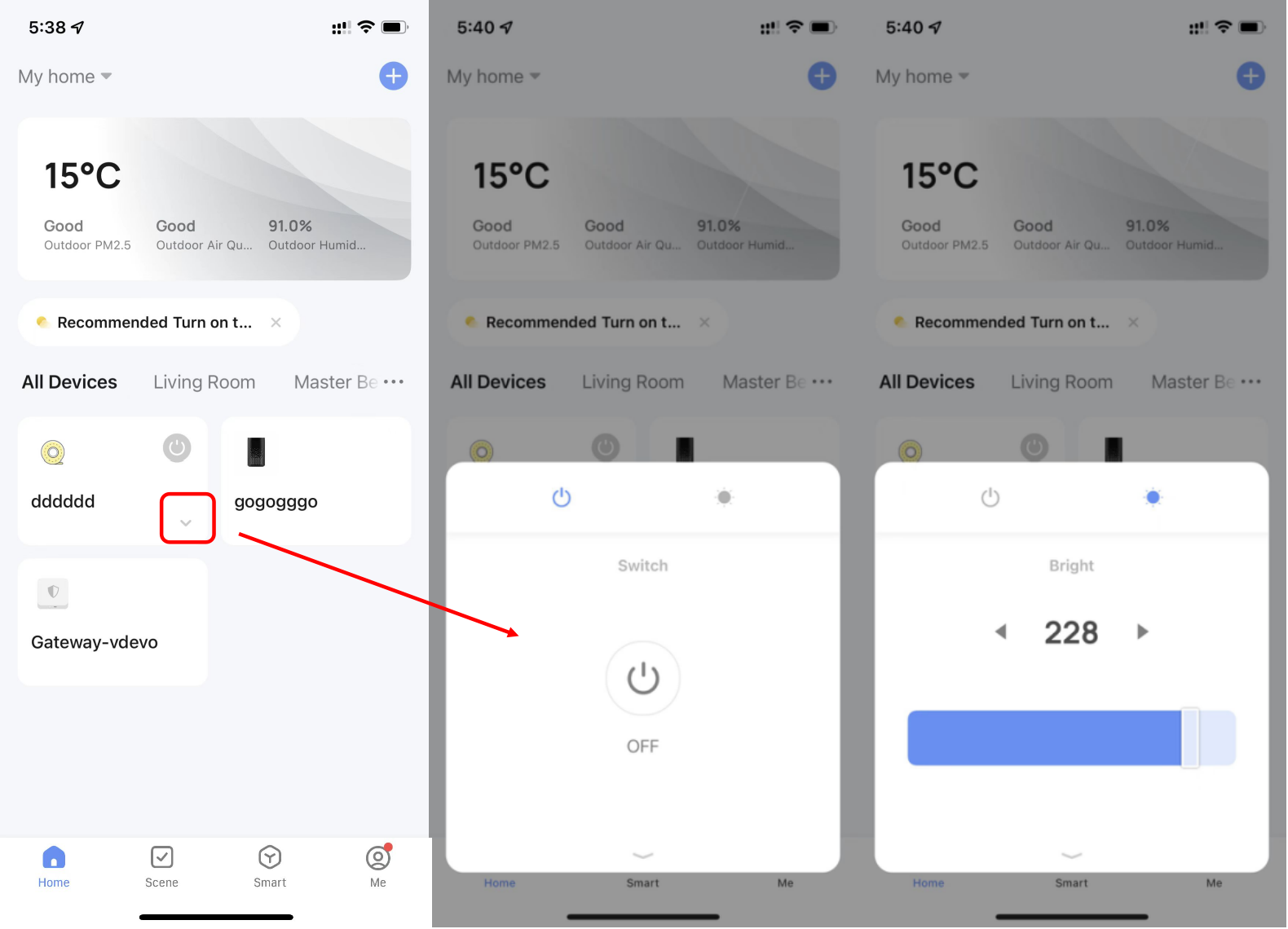
1. When the devices are displayed in a **grid view**, tap the small arrow in the bottom right corner of a device to access the **extension functions** of the device. For example, tap the switch icon to **switch on or off** strip lights or drag the slider to **adjust the brightness**.
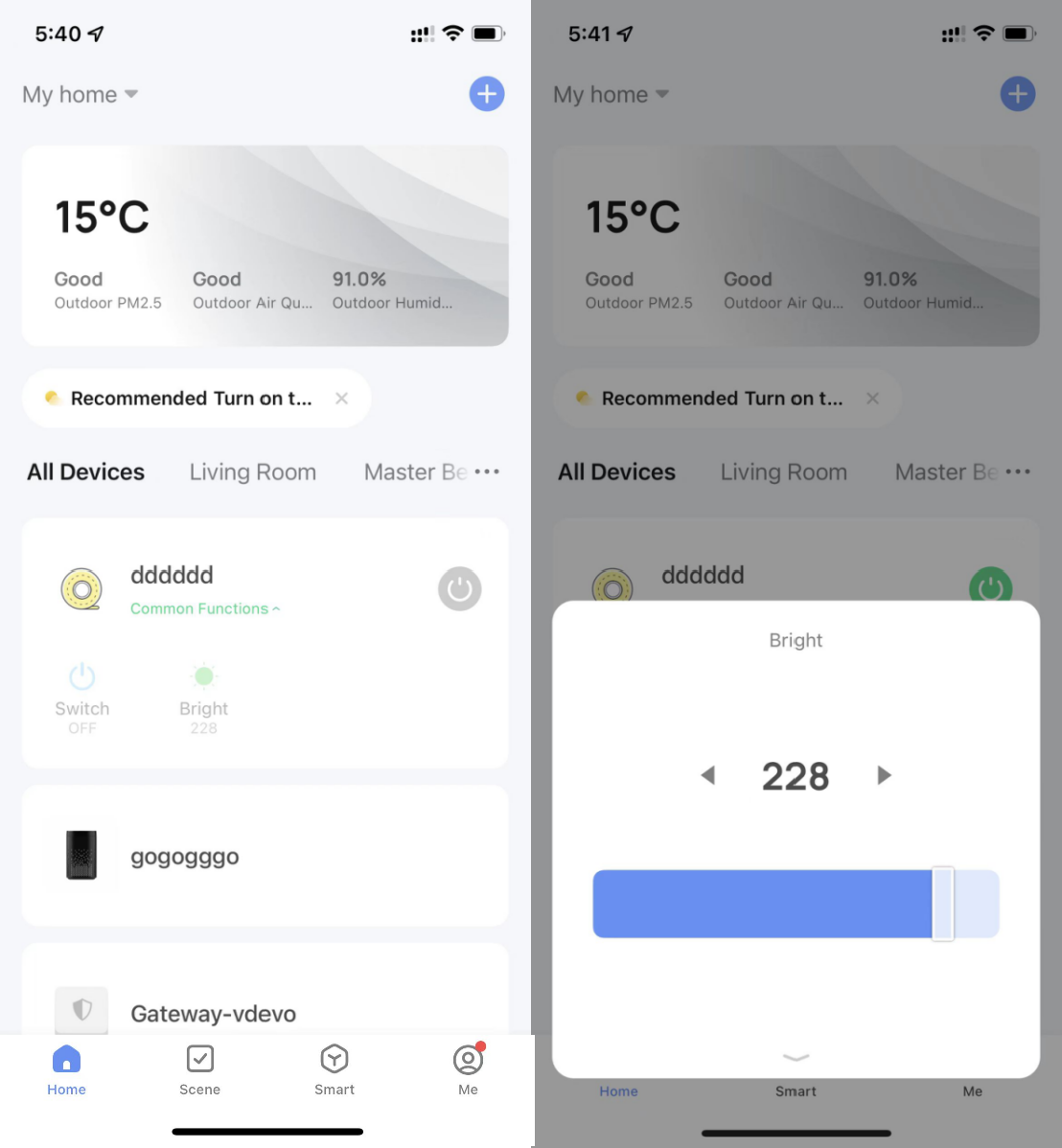
2. When the devices are displayed in a **list view**, tap **Common Functions** under the device name to quickly control the device. In this case, certain common functions are also available in the dialog box of **extension functions**.
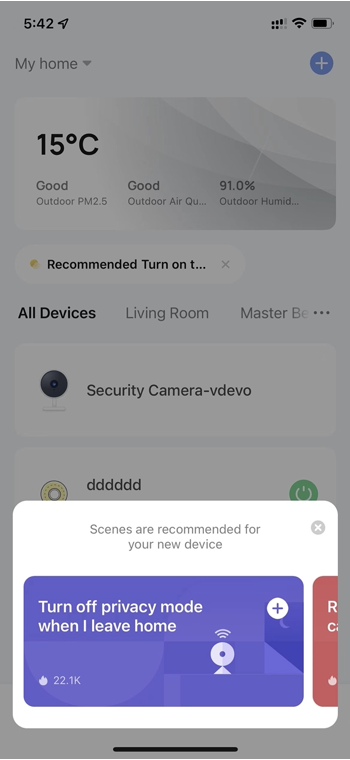
### Recommend scenes for new devices
After new devices are paired, the system automatically recommends the matching scenes. The user can check and select the recommended scenes as preferred and quickly get started with smart life.
## Control devices
### Use control panels
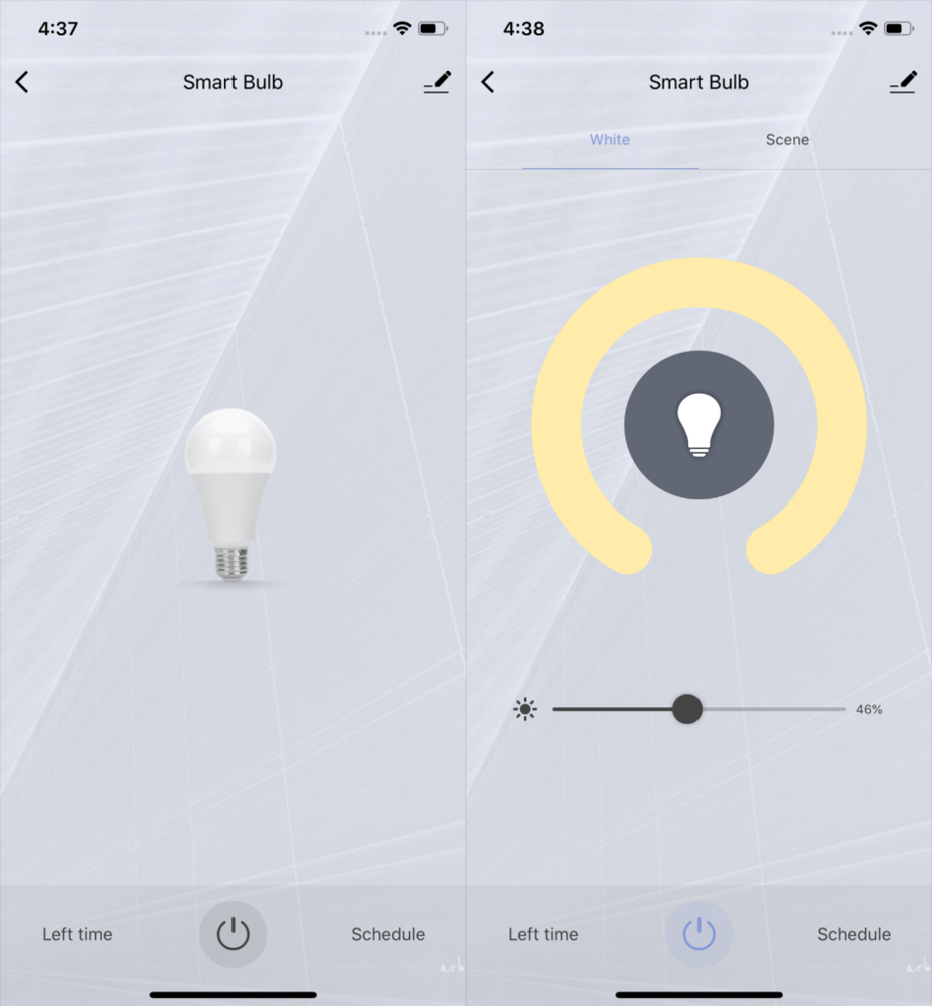
1. After a smart device is added, a **device tile** that contains the device icon appears in the device section on the **Home** page. Tap the device tile to enter the control panel of the smart device. The control panel might vary from device to device.
2. If the device gets offline, the **Offline** state is shown in the device tile. In this case, the device cannot be controlled on the control panel.
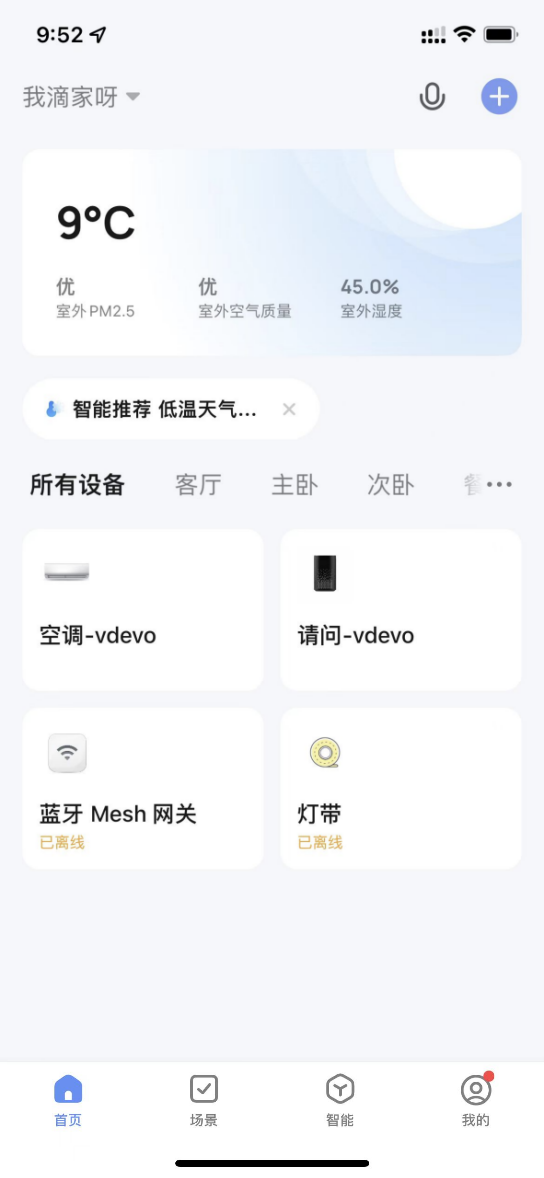
3. Features available on the control panel also depend on the device status. For example, only the **countdown** and **scheduling** features are available when a light is turned off. Features such as **scene setting, color adjustment, and brightness adjustment** are also available when the light is turned on. Tap the edit icon in the top right corner of the control panel to manage the device.
### Manage devices
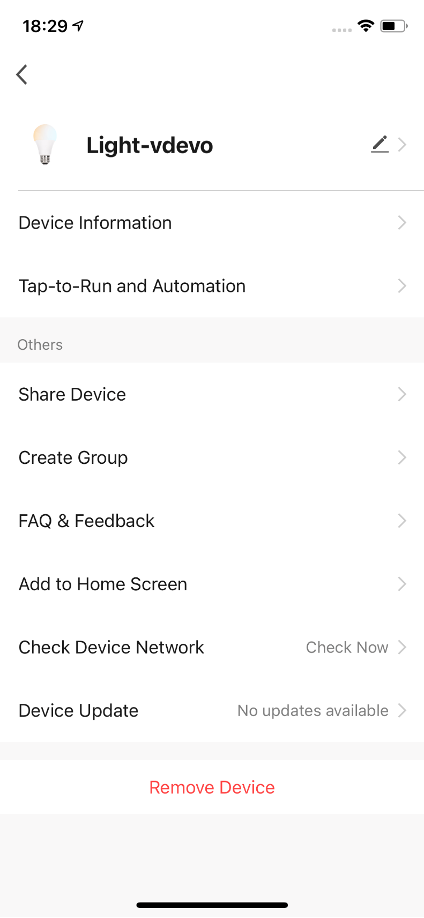
On the device management page, the device settings and information can be managed:
1. To change the device icon, device name, and location information, tap the edit icon next to the device icon.
2. To view the device ID, IP address, MAC address, time zone, and online/offline status, tap **Device Information**.
3. To enable or disable the automation feature or modify the automation settings, tap **Tap-to-Run** and **Automation**.
4. To share the device with a home member, tap **Share Device**. On the page that appears, enter the email address or mobile phone number that is bound with the app account of a home member.
5. To create a device group for easy group control, tap **Create Group**. On the page that appears, all devices that have the same model as the current device under the current account are displayed. The devices to be added to the group must have the same firmware version.
6. To view FAQs related to the device or send feedback, tap **FAQ & Feedback**.
7. To add a shortcut of the device control panel to the home screen of the mobile phone, tap **Add to Home Screen**. Then, the user can tap this shortcut to enter the control panel of the device.
8. To check the device connection status, tap **Check Device Network**.
9. To check whether any firmware updates are available, tap **Device Update**.
10. To remove the device, tap **Remove Device**. Two options appear: **Disconnect** and **Disconnect and wipe data**. If **Disconnect** is tapped, the device is removed from the device list and **automation scenes** and **tap-to-run scenes** that are related to the device become unavailable.
11. If **Disconnect and wipe data** is tapped, the device is removed from the device list and all data related to the device is erased.
### Automatically update firmware
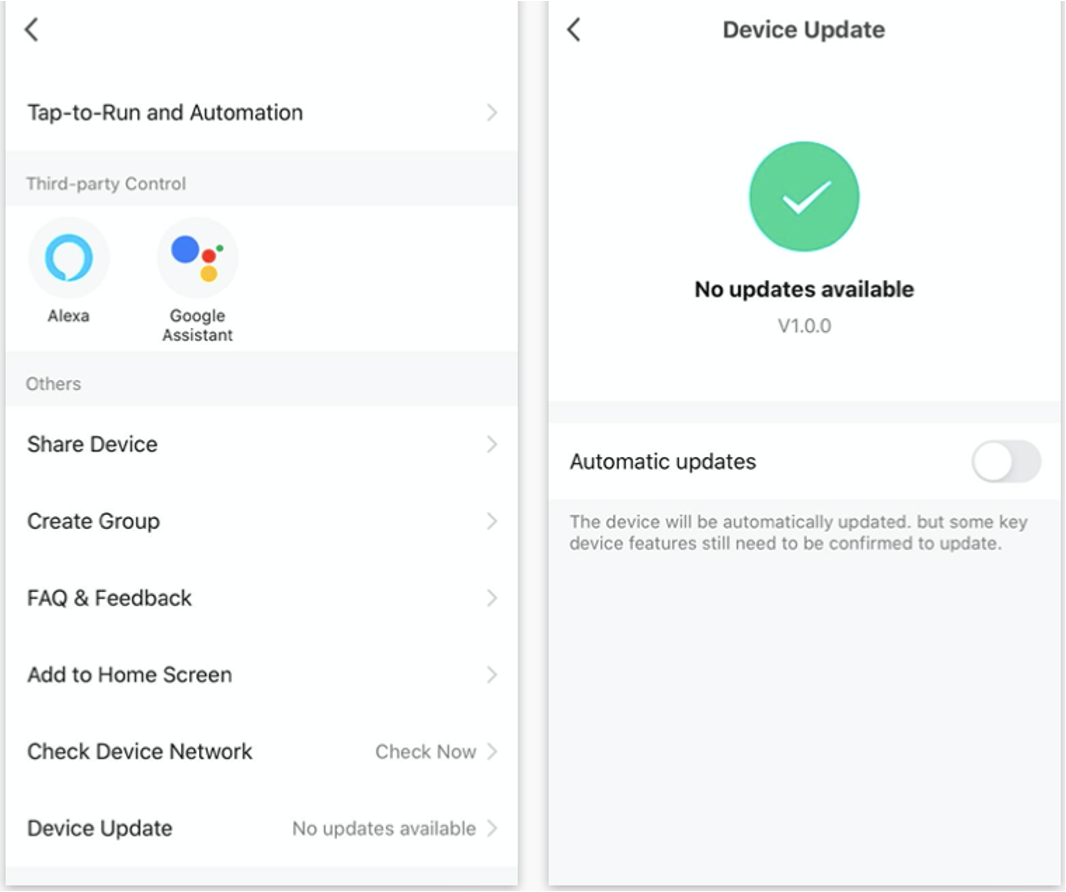
1. Tap **Device Update** on the device management page.
2. Enable **Automatic updates**.
3. Then, the device will be automatically updated when it remains idle or when no operations are performed on the device.
### Change networks
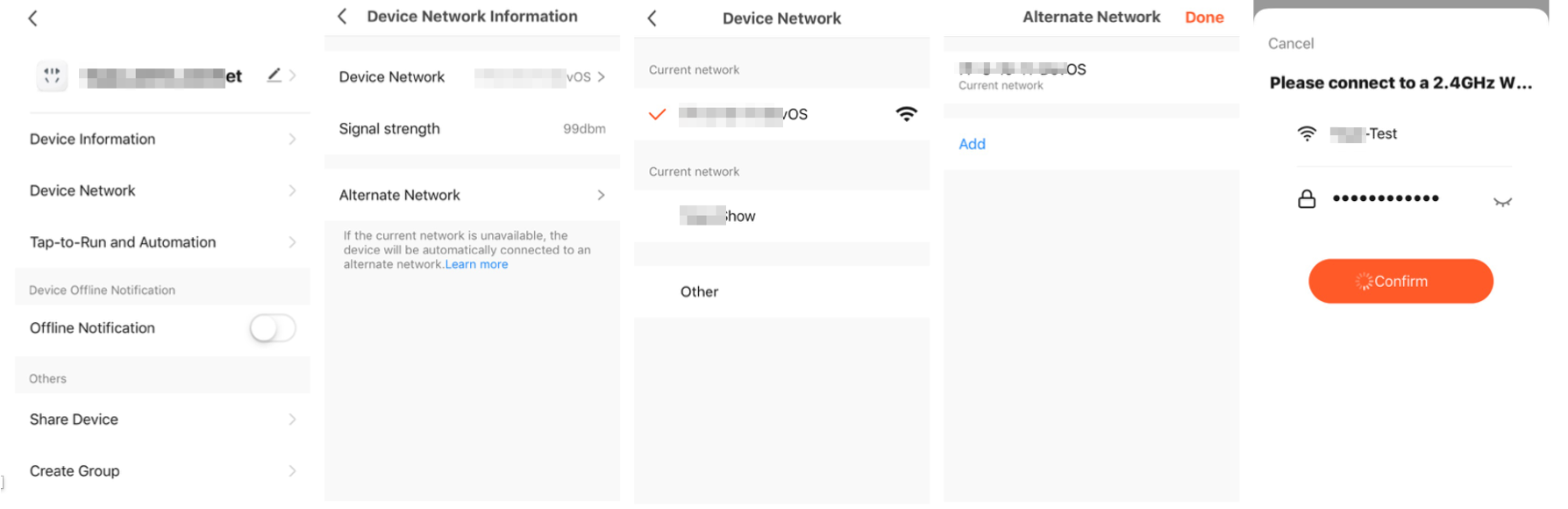
1. Tap **Device Network** on the device management page. On the **Device Network Information** page, tap **Alternate Network**.
2. Select the alternate network to be used, enter the Wi-Fi password, and tap **Confirm**.
3. If the current network is unavailable, the device will be automatically connected to the alternate network.
This feature is suitable for replacing routers in a home and only applies to Wi-Fi devices. Updating the firmware to the latest version is recommended, so this option can be available on the device management page. If this feature is unavailable on the latest app, contact Tuya’s staff to get support.
### Review devices
The control panel of a specific device supports device reviews. Comments and suggestions on the device can be submitted to improve the device. This feature only applies to certain product categories, such as air purifiers.

### Share devices
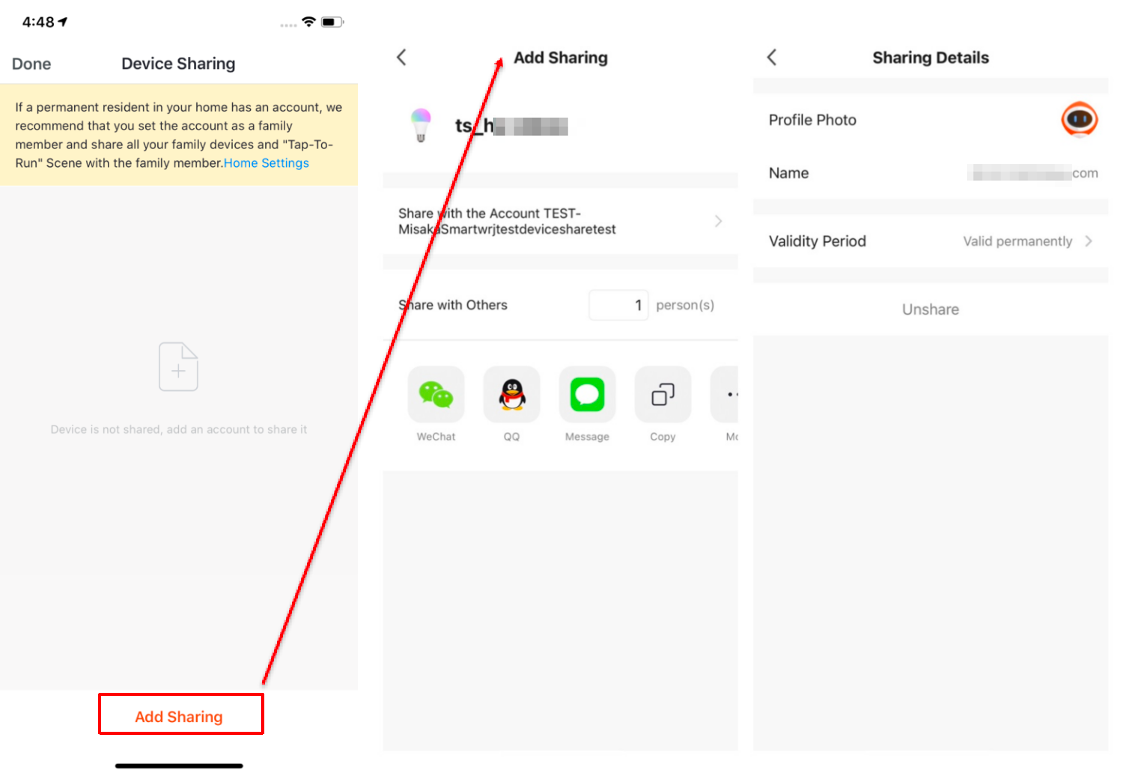
1. Tap **Share Device on the device management page to enter the Device Sharing page.**
2. Tap **Add Sharing**. On the page that appears, enter the account with which the devices will be shared, and tap **Done**. Devices can be shared through multiple channels, such as LINE, WhatsApp, or WeChat, shared only once or multiple times, or shared within a period of validity or permanently. This enables device sharing for various categories in different scenarios.NB-IoT devices can be shared to extend the device usage scope.
3. To stop sharing devices with an account, perform the following steps to delete the account: On Android, press and hold the account name and tap **Delete**. On iOS, press and hold the account name, swipe left, and then tap **Delete**.
### Control groups
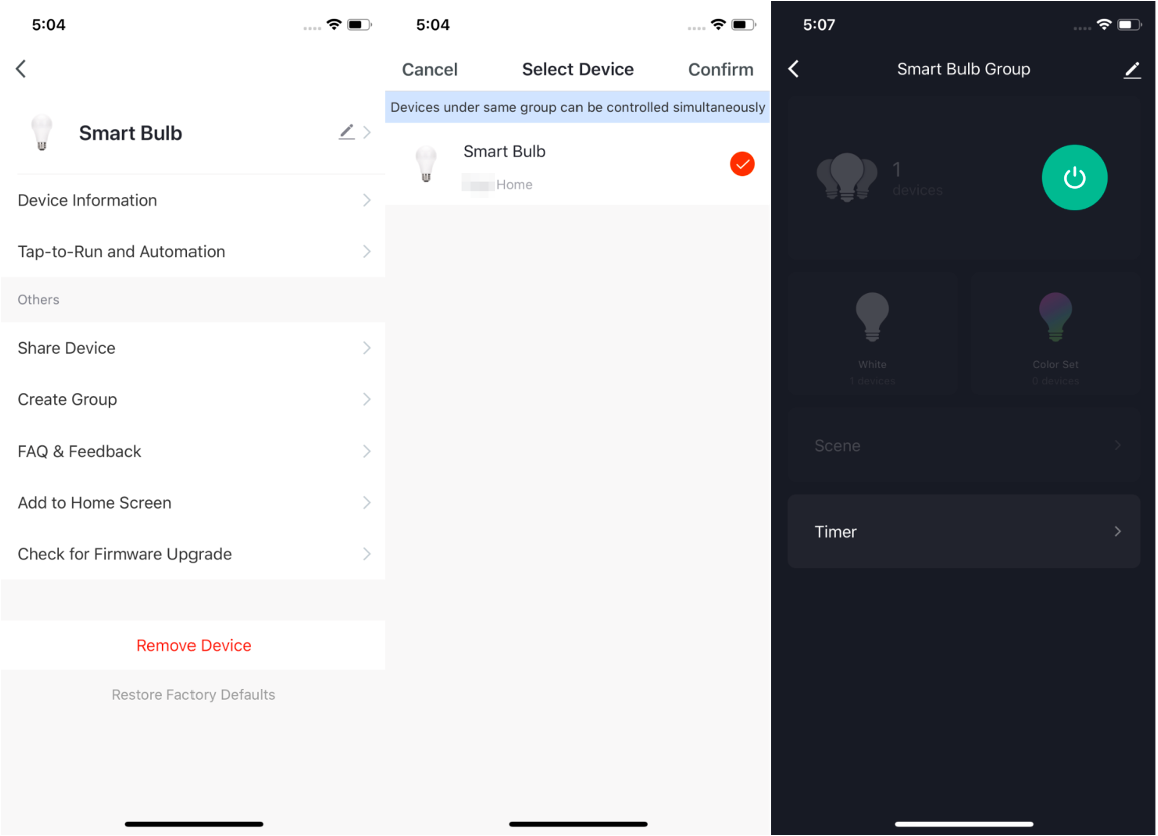
1. Tap **Create Group** on the management page of a selected device.
2. On the **Select Device** page, select devices to be added to the control group and tap **Save**. Enter a group name, and tap **Confirm**. The **Select Device** page shows all devices of the same model as the selected device.
3. After the group is created, the app automatically displays the group control panel, where the devices can be controlled in groups.
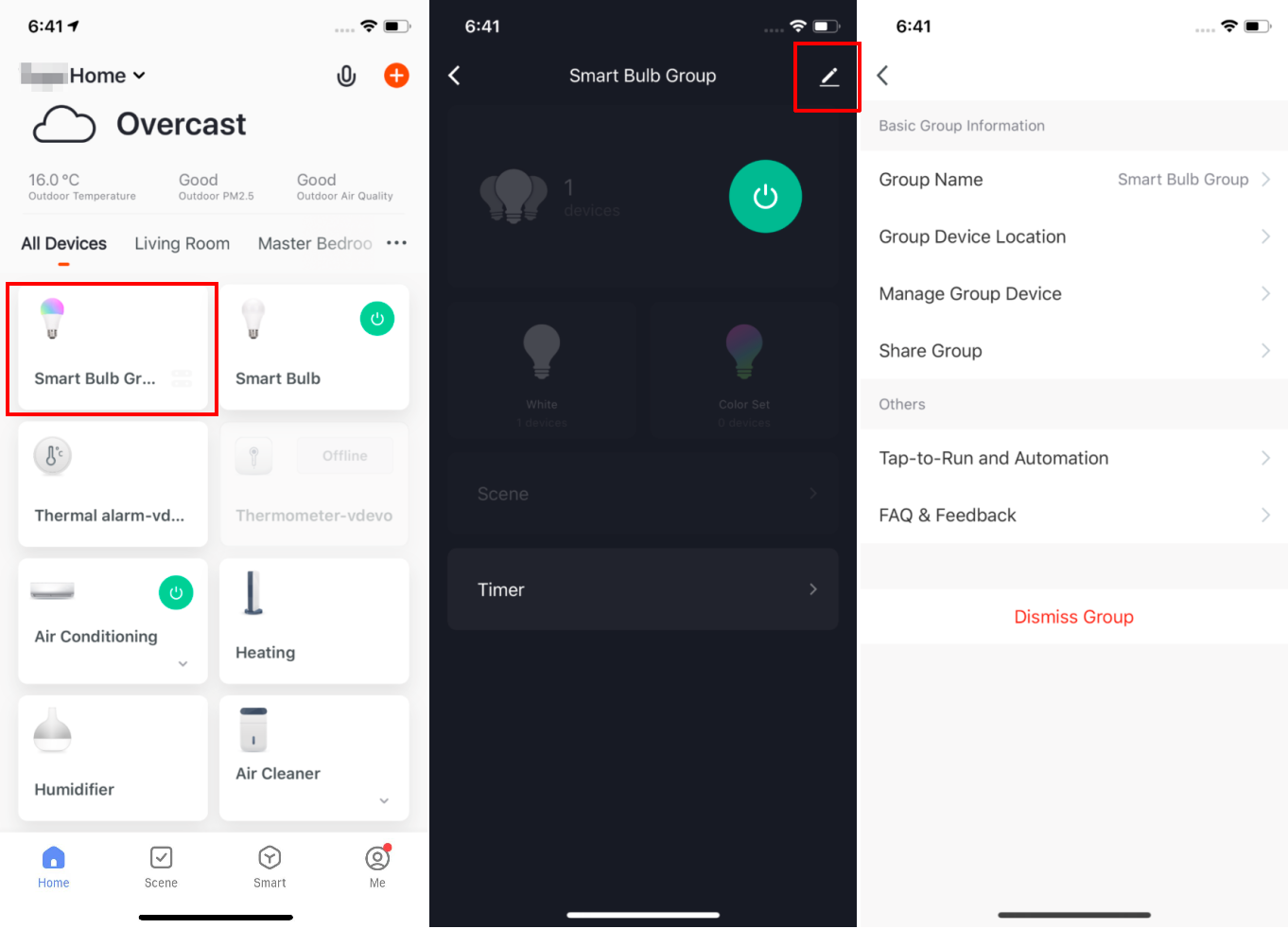
4. On the **Home** page, the created group can be viewed and the devices in the group can be controlled.
5. On the **group control** page, tap the edit icon in the top right corner of the page to manage the group, or tap **Dismiss Group** to dismiss the group.
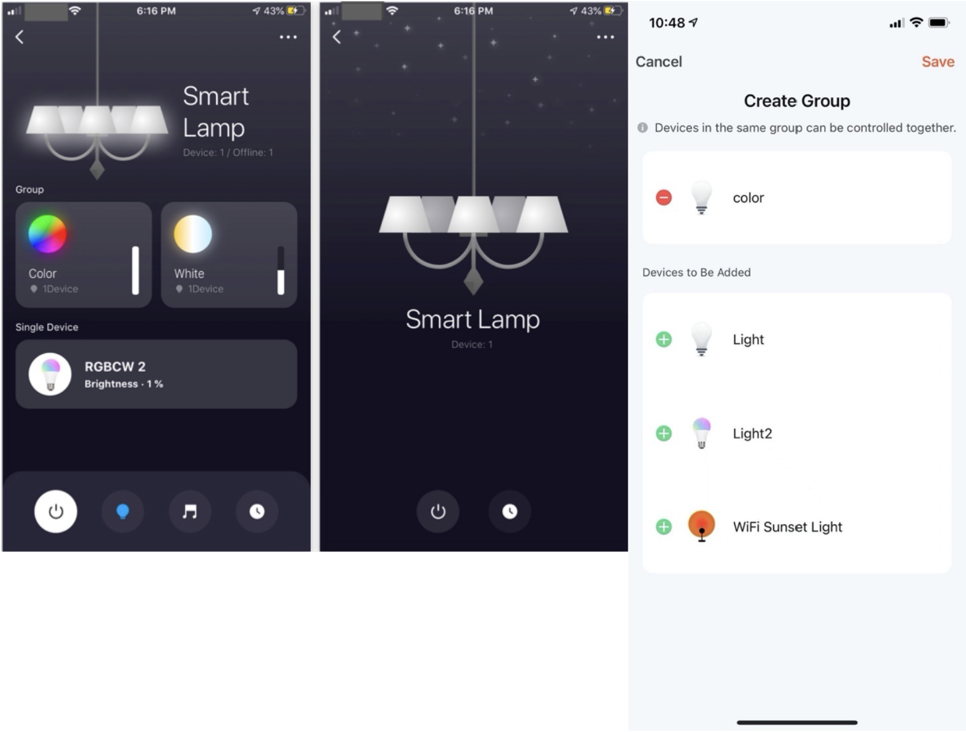
6. Standard groups of Bluetooth mesh devices are supported to achieve centralized control of Bluetooth mesh groups.
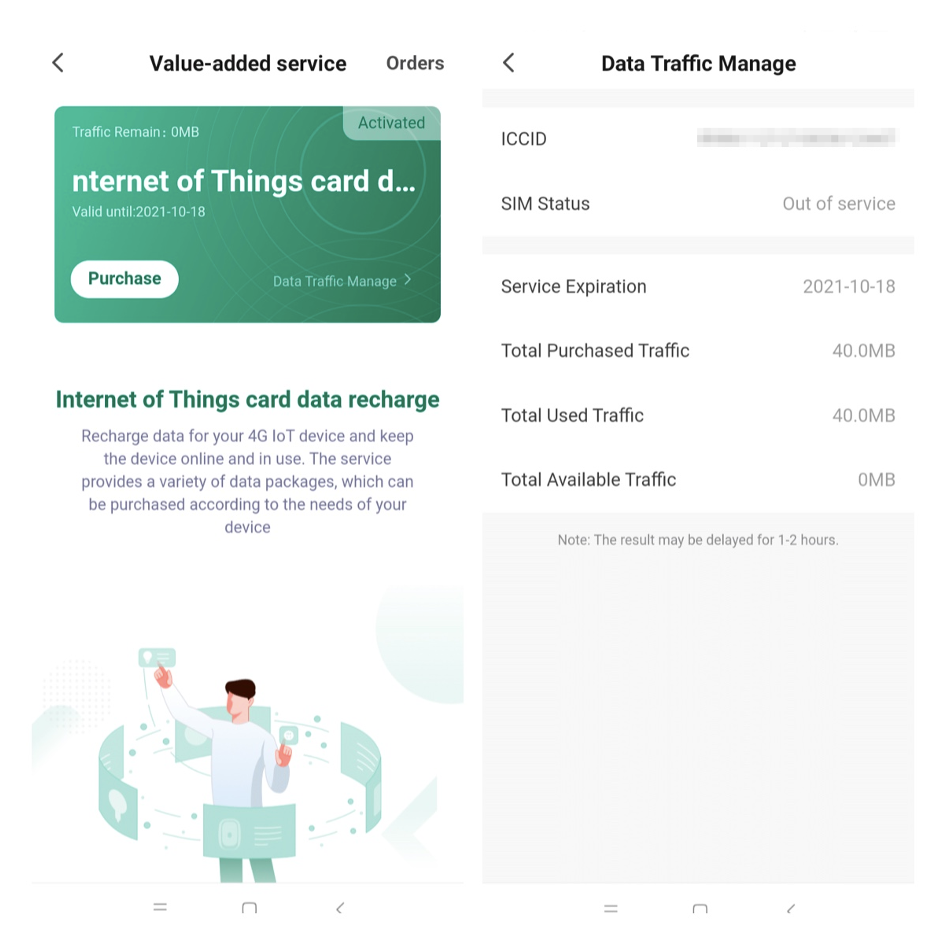
### Manage data traffic
For NB-IoT, LET Cat.1, 4G cameras, and other types of devices with built-in SIM cards, the value-added service **Data Traffic Manage** is available. This feature allows users to purchase, query, and calculate data traffic.
## Manage automation and tap-to-run scenes
### Automation
1. In the bottom navigation bar, tap **Smart** > **Automation** > **Create Scene**, or tap the plus icon (**+**) in the top right corner of the **Automation** tab to enter the page for smart scene settings.
2. Tap **Add Condition** to add one or more conditions. If **Launch Tap-to-Run** is selected, only the current condition can be added. Tap **Add Task** to add one or more tasks. Multiple **Tap-to-Run** and **Enable or Disable Automation** tasks can be added. Tap **Name** to specify the name of the automation. Tap **Effective Period** to set a time during which the created automation scenes are effective.
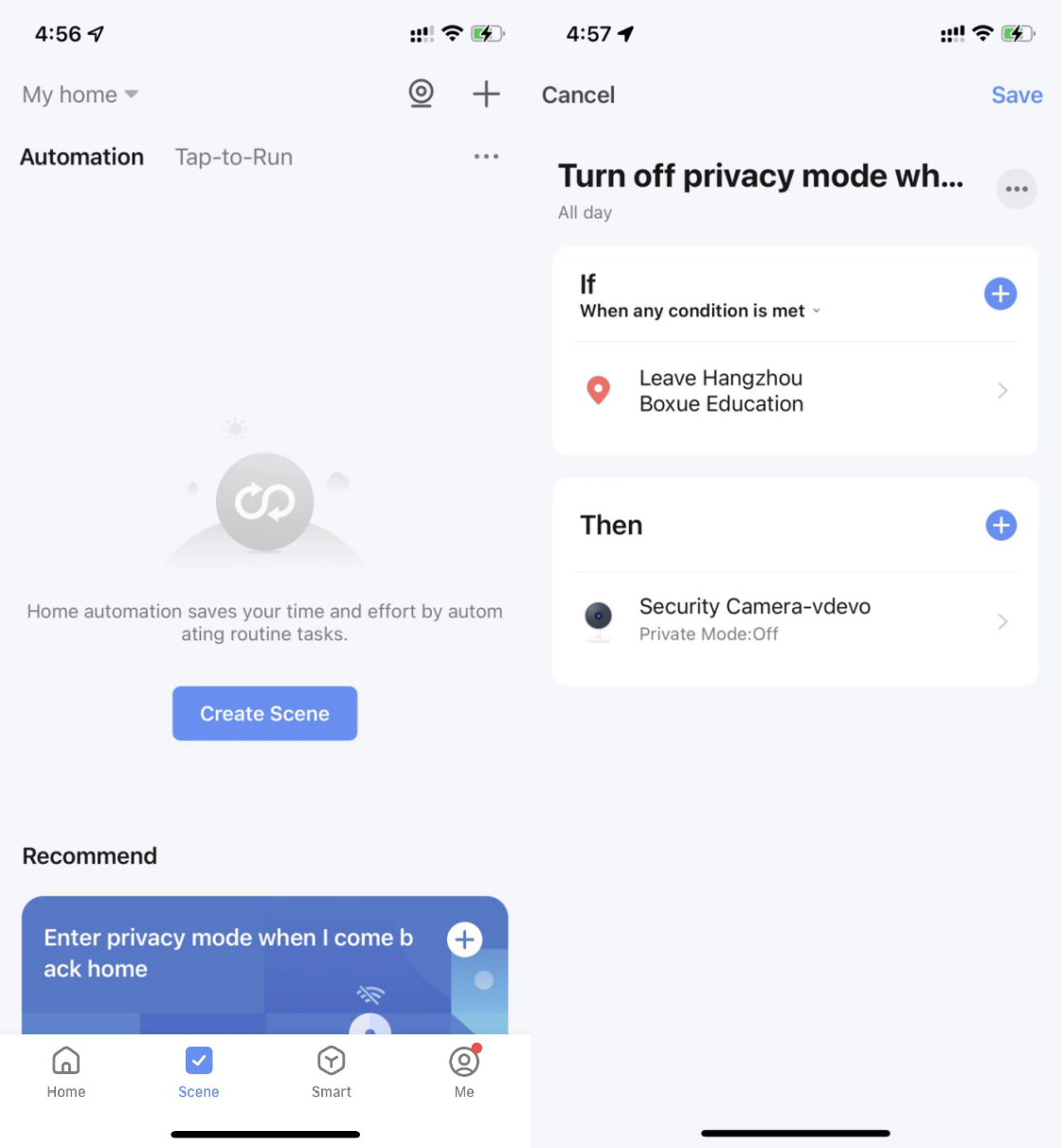
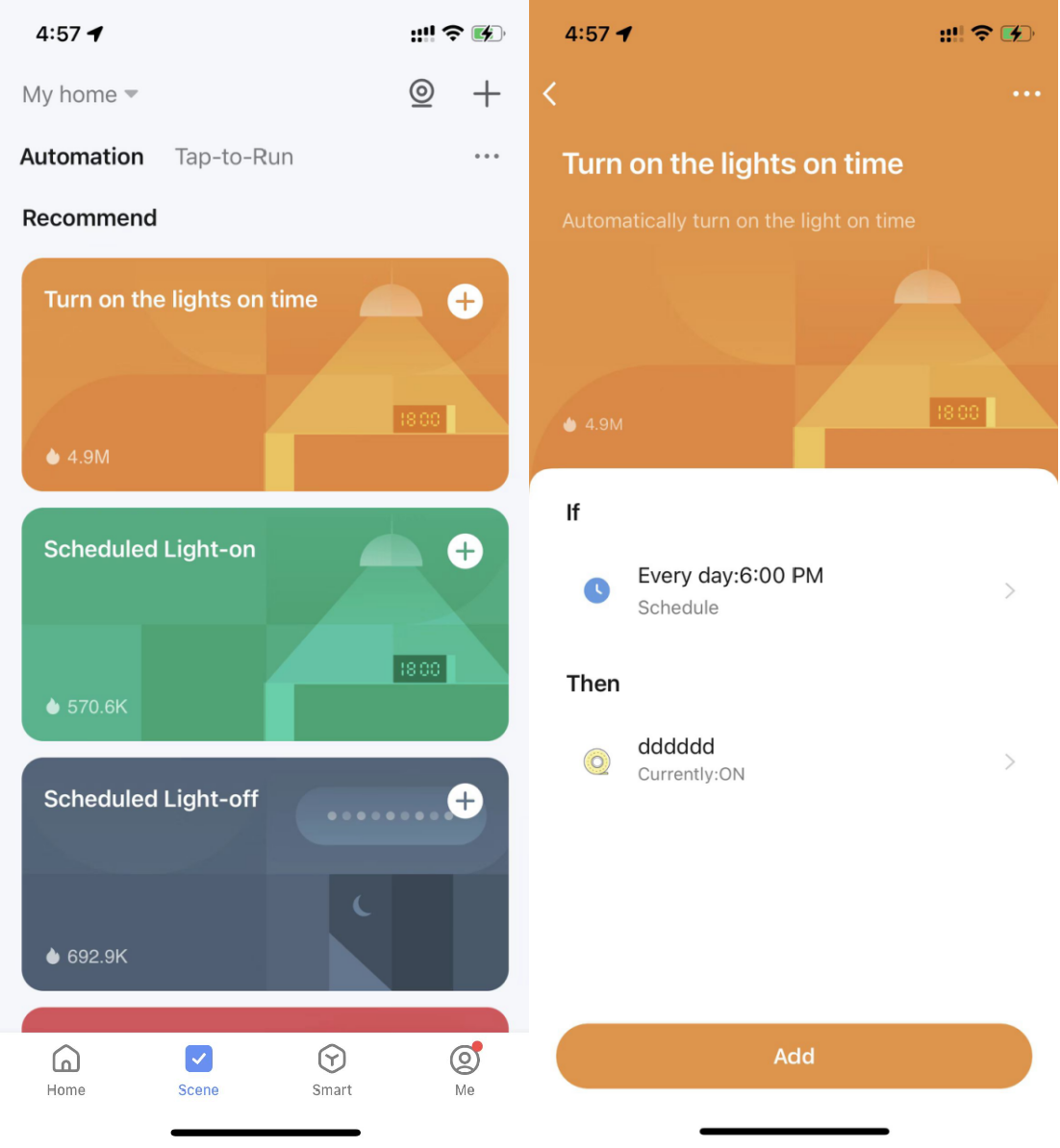
3. Recommend smart scenes: Simplify the procedure to add the smart scenes recommended with bright colors and eye-catching device elements, and improve the visual effect and user experience of smart scenes.
4. Support voice and SMS notifications of important events when specific conditions are met to ensure home security.
5. Recommend devices for purchase to implement scene linkage.
### Add an automation scene
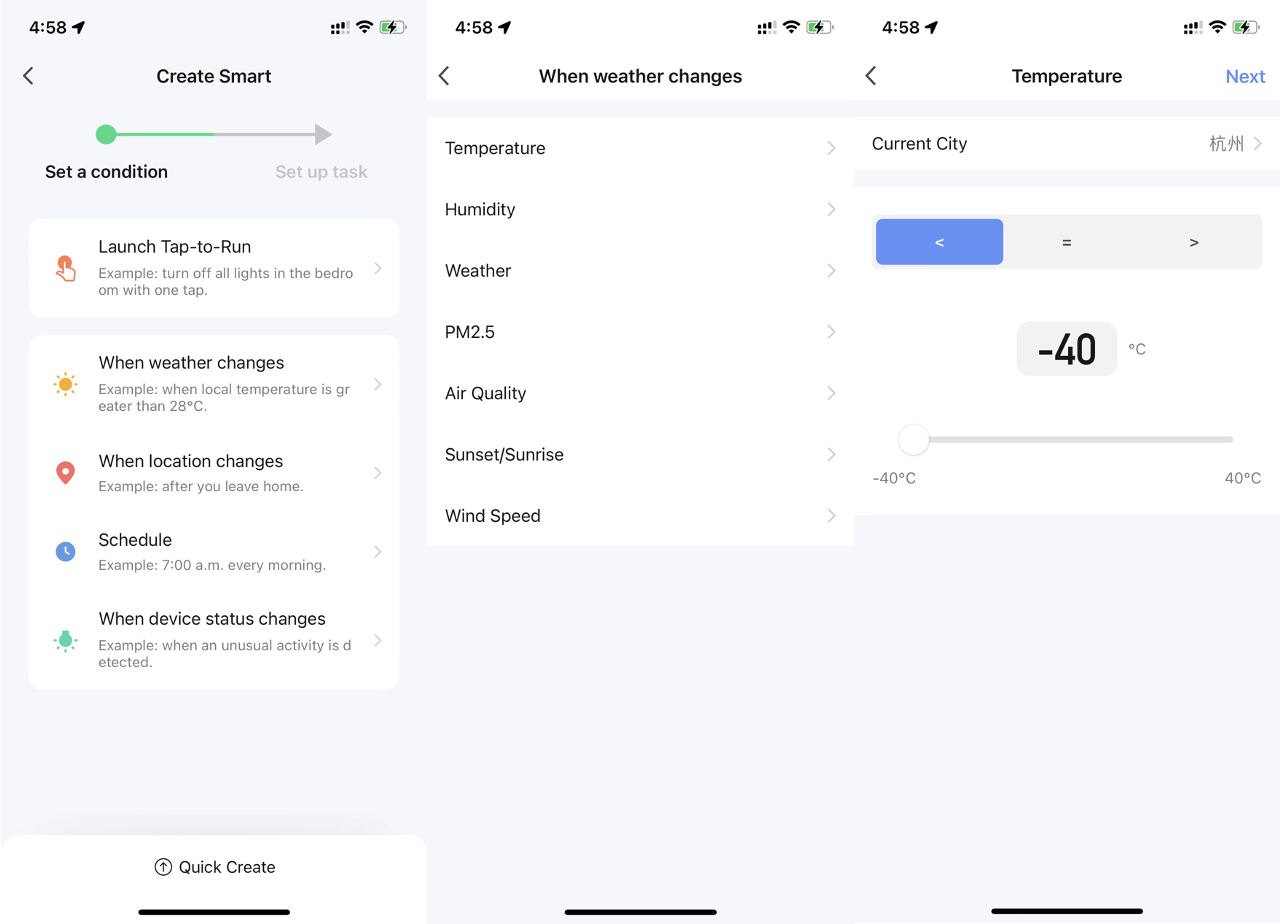
1. On the **Automation** tab, tap **Create Scene** to open the **Create Smart** wizard.
2. In the **Set a condition** step, select a trigger condition. In this example, **When weather changes** is selected.
3. Select a specific condition such as **Temperature** on the **When weather changes** page.
4. On the **Temperature** page, set a temperature value and tap **Next**. The **Set up task** step appears.
5. Select a task, such as **Execution equipment**.
6. Select a device, such as an **air conditioner**.
7. Set one or more functions on the **Select Function** page. In this example, the device is set to **On**, the temperature is set to **26°C**, the working mode is set to **Cold**, and the wind speed is set to **high**. Tap **Next**.
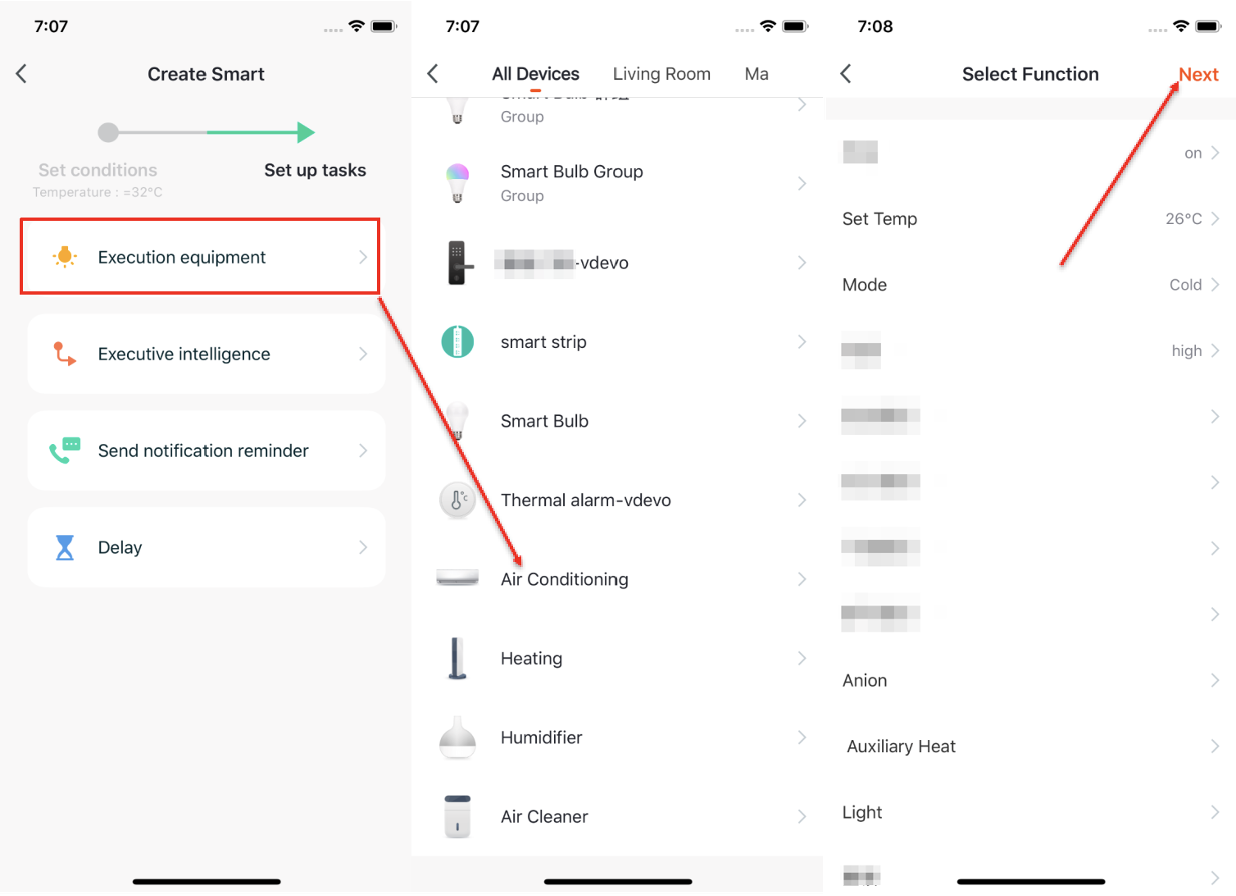
8. On the page that appears, tap **Save** to save the condition and task settings.
9. To add more conditions, tap the plus icon (**+**) in the top right corner of the page.
10. These options are supported by **Add Condition**:
* **Launch Tap-to-Run**
* **When weather changes**
* **Schedule**
* **When device status changes**

### Set sunrise and sunset conditions
1. On the **Automation** tab, tap **Create Scene** to open the **Create Smart** wizard.
2. In the **Set a condition** step, select a trigger condition. In this example, **When weather changes** is selected.
3. Select a specific condition such as **Sunset/Sunrise** on the **When weather changes** page.
4. On the **Sunset/Sunrise** page, select **Sunset** or **Sunrise**, and set a time offset to the sunset or sunrise. Tap **Next**.
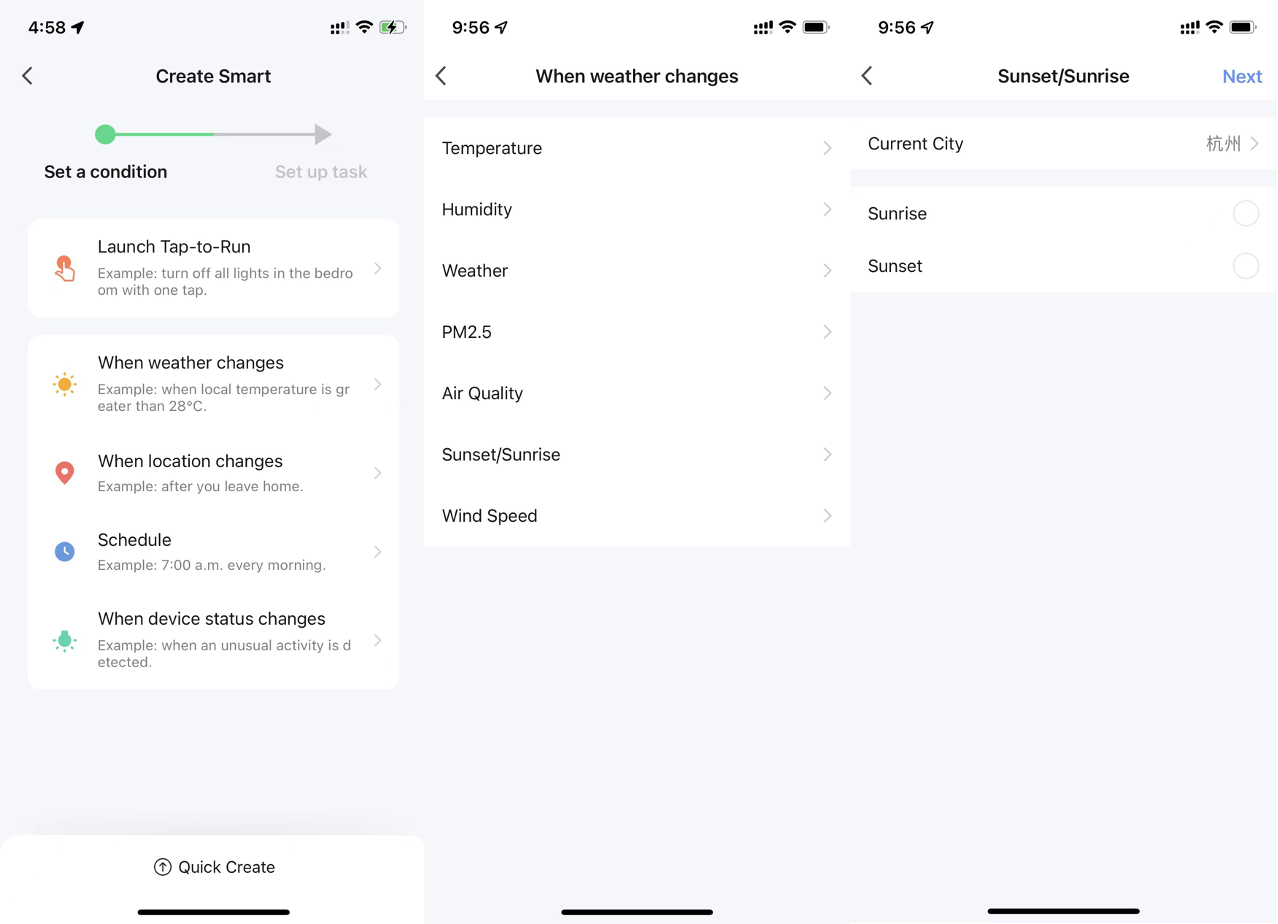
5. The **Set up task** step appears.
### Set task when location changes
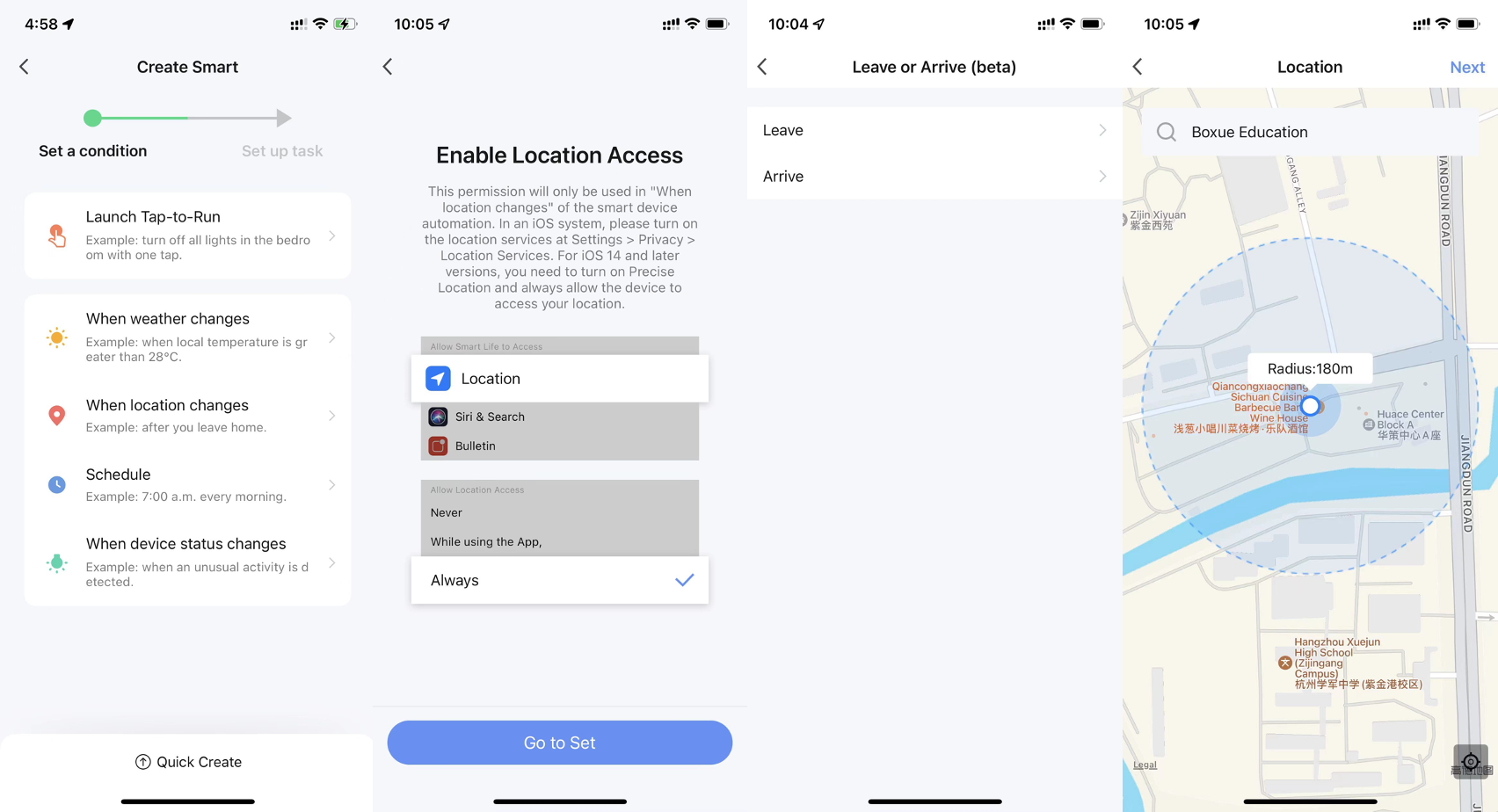
1. Select a task, such as **When location changes**.
2. On the **Leave or Arrive (beta)** page, set the **Leave** or **Arrive** condition to trigger specified actions when the user arrives at or leaves a place. To set the condition, the app must be authorized to always use the geographic location. Currently, this feature is unavailable on Android mobile phones.
3. Set a location and tap **Next**. This feature can be used to control devices 110 meters to 1,023 meters away from the current location to run preset tasks.
### Quickly create smart scenes
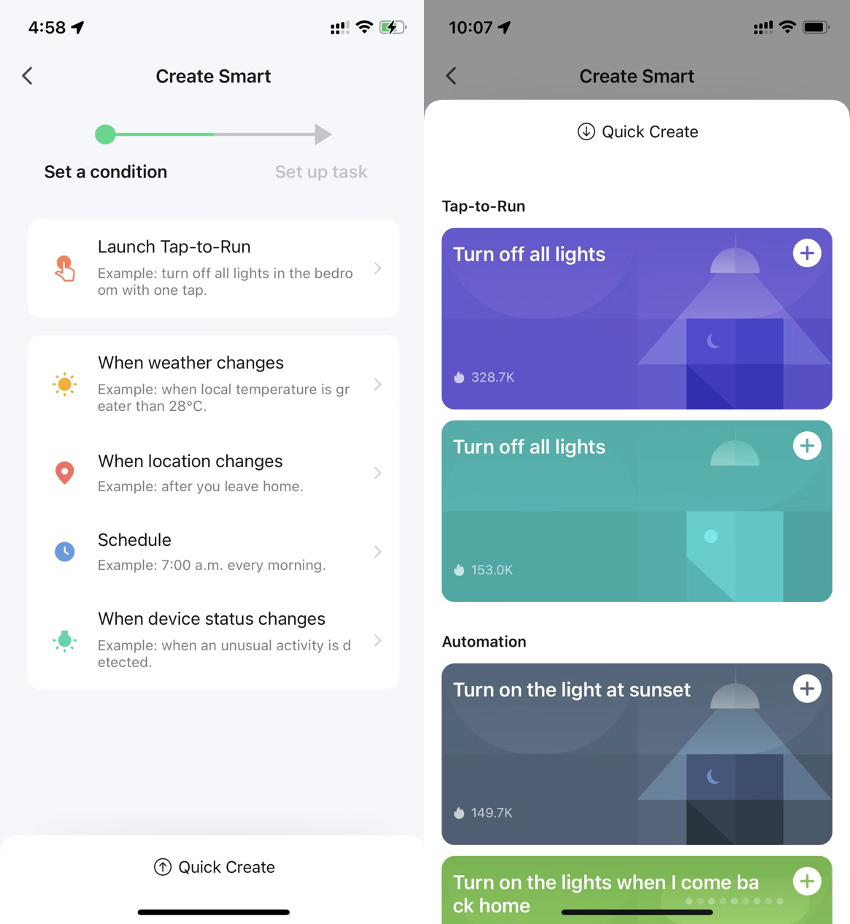
1. The app recommends **out-of-box automation** and **tap-to-run scenes** based on the paired devices. This simplifies device control.
2. To quickly create a scene, tap **Quick Create** on the **Create Smart** page. Set recommended smart scenes.
### Add tasks
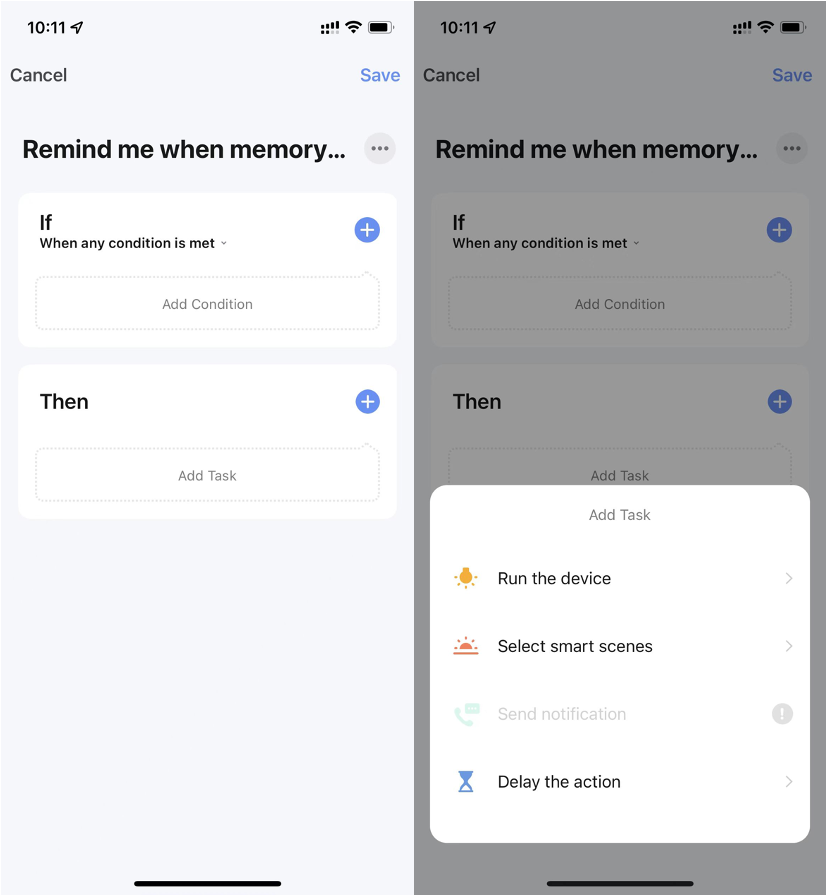
1. To add a task, on the smart scene settings page, tap **Add Task** or the plus icon (**+**) in the **Task** section.
2. A task can be set to a switch of a device in certain conditions or to running an automation scene.
These task options are supported: **Run the device**, **Select smart scenes**, **Send notification**, and **Delay the action**.
### Set effective periods
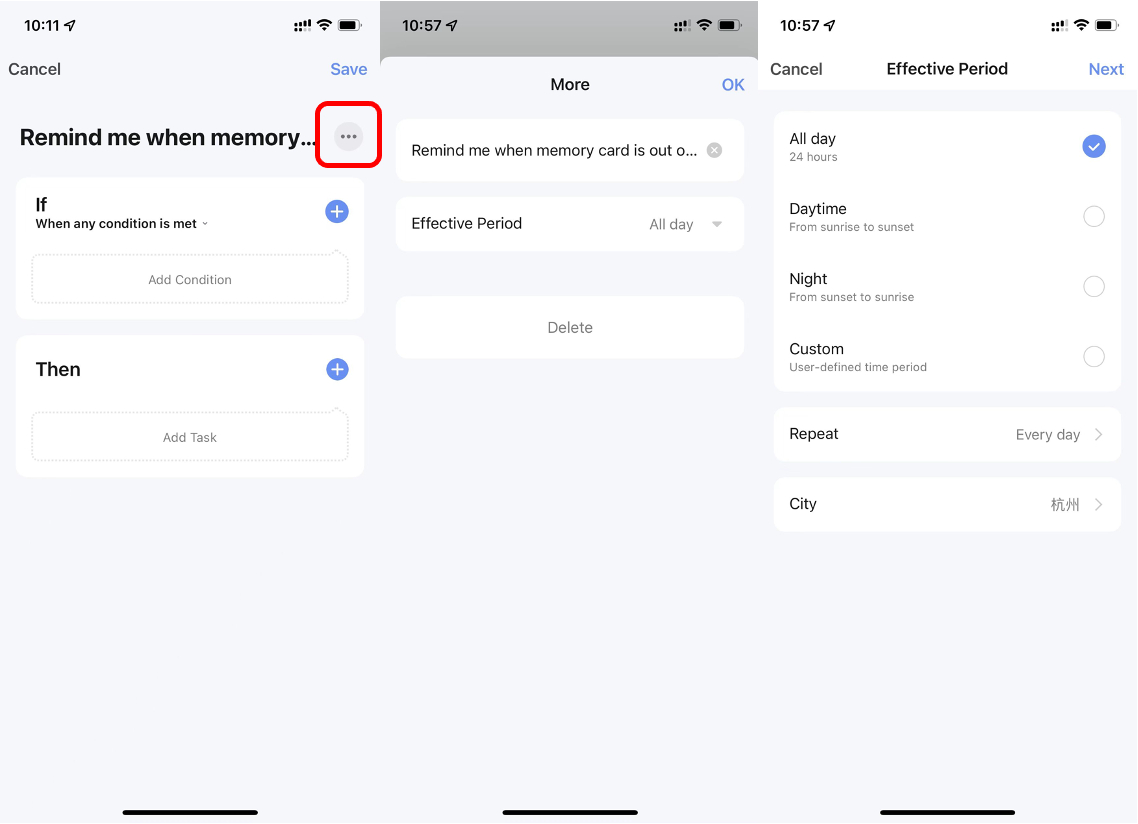
Set a period during which specific smart scenes are effective.
For example, if a scene is defined that the nightlight is automatically turned on when the human motion sensor detects the presence of humans, **Night** can be specified as the effective period. In this case, the nightlight will not be automatically turned on in the daytime.
### Create automation scene
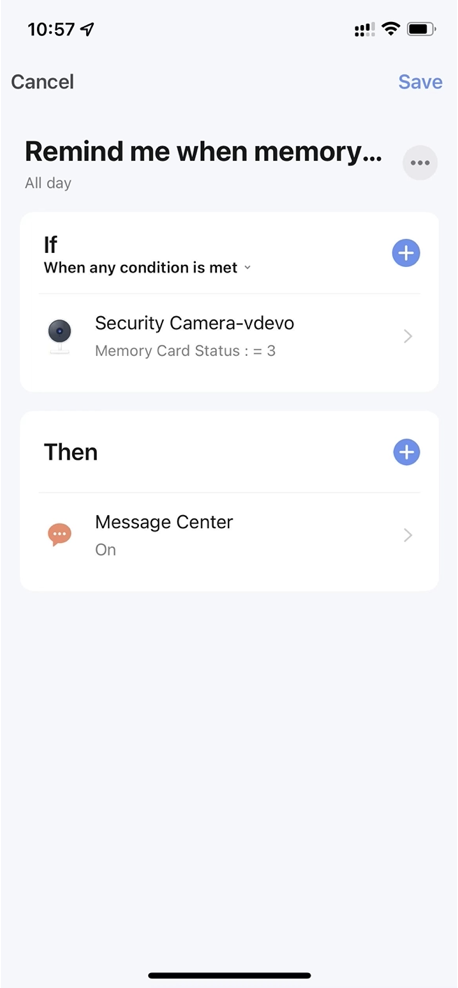
Create an automation scene to implement automated device control. The following figure shows an example automation scene with conditions and tasks set.
The app supports four automation types:
* Linkage among devices: For example, when the air conditioner is switched on, the diffuser and air purifier are automatically switched on.
* Linkage between external environmental conditions and devices: For example, when the ambient temperature is higher than 29°C, the air conditioner is automatically switched on.
* Scheduled tasks: For example, the curtains are opened automatically at 8:00 every morning.
* Geofencing: Specific tasks are triggered when the user arrives at or leaves a place. For example, the air conditioner and water heater are automatically turned on when the user arrives home.
### Select notification methods
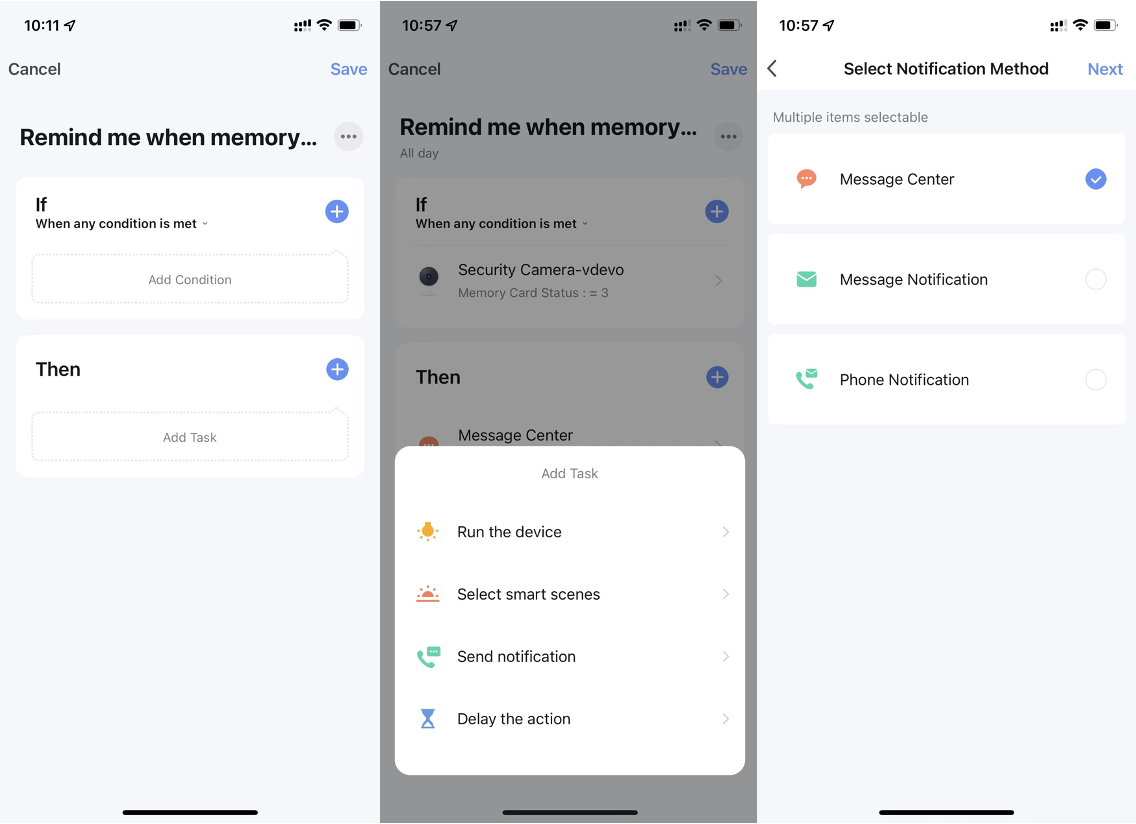
To select notification methods, perform the following steps:
1. On the **Scene** page, tap the plus (**+**) icon in the top-right corner of the page. In the **Set up task** step, tap **Send notification**. The **Select Notification Method** page appears. Select one or more available notification methods: **Message Center**, **Message Notification**, and **Phone Notification**. If the **Message Notification** and **Phone Notification** services are not subscribed to, only **Message Center** can be selected.
2. Selected notification methods and trigger conditions are displayed together on the **Automation** tab.
### Support tap-to-run scenes by local gateway
The new version of the Zigbee gateway supports locally running automation scenes. If all tasks and devices involved in an automation scene use the new Zigbee gateway, the tasks and devices can run based on scene settings, even if the network connection fails.\
This way, if the internet is not available at home, all devices and tasks that are bound with the new version of the Zigbee gateway will still perform device automation as specified.
### Manage tap-to-run scenes
1. On the **Tap-to-Run** tab, tap **Add Tap-to-Run** or the plus icon (**+**) in the top right corner of the page to open the **Create Smart** wizard.
2. In the **Set a condition** step, tap **Launch Tap-to-Run**.
3. In the **Set up task** step, **Send notification** and **Select Tap-to-Run** are unavailable.
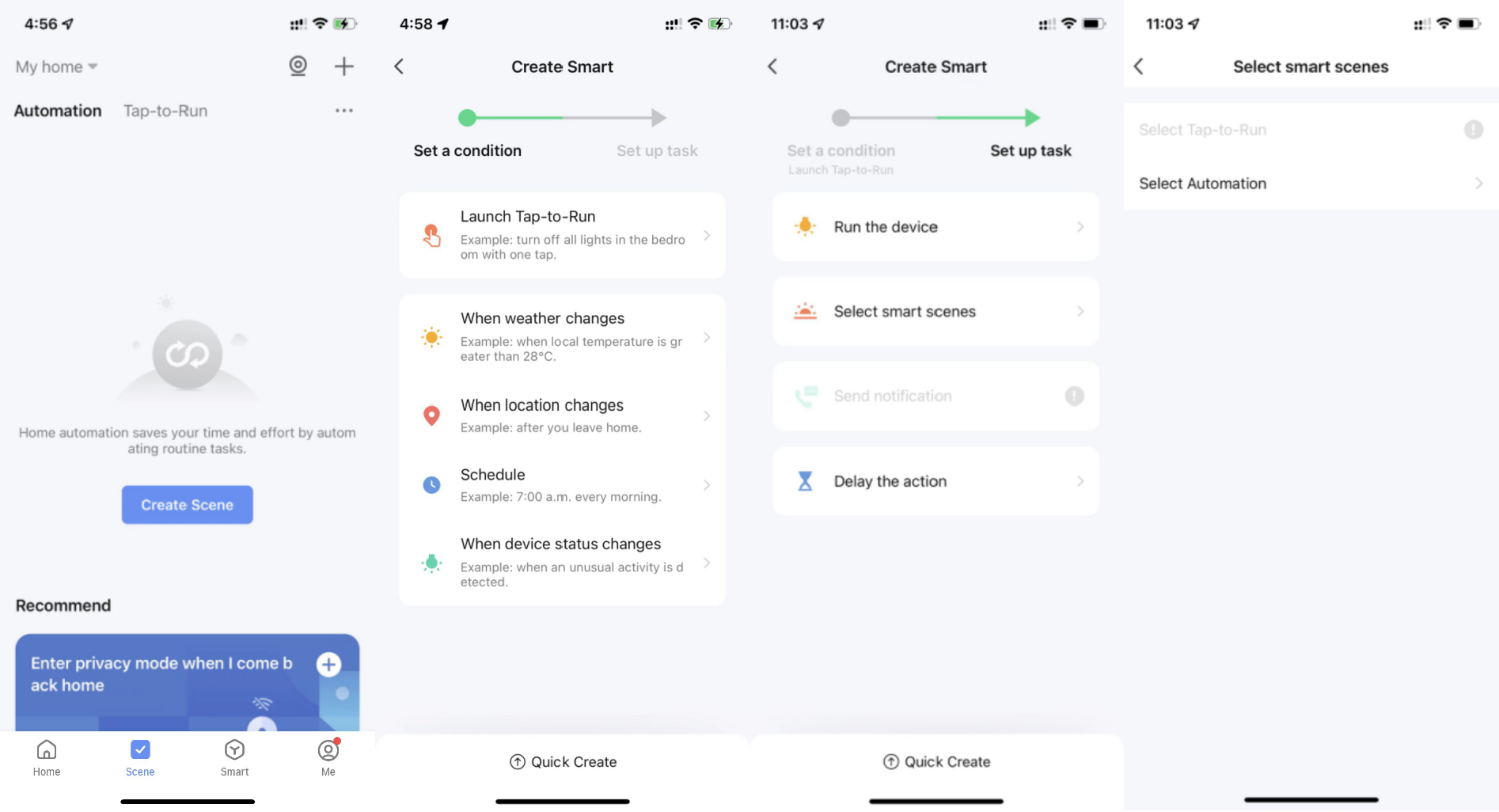
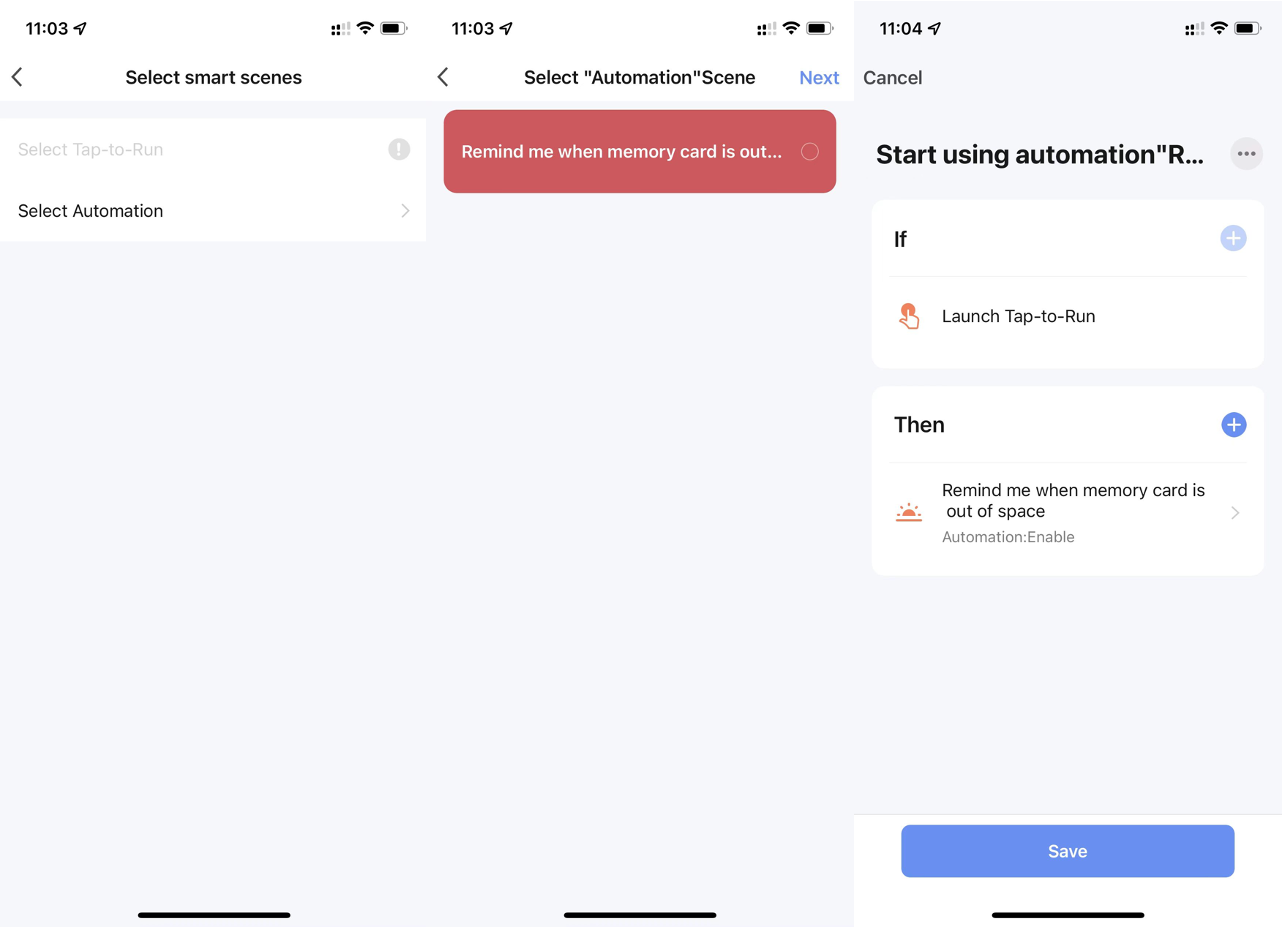
4. Preset automation is required if **Select Automation** is selected as the task during the scene setting.
5. If **Select Automation** is tapped, a list of available automation scenes appears. **Enable** or **disable** a scene by tapping it. Tap **Next**, enter the scene name, and tap **Save**. The **Effective Period** field is unavailable for tap-to-run scenes. For more information, see [Help Center](https://support.tuya.com/en/help/_detail/K9hutfnqcnby1).
### Create backups of and restore Zigbee gateway linkage data
The app supports **Zigbee gateway linkage data backup and recovery**. This means that even if the Zigbee gateway is removed, the information about the previous linkage scenes is automatically reserved. After the devices are reconnected to the network by normal pairing or automatic pairing, the linkage information is recovered.
### Add, modify, and delete scenes
Smart scenes include the following types: **tap-to-run** and **automation**.
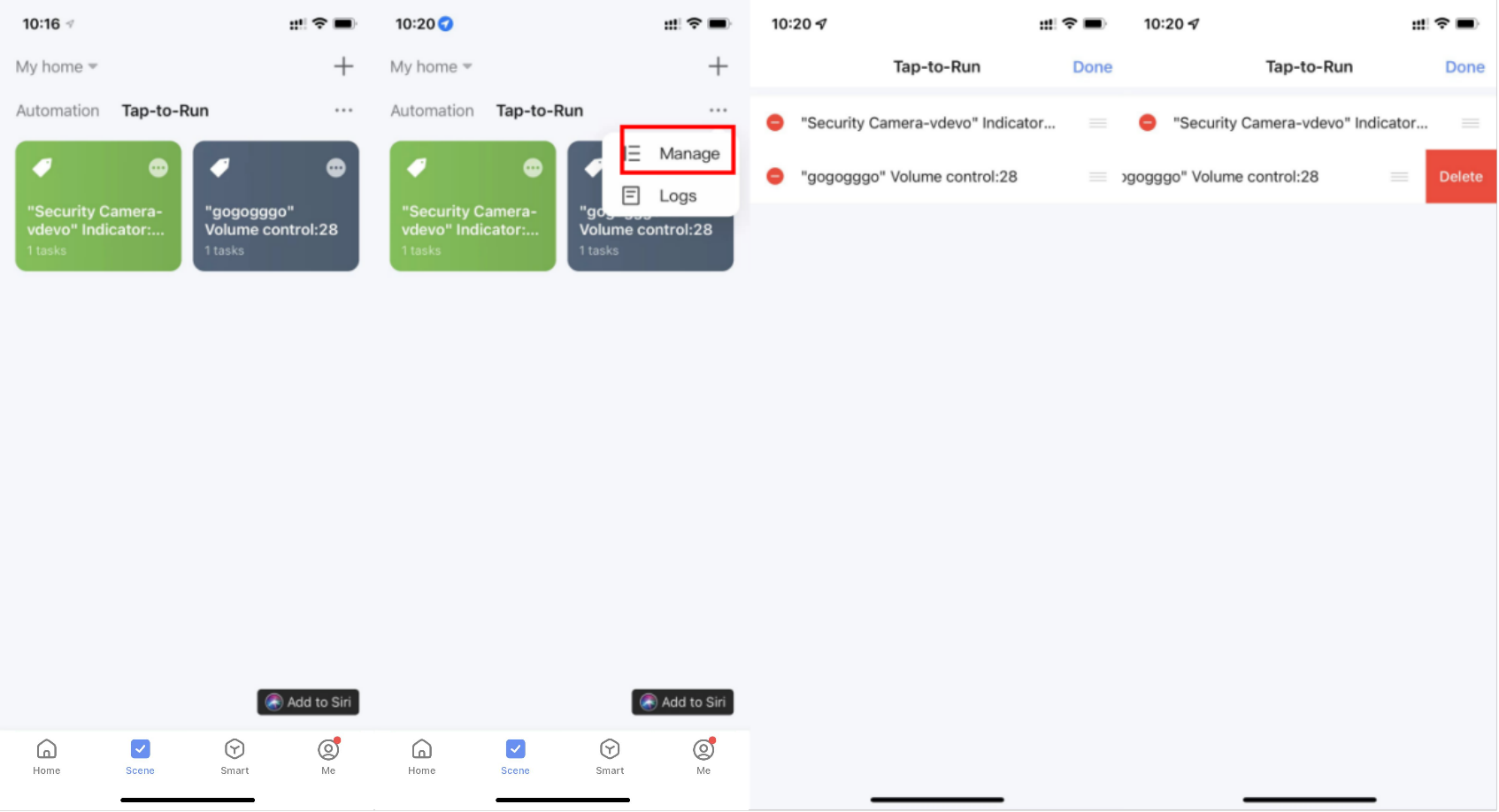
1. On the **Smart** page, select the **Automation** or **Tap-to-Run** tab. In the top right corner of the tab, tap More (**…**) > **Manage** to edit and sort the automation or tap-to-run scenes.
2. On the page that appears, sort automation or tap-to-run scenes. To delete a scene, swipe the scene to the left and tap **Delete**. On the Cube App for iOS, tap the minus icon (**–**) next to a scene name to delete the scene.
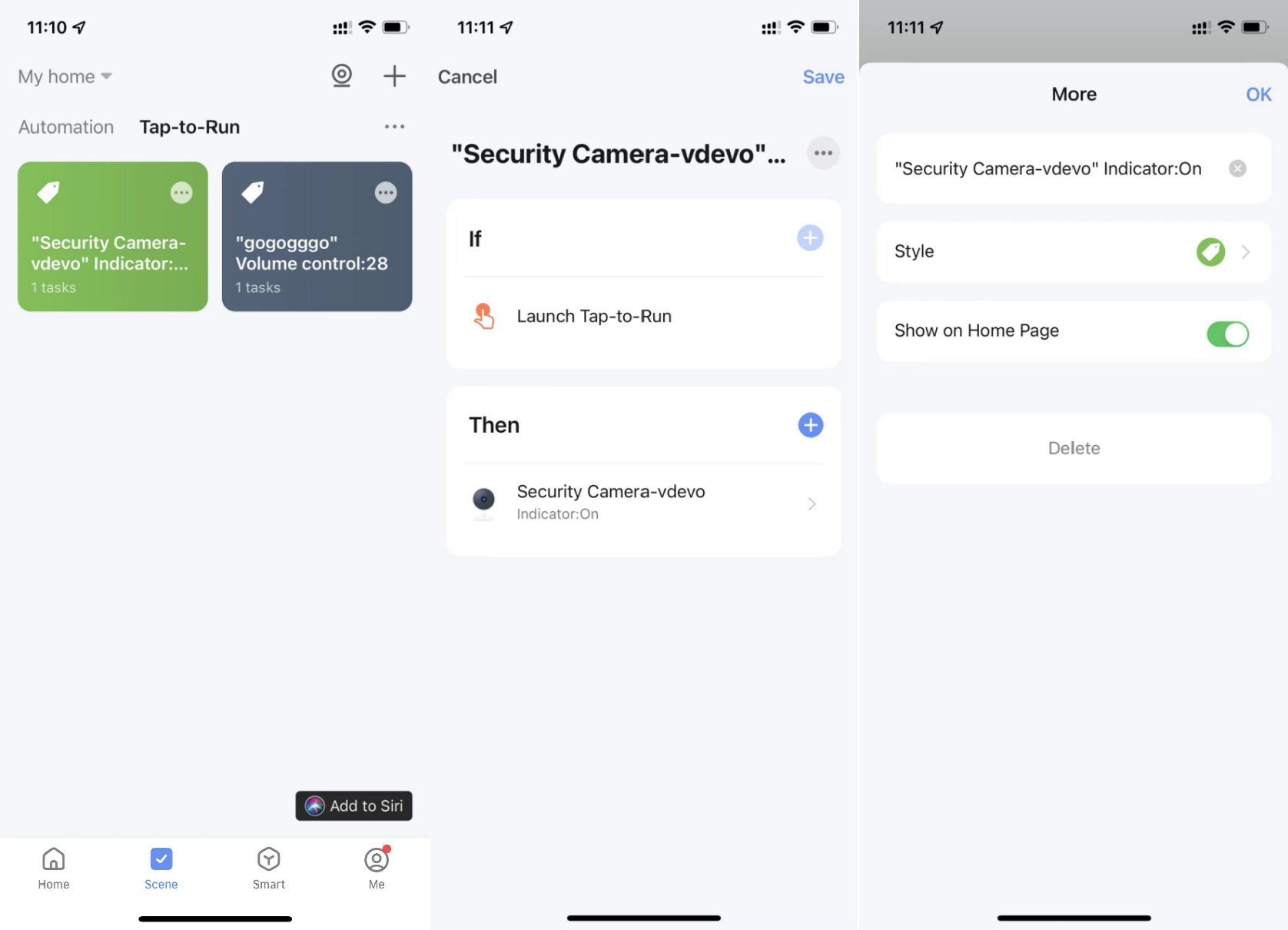
3. On the **Automation** or **Tap-to-Run** tab, tap the More icon (**⋯**) in the top right corner of an existing scene module to enter the **Edit** page.
4. Tap and hold a **condition** or **task** and swipe left to delete it.
5. Tap the plus icon (**+**) beside **If** or **Then** to add a condition or task.
6. To delete the scene, tap **Delete** at the bottom of the **Edit** page.
7. Tap an **automation** scene module to edit or delete the scene in the dialog box.
### Add tap-to-run scenes to Siri
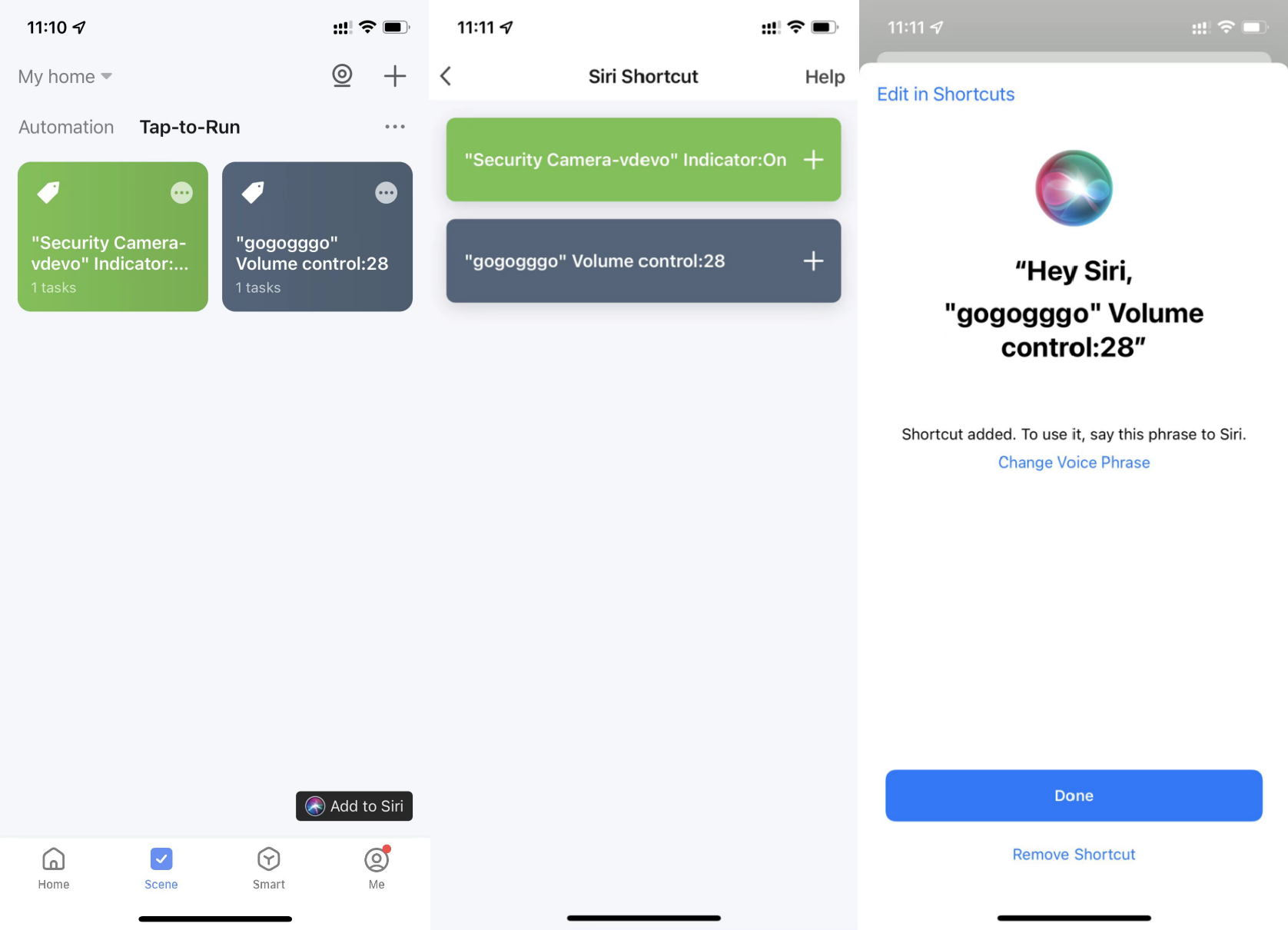
1. On the **Smart** page, tap **Add to Siri** in the bottom right corner of the page. The **Siri Shortcut** page appears, displaying all supported tap-to-run scenes.
2. Select a **tap-to-run scene** to be triggered by Siri.
3. On the settings page for the tap-to-run scene, specify trigger words and tap **Add to Siri**. When the trigger words are said to Siri, Siri tells the app to trigger a tap-to-run scene.
:::info The **Add to Siri** feature is supported only on iOS 12.0 or later.\
:::
### View scene logs
1. On the **Smart** page, select the **Automation** or **Tap-to-Run** tab. In the top right corner of the tab, tap More (**…**) > **Logs** in the top right corner of the page.
2. The **Logs** page appears, displaying the scene-related logs in the last seven days in reverse time order.
3. Tap a log to go to the **Edit** page, where the scene settings can be modified.
4. Logs help to monitor device status. If a device fails to function based on the scene automation settings, an alarm message is sent to the notification center and the failure log is stored. The failure log can be viewed to check devices that fail to be automated based on the scene settings.

### Run scene tasks on LAN
When devices involved in scenes are connected to a LAN but not a public network and the scene conditions are met, automation tasks in the scenes run in the specified sequence to control the involved devices on the LAN.
## Home
On the **Home** page, the user can perform the following operations:
1. Tap the microphone icon and use voice commands to control devices.
2. Tap the home name in the top left corner of the page to switch between homes or add a home.
3. Tap the weather and environment information section to go to the detailed weather and environment information page, where the weather and environment indicators can be sorted. The **Home** page only displays the first three weather and environment indicators.
4. Tap the plus icon (**+**) to add devices.
5. Tap a **tap-to-run** scene to trigger a scene.
6. Tap a room name to view the status of smart devices in the room.
7. Access energy and security resources to easily view their usage.
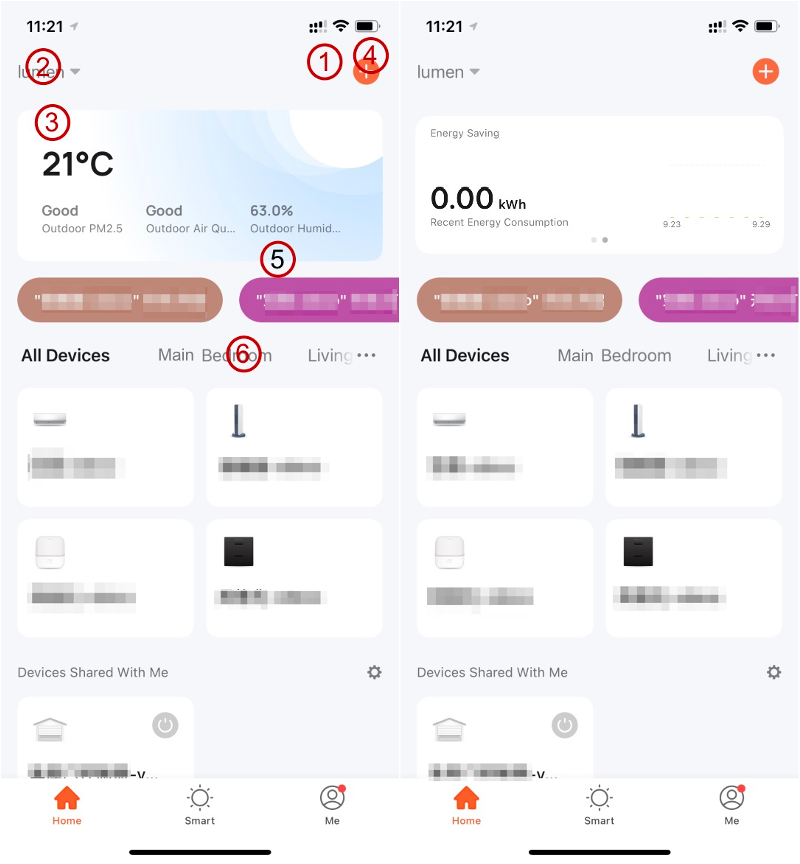
8. Provide interstitial screens, banners, and more entries to automatically track operation events. Display different content depending on varied user requirements to accurately reach users.
## Smart
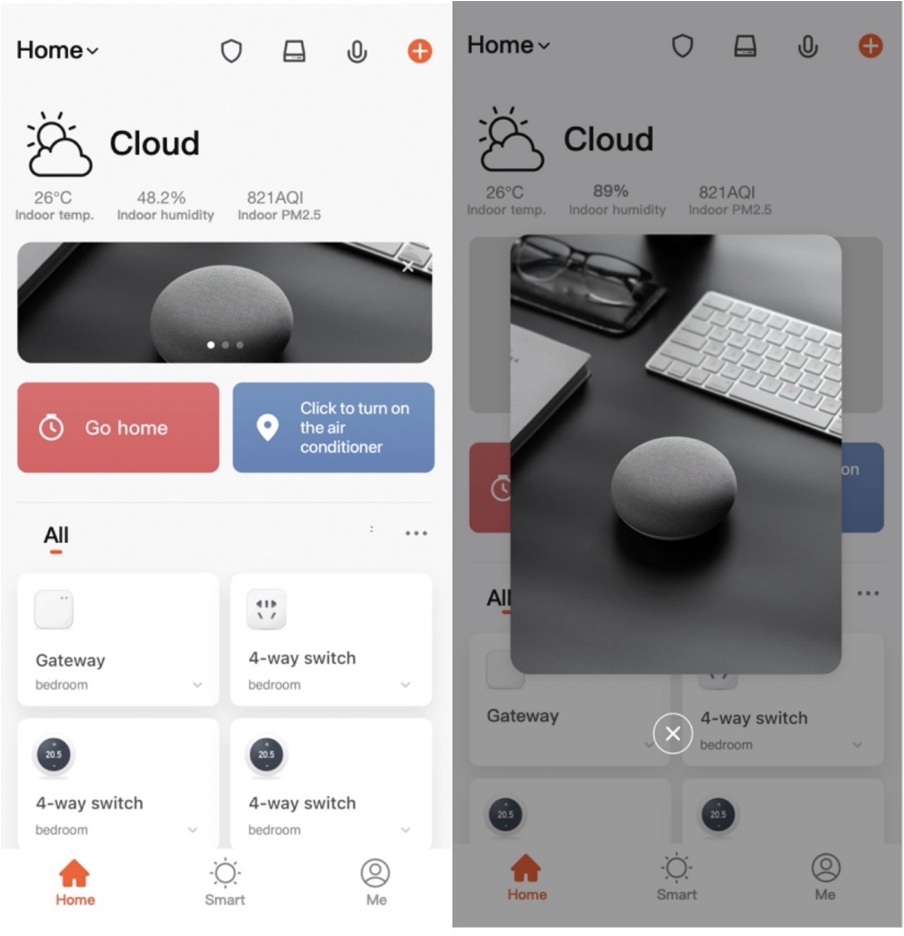
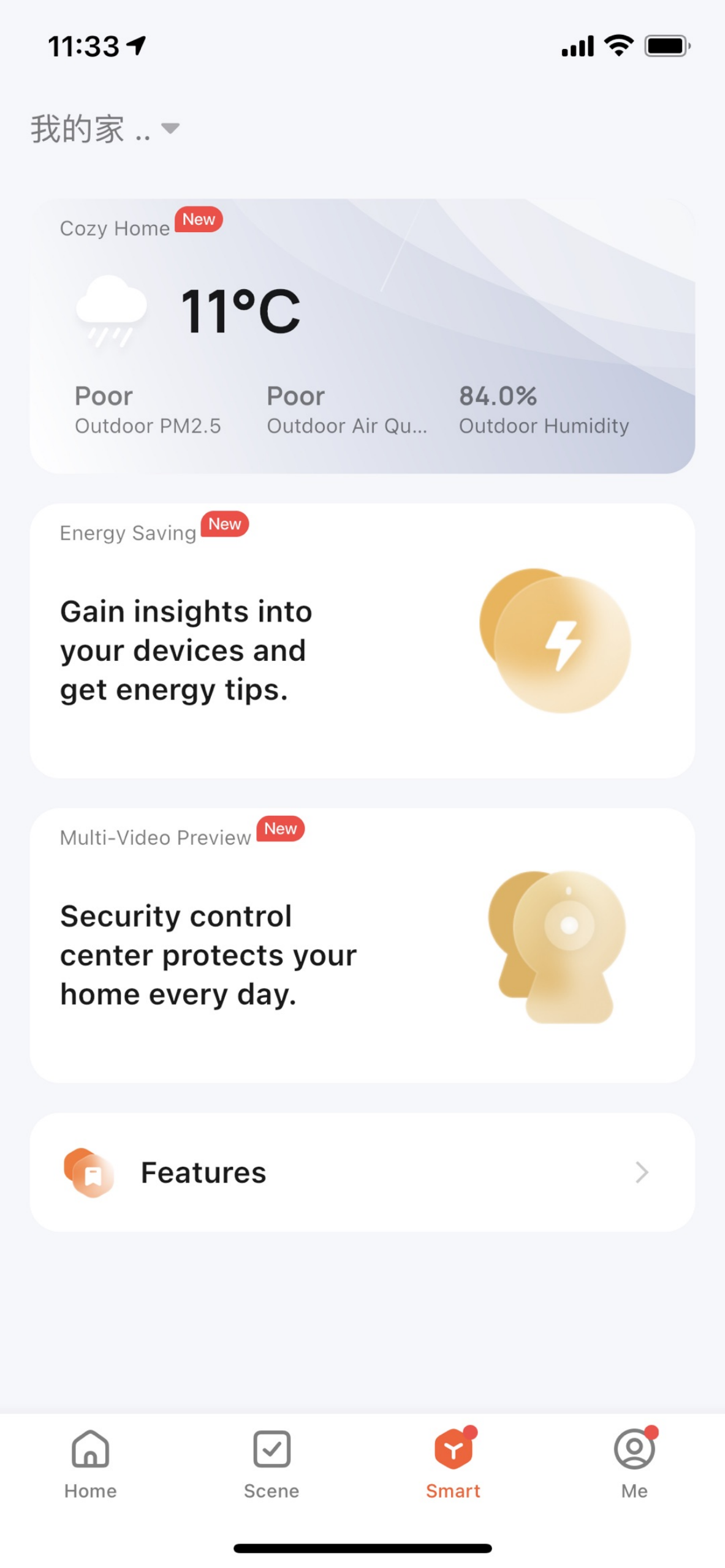
Smart services involve multiple features, such as **energy efficiency** for energy management, **comfortable space** for space environment management, **smart protection** for security scenarios, and **featured services**.
### Featured services
The following three value-added services are available on the **Features** page:
* **Cloud Storage for Cameras**: After this service is subscribed to, video recordings are encrypted and uploaded to the cloud server. The uploaded video footage can be viewed with the app at any time. To use this service, one or more smart cameras must be added to the app. Previously uploaded videos cannot be downloaded.
* **Message Notification**: After this service is subscribed to and an event notification condition is triggered, an SMS message is sent to indicate the event and ensure home security.
Phone calls can be made only to the phone number that is used to register the app account. If an email address is used for account registration, a phone number must be added to receive phone calls.
* **Phone Notification**: After this service is subscribed to and an event notification condition is triggered, a phone call will be made to indicate the event and ensure home security.
Phone calls can be made only to the phone number that is used to register the app account. If an email address is used for account registration, a phone number must be added to receive phone calls.

## Me (account information)
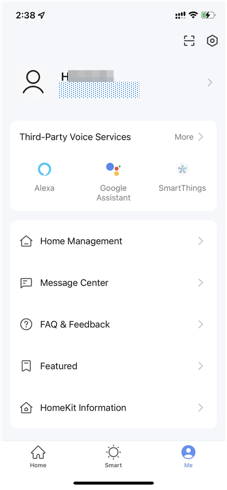
The following sections and icons are displayed on the **Me** page:
1. **Third-Party Integration**: The app supports three third-party voice assistants.
2. **Home Management**: Tap **Home Management** to manage homes and home members.
3. **Message Center**: Three types of messages are displayed in **Message Center**, including **Alarm**, **Home**, and **Bulletin**. Specify a do-not-disturb period for these messages.
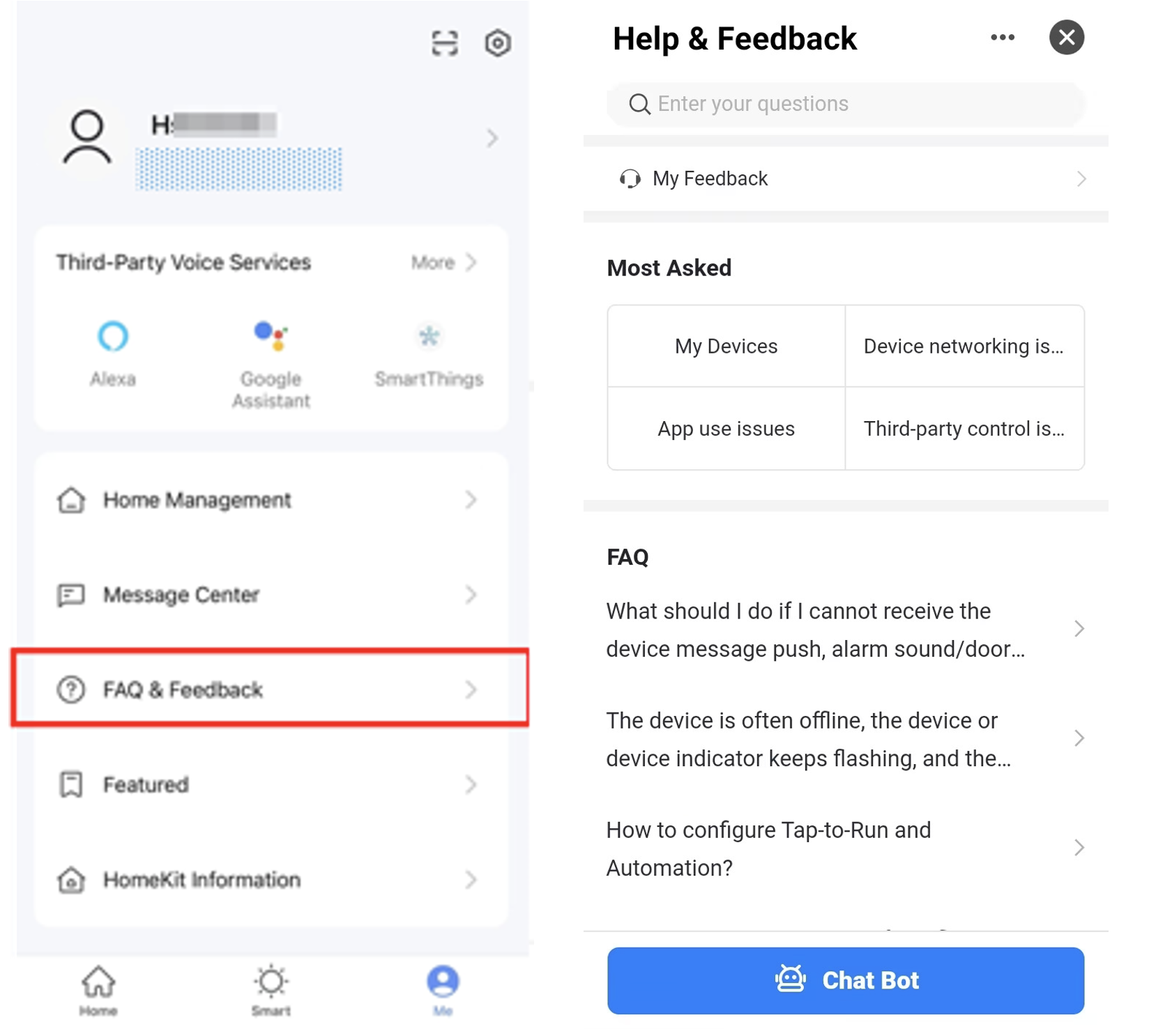
4. **FAQ & Feedback**: Tap **FAQ & Feedback** to show the **Help & Feedback** page. On this page, the sections such as **Most Asked**, **Chat Bot**, and **My Feedback** are available.
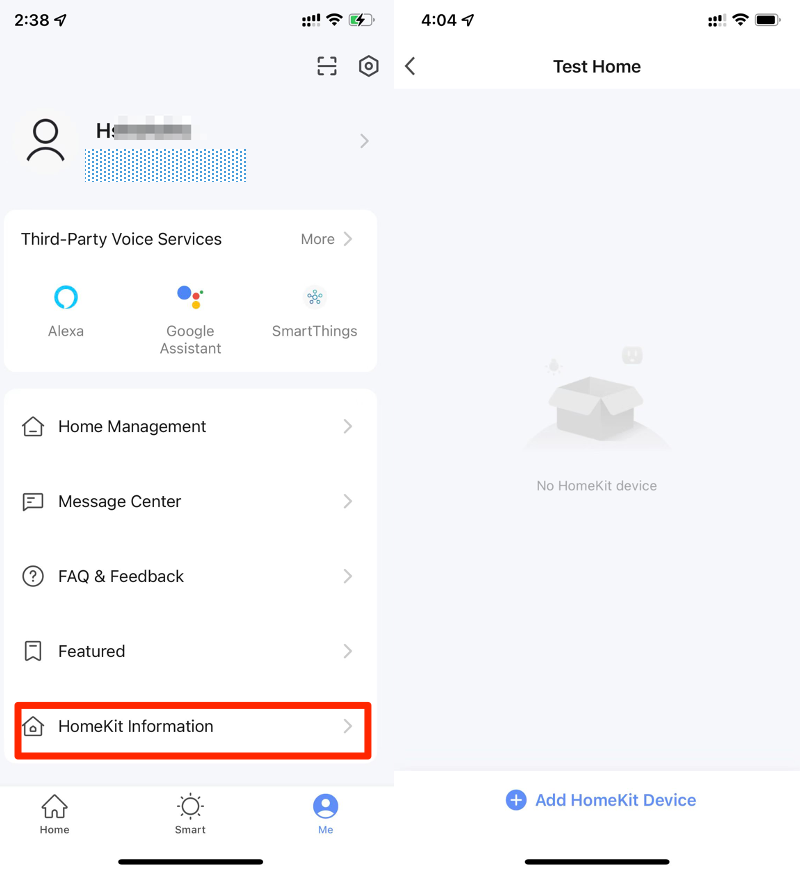
5. **HomeKit Information**: HomeKit-compatible devices can also be controlled with the app.
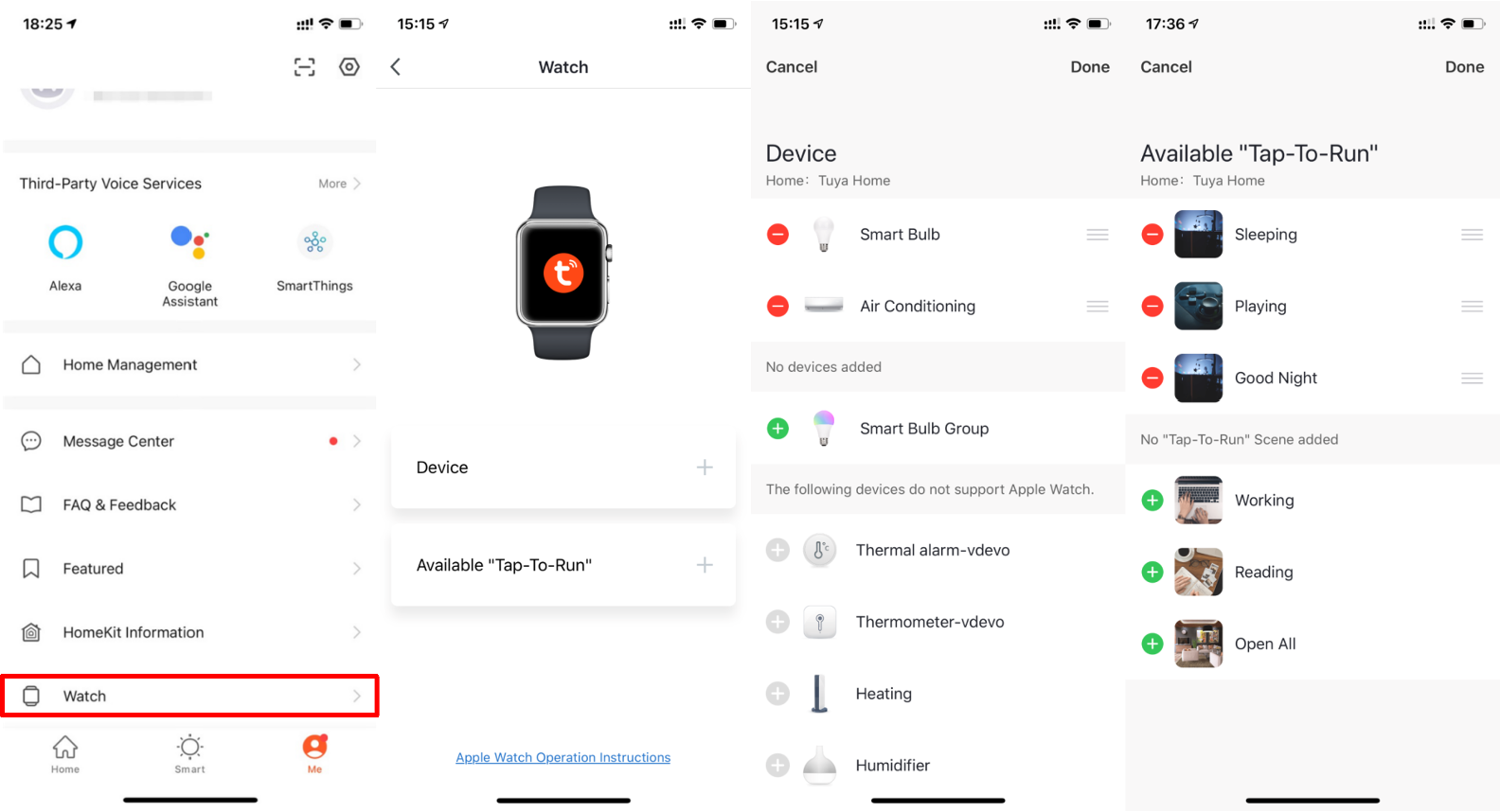
6. **Watch**: Tap **Watch** to check available devices and tap-to-run scenes. The **Watch** section appears on the app only when an Apple Watch is bound with the user’s iPhone.
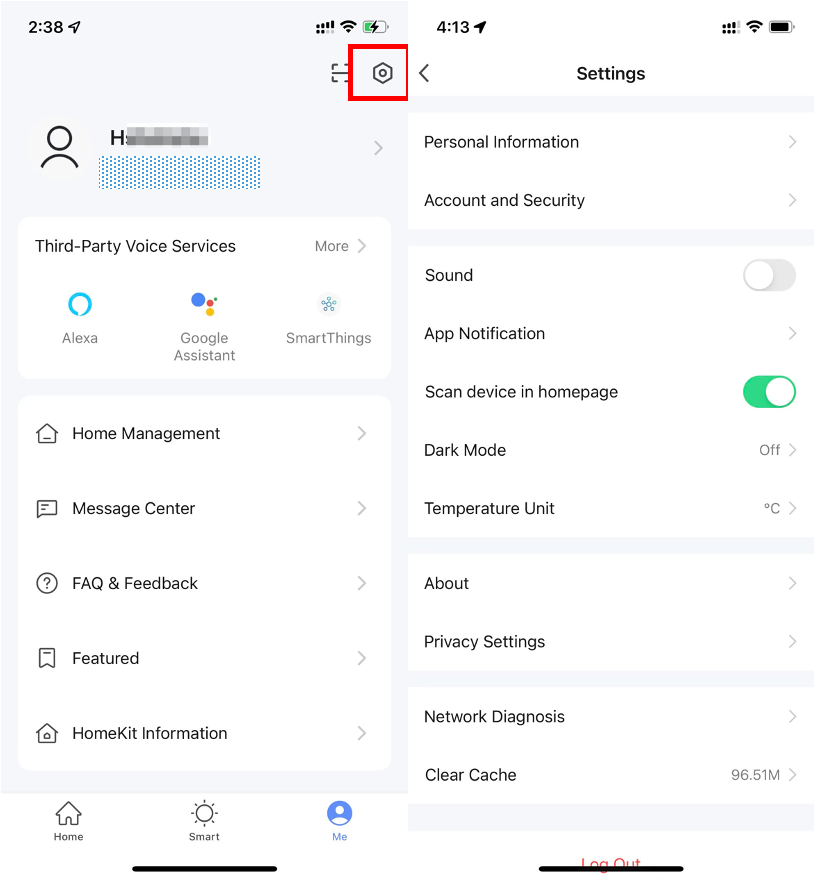
7. On the **Me** page, tap the **Settings** icon to go to the **Settings** page. The following options are available:
* **Personal Information**
* **Account and Security**
* **Device Update**
* **Sound**
* **App Notification**
* **Scan device in homepage**
* **Auto Add Discovered Device**
* **Dark Mode**
* **Temperature Unit**
* **About**
* **Privacy Settings**
* **Privacy Policy Management**
* **Network Diagnosis**
* **Clear Cache**
* **Log Out**
### Third-party voice services
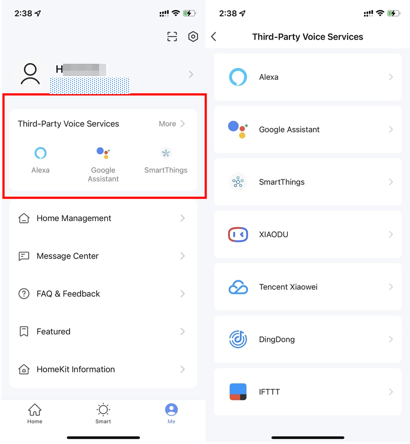
Choose **Me** > **Third-Party Voice Services** > **More**. On the page that appears, bind the app with a third-party voice assistant.
### Message center
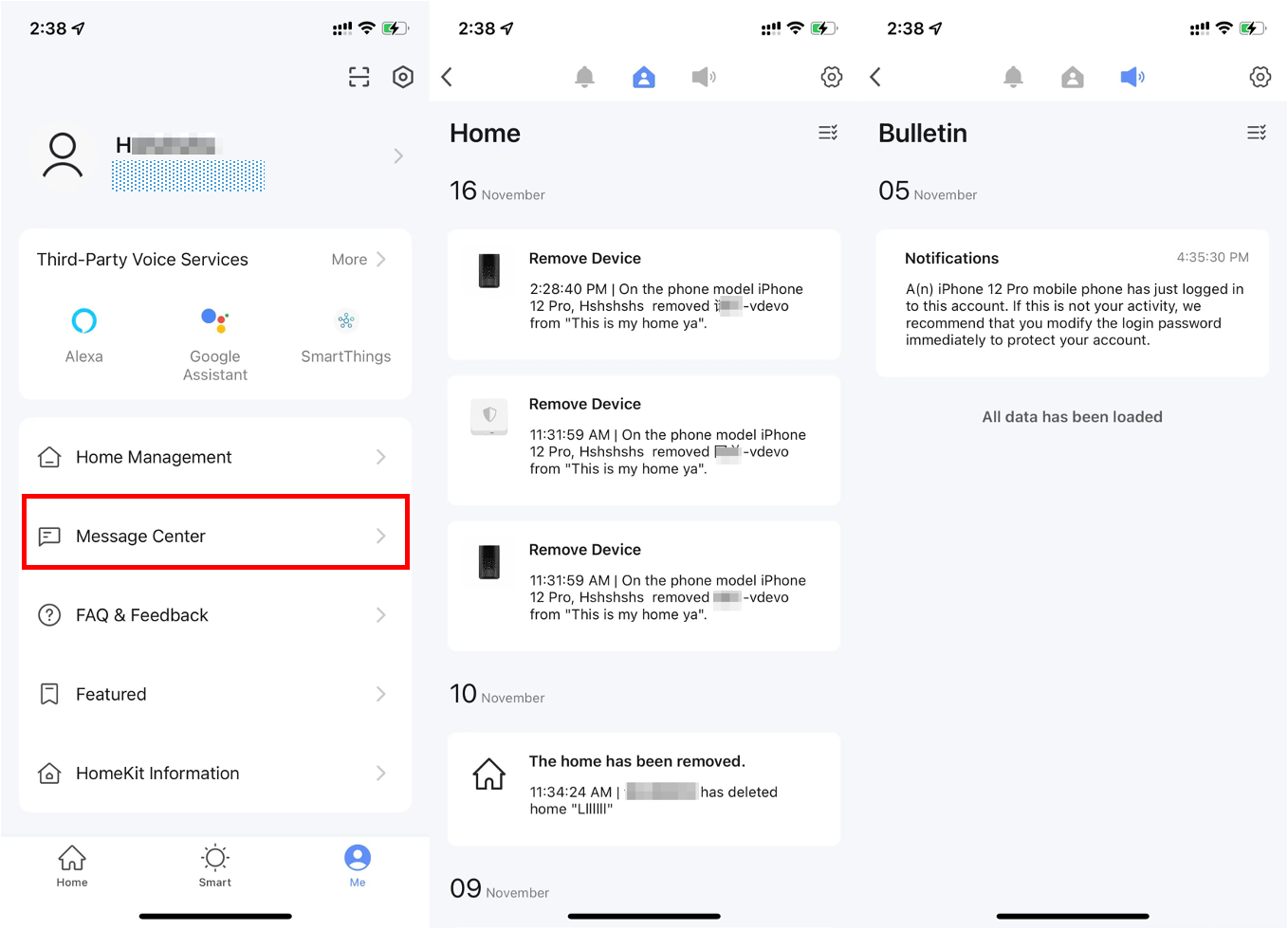
Three types of messages are displayed in **Message Center**: **Alarm**, **Home**, and **Bulletin**.
* **Alarms** include device alarms, automation-related notifications, and alarms of scheduled execution failures.
* **Home-related messages** include messages about adding or removing home members, removing a home, setting a home member as the administrator, adding devices, and sharing devices.
* **Bulletins** include messages about status updates of user feedback and other push notifications from the app. The app messages of the IoT backend operation section newly support H5 links. The messages will be highlighted in the message center of the app. The user can tap on the link to view more content.
The do-not-disturb feature can be enabled for a specified period. Perform the following steps:
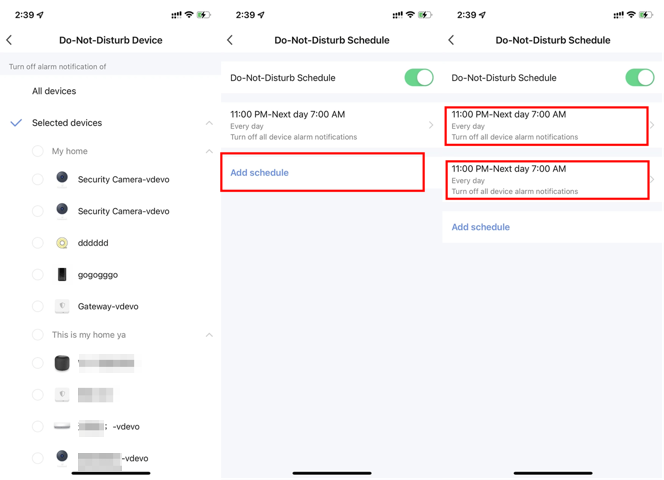
1. Tap **Do-Not-Disturb Schedule** on the **Notification Settings** page to go to the **Add schedule** page. If this feature is enabled for the first time, tap **Do-Not-Disturb Device** and select the devices for which the notification feature is disabled.
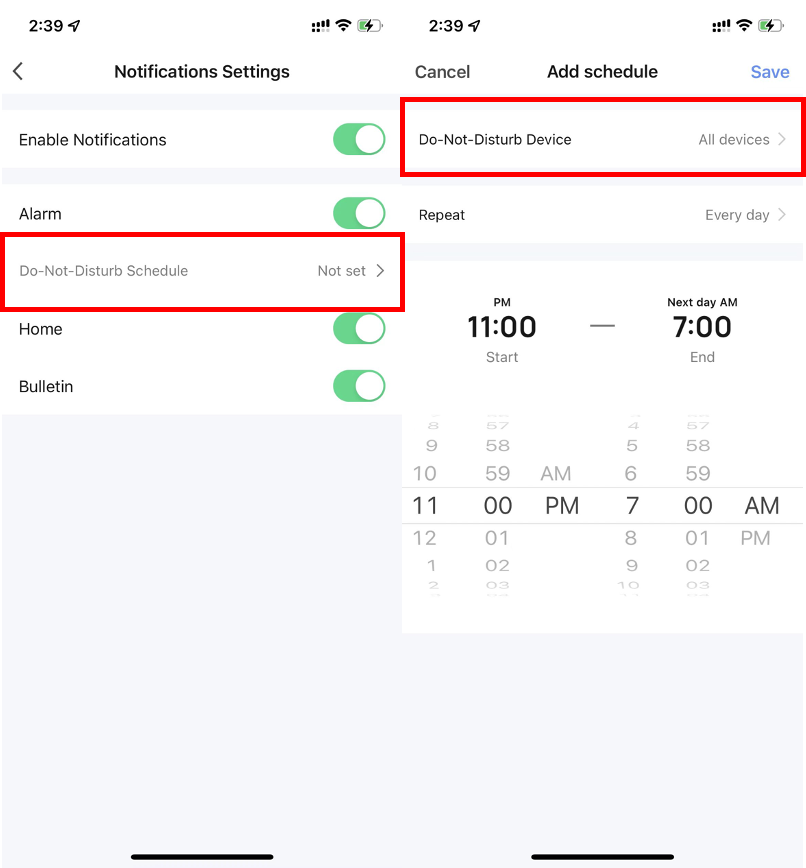
2. Tap the left arrow icon (**<**) in the top left corner of the page to go back to the **Add schedule** page. Set the repetition mode, specify a period, and then tap Save in the top right corner of the page. Then, the **Do-Not-Disturb Schedule** page appears. Enable the **Do-Not-Disturb Schedule** feature on this page.
3. To add another do-not-disturb schedule, tap **Add schedule** on the **Do-Not-Disturb Schedule** page. Set the repetition mode, specify desired devices and a period, and then tap **Save**.
### Push notification settings
1. The following two methods can be used to go to the **Notification Settings** page:
* Method 1: On the **Me** page, tap the **Settings** icon in the top right corner. Then, tap **App Notification**.
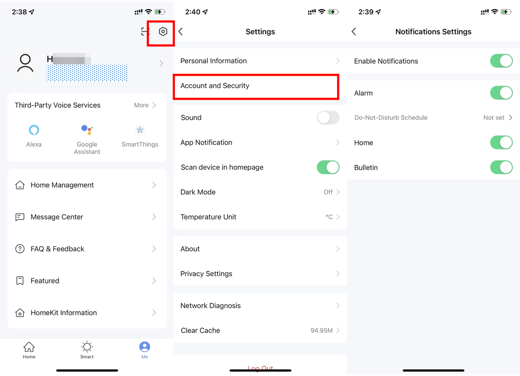
* Method 2: On the **Me** page, tap **Message Center** to go to the message center. Tap the **Settings** icon in the top right corner of the page.

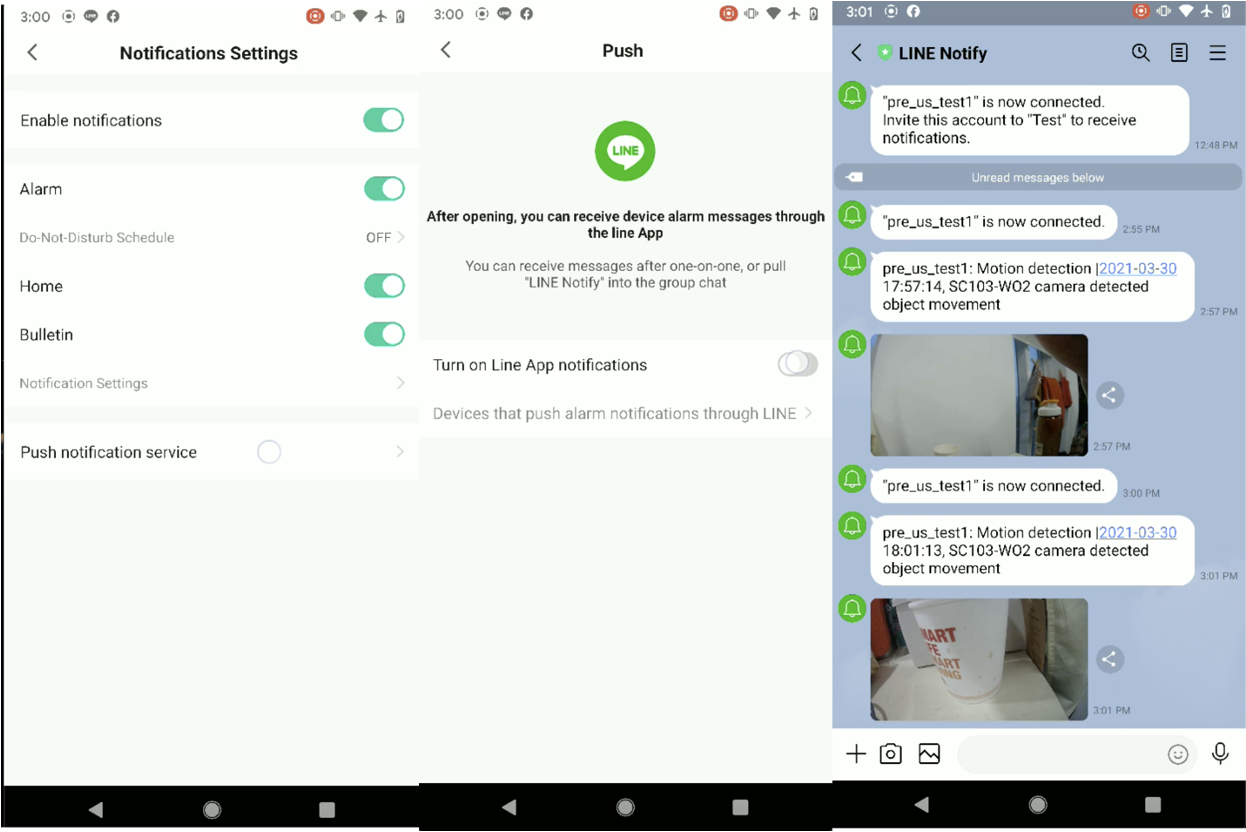
2. If **Enable Notifications** is disabled, the messages in the **Alarm**, **Home**, and **Bulletin** categories will not be received. If **Enable Notifications** is enabled, the user can separately specify whether to receive **Alarm**, **Home**, and **Bulletin** messages.

3. LINE push notifications are supported. Important alarms can be sent as messages through the LINE channel.
### Health center
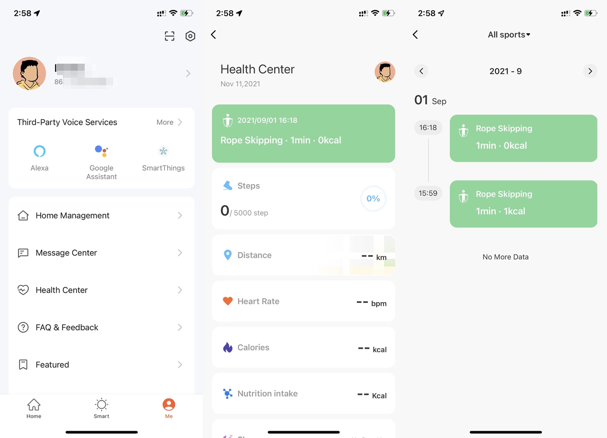
On the **Me** page, tap **Health Center** to view the health data of the app.
### FAQ & feedback
1. To view FAQs or send feedback to the app, choose **Me** > **FAQ & Feedback** to go to the **Help & Feedback** page.
2. To view Tuya’s responses to the feedback, tap **My feedback** in the top right corner of the page.
3. In the **FAQ** section, FAQs that might help the use of the app are available.
4. In the **Most Asked** section, filter FAQs by **device**, **device networking issue**, **app use issue**, and **third-party control issue**.
5. To report an issue, tap **Report Issue** at the bottom of the **FAQs & Feedback** page. To report an issue, enter the issue and contact information, specify the issue type and the time when the issue occurred, and then upload related images.
6. Enter keywords in the search box to search for solutions to a specific problem.
### HomeKit information
1. Only certain smart devices support Apple HomeKit. Devices that support Apple HomeKit carry the HomeKit badge on their packages.
2. This feature is used to add devices that support Apple HomeKit to the **Smart Life** app. This way, these devices can be controlled together with other devices that are added to the app based on scene linkages.
3. After HomeKit-compatible devices are added to the **Smart Life** app, these devices can be added again to the **Home** app for iOS.
4. After HomeKit-compatible devices are removed from the **Smart Life** app, these devices are not removed from the **Home** app for iOS.
5. The only way to remove a device that is added to both the **Smart Life** app and the **Home** app is to press the reset button on the device.
6. If a HomeKit-compatible device is added to the **Home** app for iOS first, the device cannot be detected by the **Smart Life** app for Android and pairing cannot be completed.
7. HomeKit-enabled Bluetooth devices can be added to both Tuya’s **all-in-one app** and the **Home** app.
### Watch
1. Choose **Me** > **Watch** to go to the **Watch** page.
2. Tap **Device** to show all smart devices added to the app. A plus icon (**+**) before a device means that the device can be controlled with Apple Watch and is to be added to the device list. Devices that cannot be controlled with Apple Watch are displayed in the **The following devices do not support Apple Watch** section.
3. Tap **Available Tap-To-Run** to show all available **tap-to-run scenes**. Tap the plus icon (**+**) preceding a tap-to-run scene to add the scene to the available tap-to-run scene list.
4. All messages in **Message Center** of the app will also be pushed to Apple Watch.
### Settings
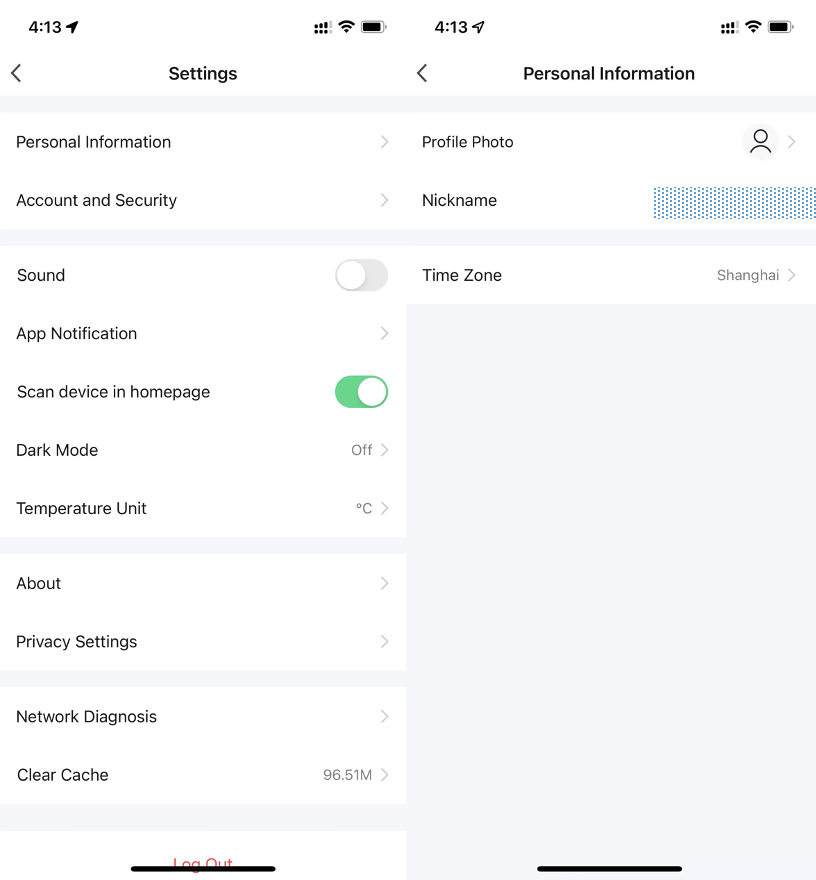
On the **Me** page, tap the **Settings** icon to go to the **Settings** page. The following options are available:
* **Personal Information**
* **Account and Security**
* **Sound**
* **App Notification**
* **Scan device in homepage**
* **Dark Mode**
* **Temperature Unit**
* **About**
* **Privacy Settings**
* **Network Diagnosis**
* **Clear Cache**
* **Log Out**
* **Upload Log**: only available for iOS
### Profile information
1. On the **Me** page, tap the **Settings** icon and select **Personal Information** to go to the **Personal Information** page.
2. On this page, the user can view the account information, and change the profile photo, nickname, temperature scale, and time zone.
### Account and security
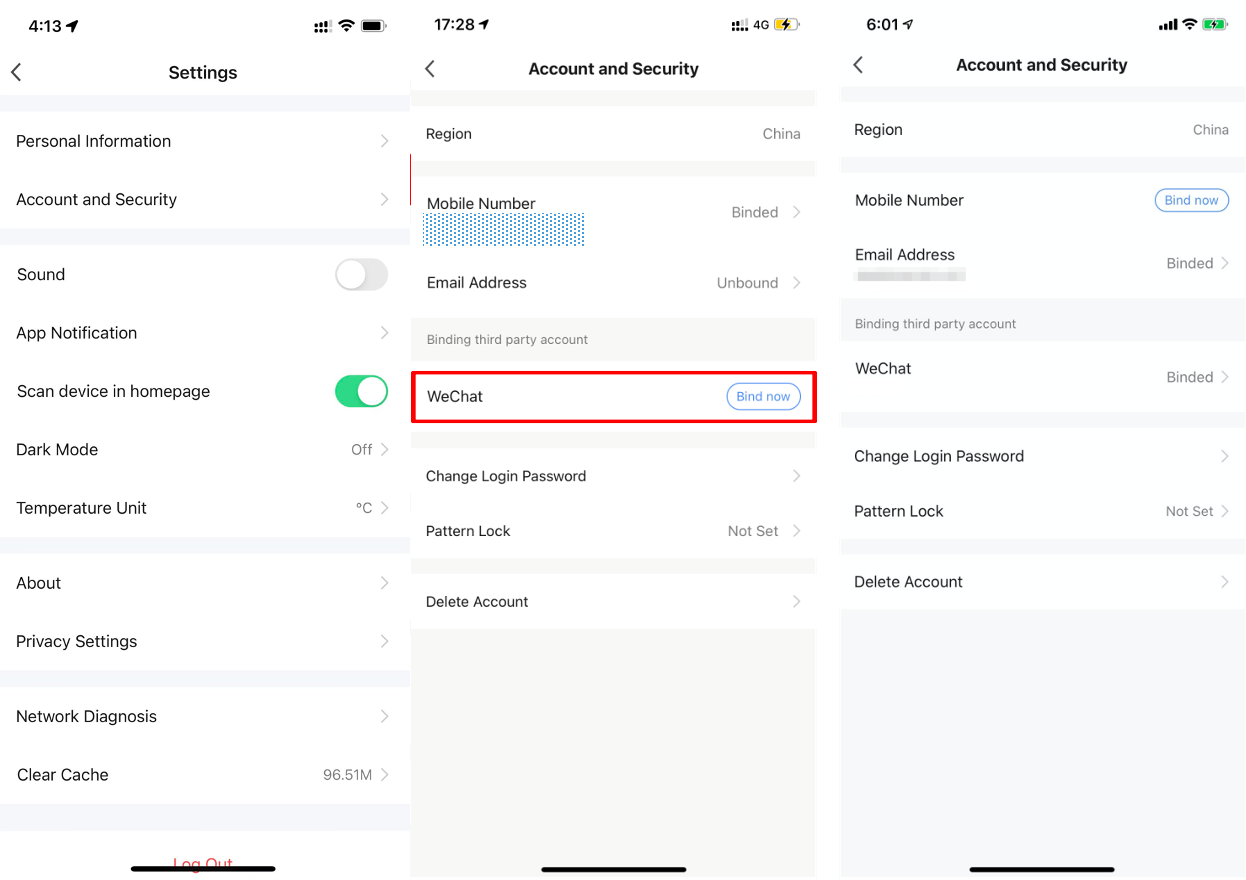
1. On the **Me** page, tap the **Settings** icon and select **Account and Security** to go to the **Account and Security** page.
2. On this page, the user can view and change the mobile number, email address, or third-party account such as the WeChat account bound with the app, and check the region in which the app service is deployed. The user can also change the login password, set a gesture password, or delete the account.
### Account deletion
To delete the current account, perform the following steps:
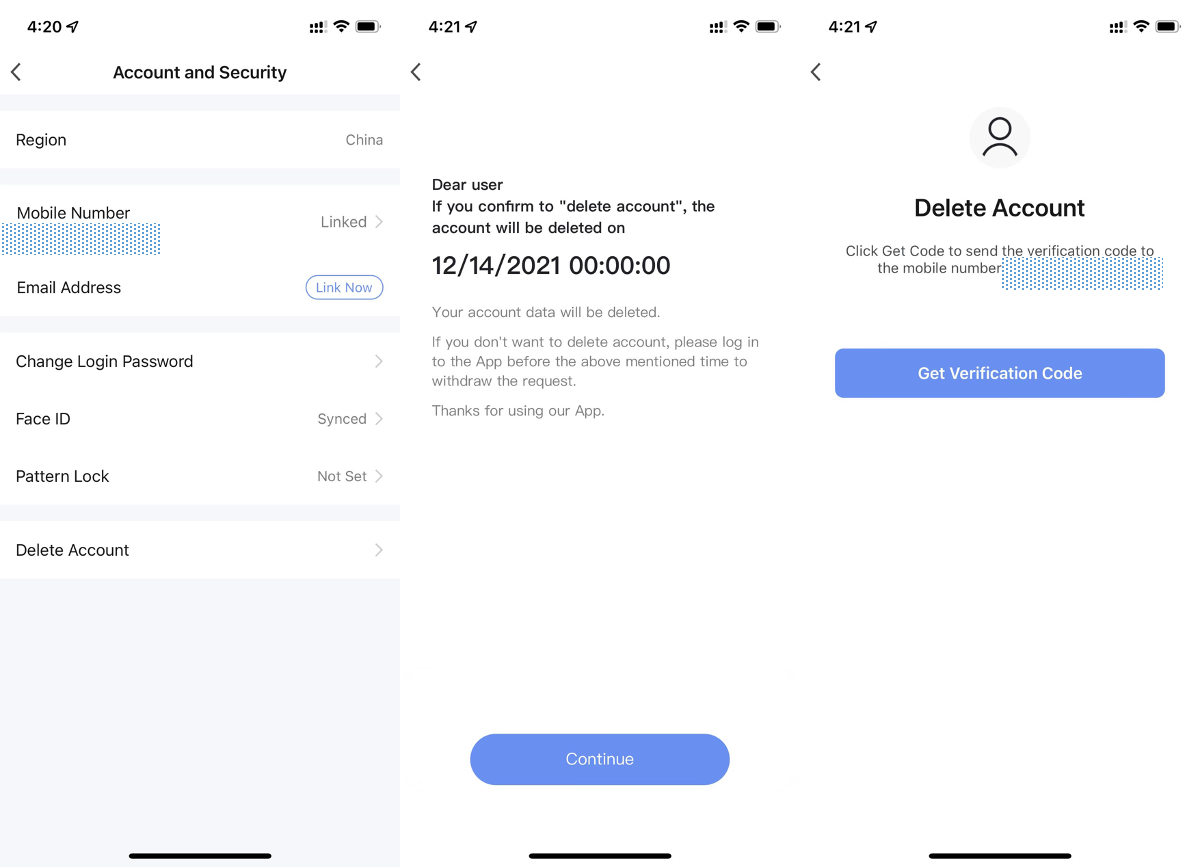
1. On the **Me** page, tap the **Settings** icon and select **Account and Security** to go to the **Account and Security** page.
2. Tap **Delete Account** > **Continue**. On the page that appears, tap **Get Verification Code** to get a verification code. Enter the returned verification code and tap **Delete**. The account will be deleted after seven days, and all data related to the account is also deleted.
3. If the app is logged in with the account within seven days after the preceding steps, **account deletion** is terminated.
### Pattern lock
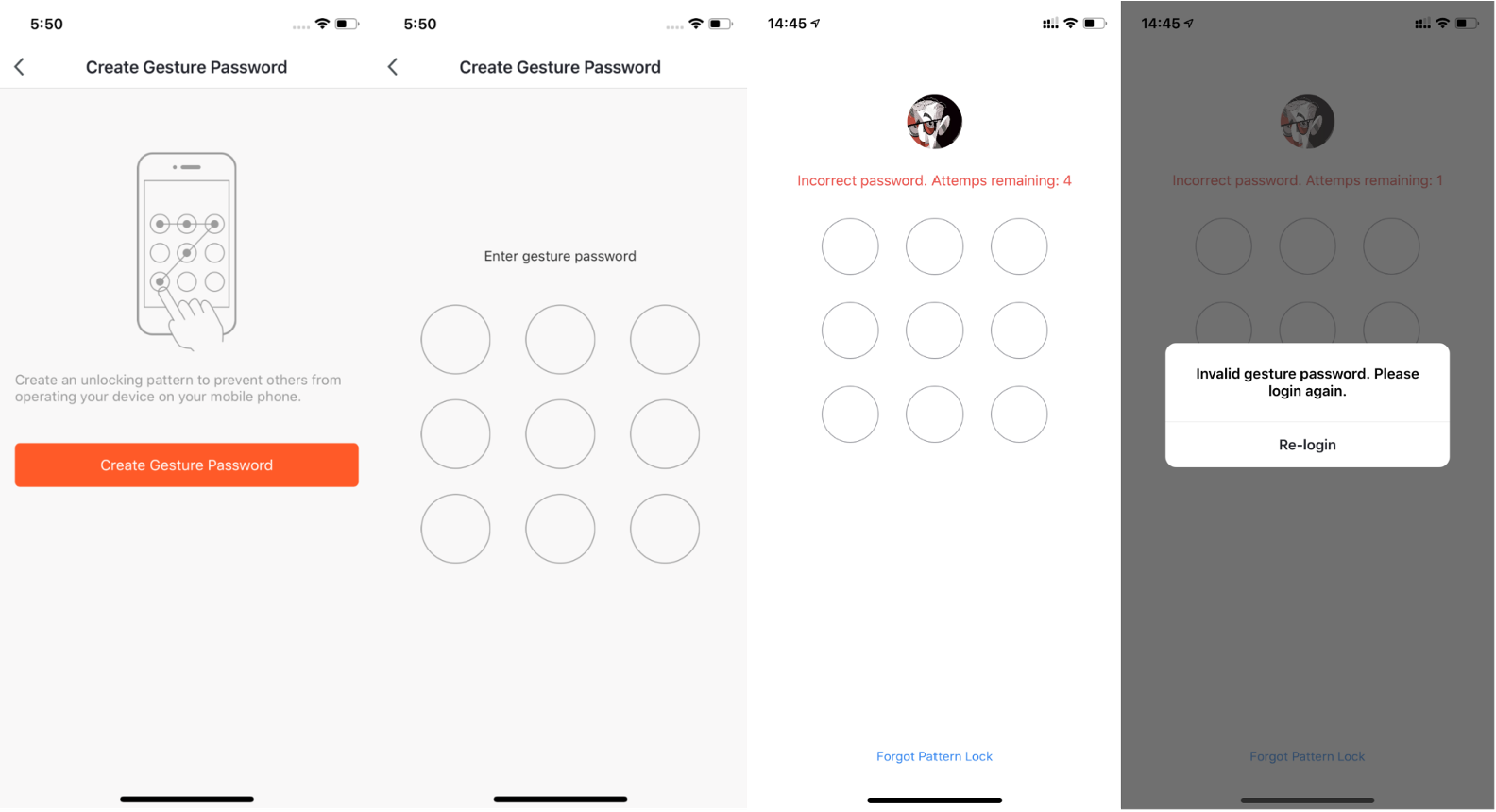
1. Tap **Pattern Lock** on the **Account and Security** page and create a gesture password to enable the **Pattern Lock** feature. Then, the gesture password must be used to open the app.
2. If the gesture password is forgotten, tap **Forgot Pattern Lock** at the bottom of the unlocking page. In the dialog box that appears, tap **Re-login**, log in to the app again, and then create a gesture password again.
3. If the gesture password is entered incorrectly five times in a row, the current account will be logged out. Then, the account password must be used to verify the identity and reset the gesture password.
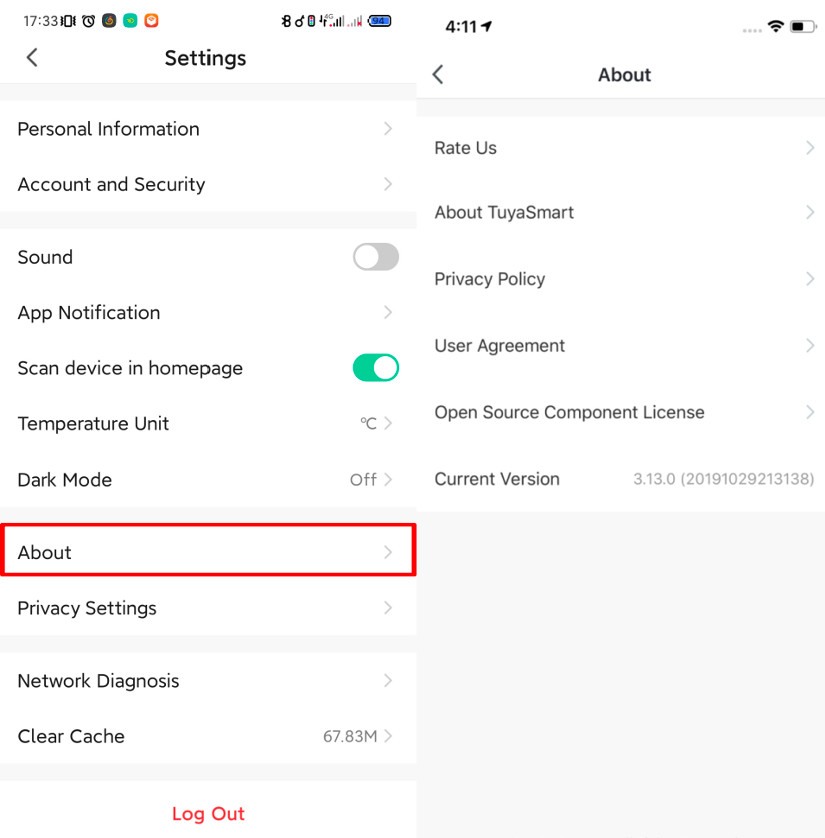
### About
1. Tap the Settings icon in the top right corner of the **Me** page and tap \*\*About \*\*to show information about the app.
2. To rate the app in the app store, tap **Rate Us**.
3. To check the licenses of open source components, tap **Open Source Component License**.
4. To promote troubleshooting of app errors or crashes, tap **Upload Log** and upload logs. This feature is only available for the Cube App for iOS.
5. To check the current version of the app, view the version number in the **Current Version** section.
6. To try out the beta version of the Smart Life app, tap **Join Beta Test**.
### Privacy settings
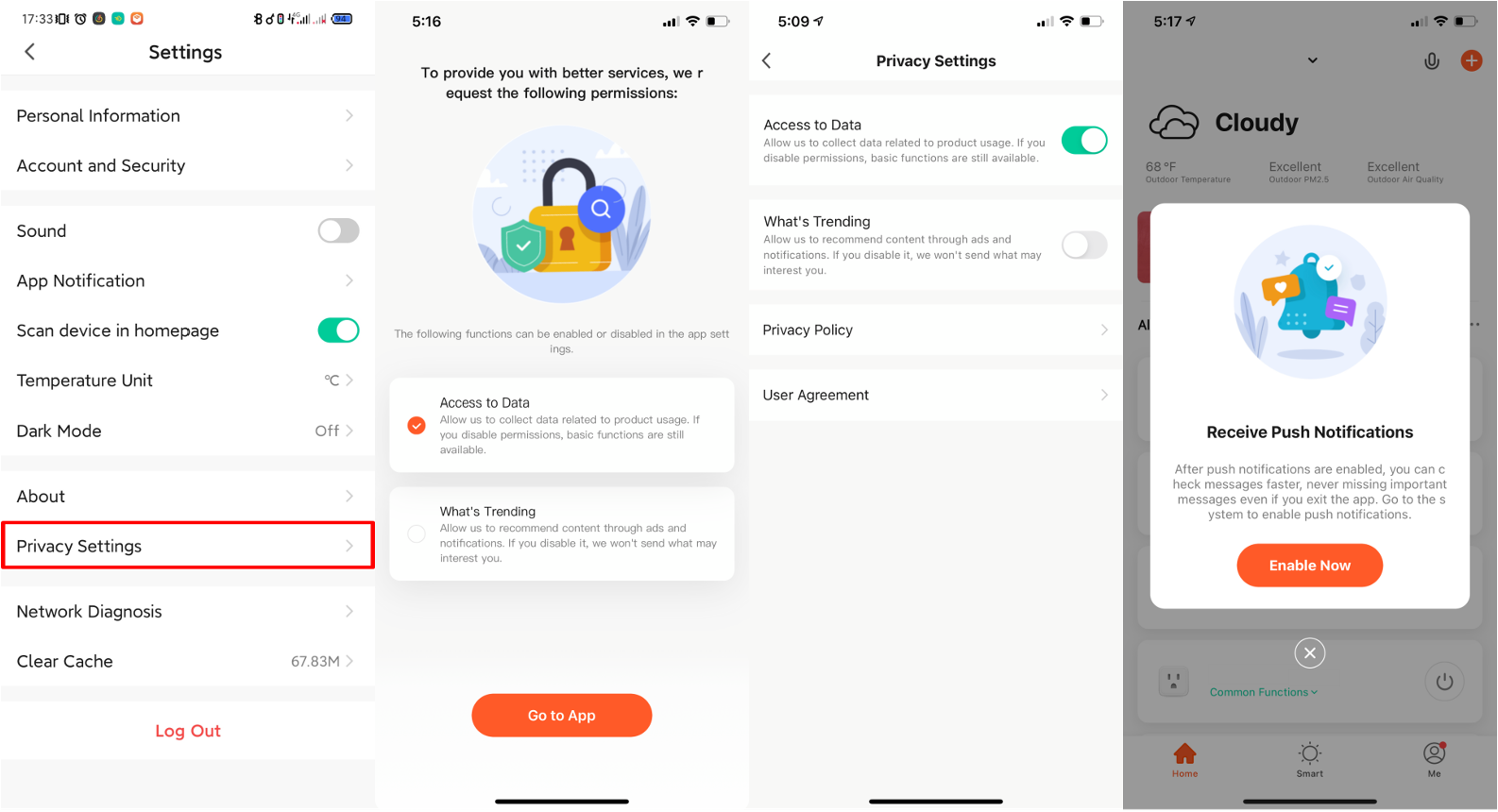
1. To use the featured services, choose **Me** > **Features**. On this page, the user can view the account information, and change the profile photo, nickname, temperature scale, and time zone.
2. The authorization page is added to manage authorizations and check the privacy policy and user agreement.
## App for tablets
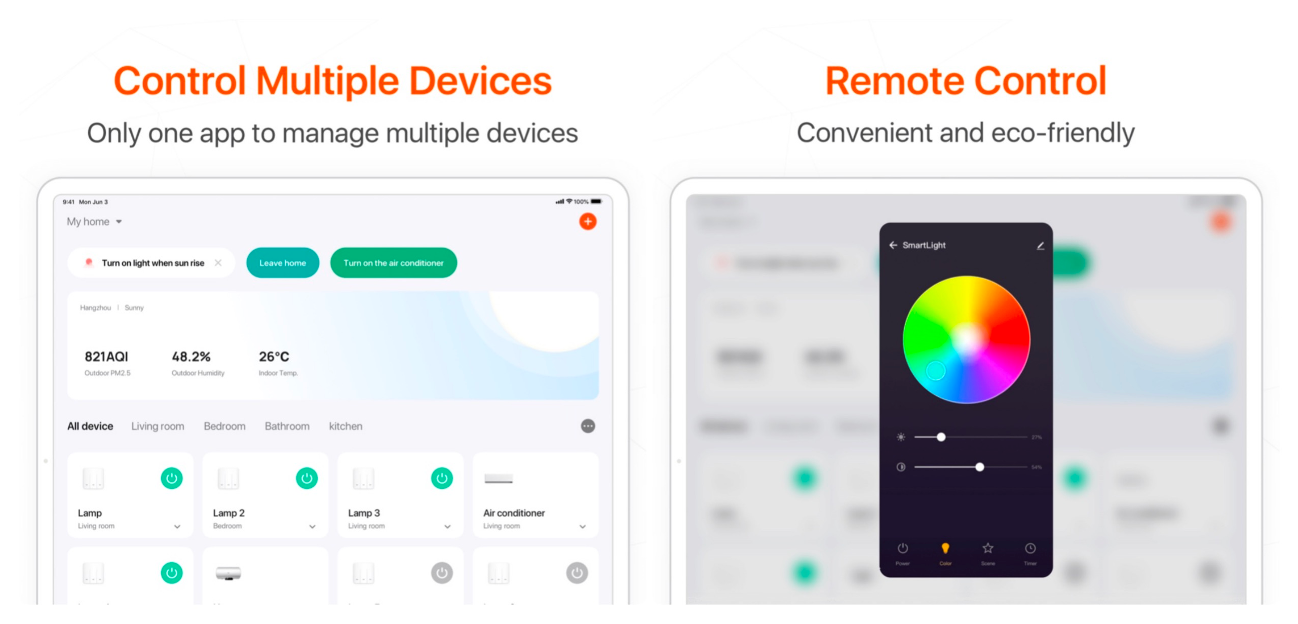
Extend the support for more terminals and add compatibility with tablets.